


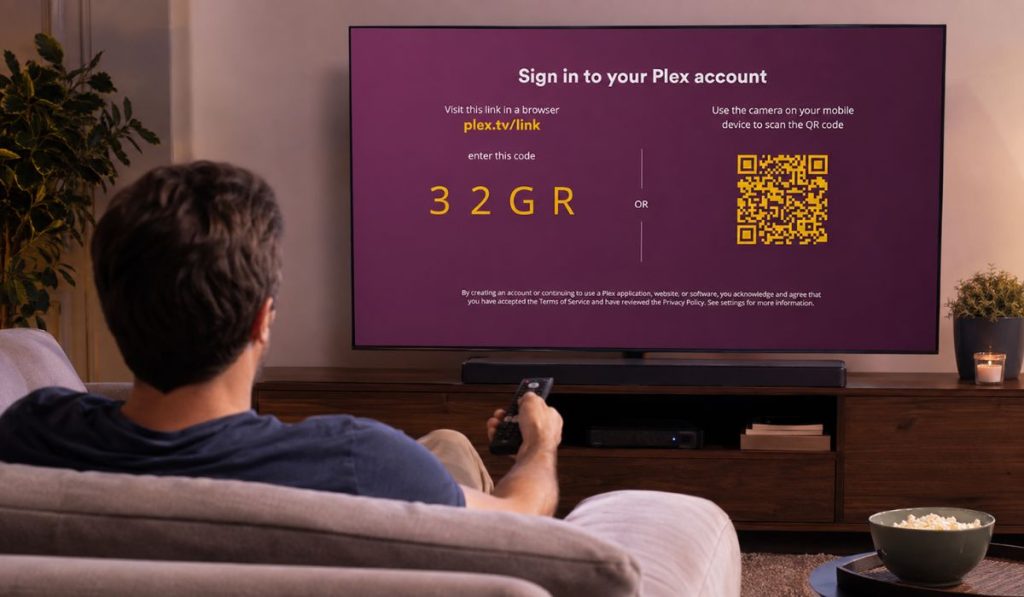
Signing in to Plex on a smart TV is a little different from signing in on a phone. Typing a long email address and password with a TV remote would be slow, so Plex gives you a short link code instead.
The code appears inside the Plex app on your TV, streaming device, or game console. You then enter it at plex.tv/link using a phone, tablet, or computer. Once Plex accepts the code, the TV app signs in to your account automatically. This guide explains each step and what to do if the code doesn’t work.
What Is a Plex TV Link Code?
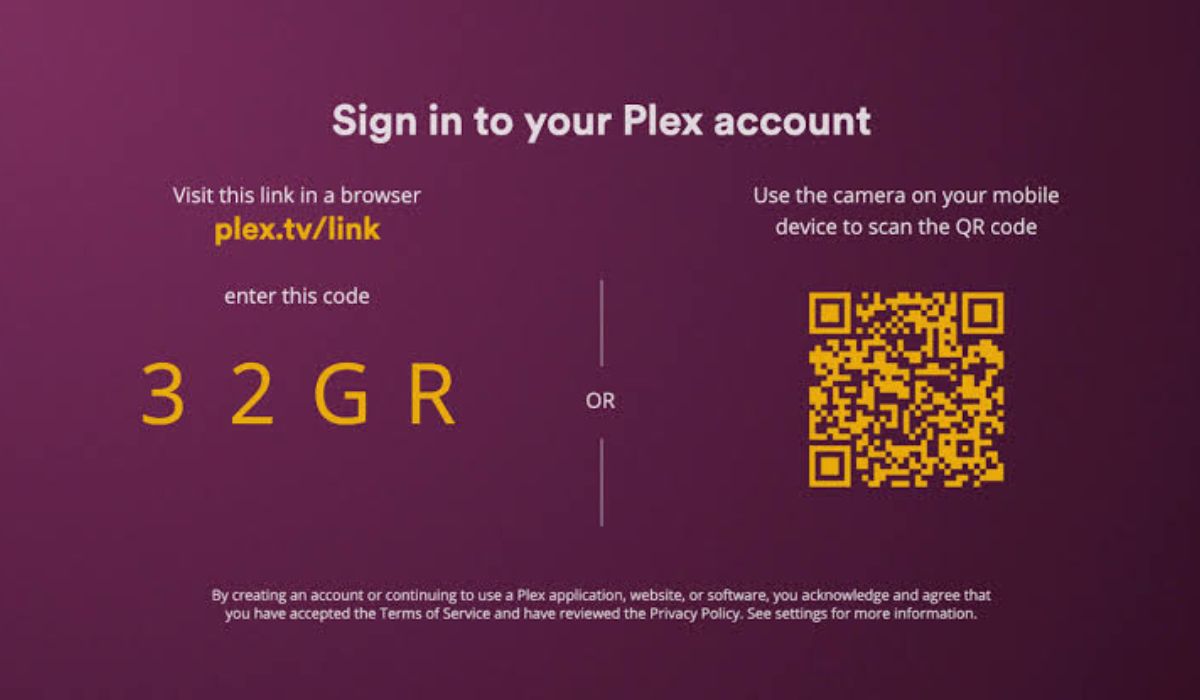
A Plex TV link code is a temporary four-character code used to connect a large-screen Plex app to your account. You’ll normally see it after selecting Sign In inside the Plex app on a smart TV, Roku, Fire TV, Apple TV, PlayStation, Xbox, or another supported device.
The link code is not your Plex password. It’s also different from a Plex Home PIN or a two-factor authentication code. Each one has a separate purpose.
| Code Type | What It Does | Where You Find It |
|---|---|---|
| Plex TV link code | Connects a TV app to your account | Plex app on the television |
| Plex account password | Signs you into your main account | Plex website or supported app |
| Two-factor code | Confirms your identity during login | Authenticator app |
| Plex Home PIN | Protects a user inside Plex Home | Plex user-selection screen |
A link code is meant for the device currently showing it. It may expire if you leave the screen open for too long, so complete the process soon after it appears.
What You Need Before Entering the Plex Code
You don’t need much to connect Plex to your TV. Still, having everything ready will make the setup quicker.
Before starting, make sure you have:
- A supported smart TV, streaming player, or game console
- The official Plex app installed on that device
- A free Plex account
- A phone, tablet, or computer with a web browser
- An internet connection on both devices
- Access to your Plex email, password, Google login, or Apple login
- The latest available version of the Plex TV app
You don’t normally need Plex Pass just to link a television. A paid plan may provide extra features, but creating an account and connecting a supported player are separate from that subscription.
If you want to watch media stored on your own computer or NAS, your Plex Media Server must also be running. You can still link the TV without it, but your personal libraries won’t appear until the server is available.
How to Enter Your Plex TV Link Code
Keep the Plex code visible on your television while completing the browser steps. Follow the process in order because closing the code screen may cancel the current code.
1. Install and Open the Plex App on Your TV
Open the official app store provided by your smart TV or streaming device. Search for Plex, confirm that you have selected the proper app, then install it. If Plex is already installed, check whether an update is available.
Launch the app after installation. Menu positions can look slightly different on Roku, Fire TV, Android TV, Google TV, Apple TV, and game consoles. The main sign-in process is still much the same.
Avoid downloading an unofficial Plex application or APK from an unknown website. Use the official store built into your TV or streaming device.
2. Select Sign In to Display the Plex Code
When Plex opens, move through the welcome screen and select Sign In. Don’t choose Sign Up if you already have an account.
The television should now display a four-character link code. Some devices may show a QR code beside it as well. Leave this screen open and write down the characters exactly as shown.
If you close the screen or return to another menu, the code may stop working. Open the Sign In screen again to create a fresh one when needed.
3. Open the Plex Link Page on a Phone or Computer
Pick up your phone, tablet, or computer and open a trusted web browser. Type this address directly into the address bar:
- plex.tv/link
Make sure you enter it into the browser’s address bar rather than a search box. Search results can sometimes display third-party setup pages that have nothing to do with Plex.
If the TV displays a QR code, you can scan it using your phone’s normal camera app. Tap the detected web address and check that it opens a Plex page before continuing. The QR code saves you from typing the address, but you may still need to sign in.
4. Sign In to the Correct Plex Account
The Plex link page may ask you to sign in. Use the same account that owns your Plex Media Server or has access to the libraries you want to watch.
Depending on how you created the account, you can sign in with:
- A Plex email address or username and password
- Your linked Google account
- Your linked Apple account
Check the account name or profile image shown in the browser before entering the TV code. This matters when several people use the same computer or when you have more than one Plex account.
An existing browser session can sign you in automatically. If it opens the wrong account, sign out first or use a private browser window. Linking the TV while the wrong account is active can leave you with an empty home screen or unfamiliar libraries.
5. Enter and Submit the Four-Character Code
Find the code-entry box on the Plex link page. Type the four characters displayed on your television, then check them before submitting.
Complete the step like this:
- Keep the TV code screen open.
- Enter the four characters on the Plex link page.
- Check that each character matches.
- Select the button to submit or link the device.
- Wait for a confirmation in the browser.
- Keep the page open until the TV responds.
You don’t need to enter your Plex password into the television’s code field. The browser handles account authentication, while the short code tells Plex which TV app should receive that account.
Don’t share a live code in a public comment, screenshot, or support post. It’s temporary, but it should still be treated as private while active.
6. Wait for the Plex TV App to Refresh
After Plex accepts the code, the television should refresh automatically. It may take a few seconds. You should then see the Plex home screen, user selection, or content connected to your account.
Check that the correct account or Plex Home user appears. If the browser confirms success but the TV remains on the code screen, wait briefly before closing the app. A slow connection can delay the refresh.
An empty library doesn’t always mean linking failed. The TV may be signed in correctly while your Plex Media Server is offline or attached to another account. Those are separate issues and need different checks.
How to Use a Plex QR Code Instead
Some Plex apps show a QR code next to the four-character link code. This gives you a quicker way to open the correct page on a phone.
To use it:
- Open the regular camera app on your phone.
- Point the camera at the QR code on the TV.
- Tap the Plex address detected by the camera.
- Check that you’re signing in to the correct Plex account.
- Approve or complete the device-linking request.
You usually don’t need a separate QR scanner because most current phones can scan codes through the camera. Don’t install a scanner promoted by an unrelated pop-up.
The QR method replaces some typing, but it doesn’t remove the account check. Always confirm which Plex account is active before approving the TV.
Plex TV Link Code Steps by Device
The wording and button placement can vary, but most large-screen Plex apps follow the same basic process.
| Device | Where to Begin | Linking Method |
|---|---|---|
| Android TV or Google TV | Open Plex and choose Sign In | Four-character code or QR code |
| Apple TV | Start account sign-in in Plex | Link code |
| Roku | Open Plex and select Sign In | Code entered through another browser |
| Amazon Fire TV | Open Plex and choose Sign In | Link code or QR code where available |
| PlayStation | Select Sign In in the Plex app | Four-character code |
| Xbox | Open the Plex sign-in screen | Link code |
| Xumo or Xfinity | Select Sign In inside Plex | Displayed URL and link code |
You don’t need a paid PlayStation Plus plan just to link Plex on a PlayStation. You do need a Plex account and a working internet connection.
Older TV models may show a slightly different menu. Update Plex through the device’s app store if the Sign In option is missing or the app looks very different.
What to Do If the Plex Link Code Is Not Working
A Plex code may be rejected because it expired, was entered incorrectly, or came from a TV screen that has already been closed. The browser can also connect the device successfully while the TV app fails to refresh.
Generate a New Code If the Current One Expired
Link codes are temporary. If Plex says the code is invalid or expired, don’t keep submitting the same one.
Return to the television and leave the current code screen. Select Sign In again to generate a new four-character code. Enter that new code at plex.tv/link while keeping the TV screen open.
Check similar-looking characters carefully. A quick typing mistake is easy when reading the code from across the room. If possible, bring your phone closer to the television or scan the QR code.
Confirm the Browser Is Using the Right Account
Sometimes the code works, but Plex opens an account with no personal libraries. This usually happens when the browser was already signed in to another Plex account.
Check the account name and email shown in the browser. If they aren’t correct, sign out and start again with a new TV code. A private or Incognito window can help when the browser keeps returning to the wrong account.
Be careful when using Continue with Apple or Continue with Google. Select the login already connected to your main Plex account. Using a different email can place you in another account, which may look like a linking failure even though the TV connected successfully.
Restart and Update the Plex TV App
If the browser accepts the code but the television doesn’t change, the Plex app may be stuck. Give it a few seconds first, then try these actions:
- Close the Plex app completely.
- Reopen it and check whether the account is connected.
- Restart the television or streaming player.
- Check the device’s app store for a Plex update.
- Open Sign In again to generate a fresh code.
- Submit the new code from the browser.
There’s no need to factory-reset the television for this problem. A normal app or device restart is enough for the first attempt.
Check the Internet Connection on Both Devices
Your phone may submit the code successfully while the television has lost its connection. The reverse can also happen. Test both devices separately instead of assuming one successful page proves everything is online.
| What Happens | Likely Problem |
|---|---|
| The link page won’t open on your phone | Phone or internet connection |
| Browser accepts the code but TV stays unchanged | TV app or TV network |
| Both devices fail to reach online services | Router or wider internet problem |
| Other TV apps work normally | Plex app or temporary Plex service issue |
| Every new code is rejected | Account, browser, or temporary service problem |
Open another trusted app on the television to test its connection. If that also fails, restart the TV and router. Make sure the phone hasn’t switched to mobile data while the television remains on a disconnected Wi-Fi network.
The phone and TV do not always need to use the same local network just to submit the account link. Both do need working internet access.
Why Plex Is Linked but Your Library Is Missing
Linking signs the Plex player into your account. It doesn’t switch on your home server, create a library, or repair Remote Access. If the TV shows your account but no personal media, the code probably did its job.
Check whether:
- Plex Media Server is running.
- The server is signed in to the same Plex account.
- Your movies and shows still appear in the Plex Web App.
- The correct Plex Home user is selected.
- A shared-library invitation is still active.
- The server computer or NAS is connected to the network.
- Remote Access works when watching away from home.
If free Plex content appears but your own library does not, focus on the server rather than entering another TV code. Repeating the linking process won’t bring an offline server back.
How to Link the TV to a Different Plex Account
You may need to switch accounts after using the wrong browser session or giving the television to someone else. Signing out won’t delete the Plex account or erase the Media Server.
Follow these steps:
- Open the account or settings area in the Plex TV app.
- Select Sign Out.
- Return to the Plex welcome or Sign In screen.
- Generate a new four-character code.
- Sign out of Plex in the phone or computer browser.
- Sign in with the account you want to use.
- Open plex.tv/link.
- Enter the new code and wait for the TV to refresh.
If you use Plex Home, you may only need to switch users instead of linking another main account. Check the user-selection screen before signing out completely.
Plex TV Link Code Safety Tips
The normal Plex linking process is simple and doesn’t require help from an activation company. Be cautious if another page asks you to pay for entering a code or requests information that doesn’t fit the setup.
Keep these points in mind:
- Enter the code only on plex.tv/link.
- Don’t pay a third party to activate the Plex app.
- Never post a live code publicly.
- Confirm the browser account before submitting.
- Use a strong and unique Plex password.
- Turn on two-factor authentication if it suits your account.
- Keep account recovery codes in a safe place.
- Sign out before selling or giving away the device.
- Remove access from old devices you no longer own.
- Don’t share your Plex password with someone helping remotely.
A TV link code isn’t the same as your password, but it should remain private while active. If an unfamiliar person asks you to read the code aloud, cancel it and generate another one later.
Final Thoughts
To enter a Plex TV link code, open Plex on the television and select Sign In. Keep the four-character code visible, visit plex.tv/link on a phone or computer, confirm the correct account, and submit the code. The television should refresh within a short time.
If the code expires, generate a fresh one rather than retrying the old code. When Plex links but your personal library stays missing, check the Media Server and account instead. Which device are you linking, and what happens after you submit the code?