


You open SwatchSeries to watch something, but the website doesn’t load. Maybe the homepage opens while the video player stays blank. Some users may instead see endless buffering, unwanted redirects, or a browser security warning.
These problems don’t all have the same cause. The website could be temporarily unavailable, but your browser, internet connection, or saved site data may also be responsible. There’s another concern too. Similar-looking domains and fake Play buttons can lead to unsafe pages, so it’s important to troubleshoot carefully. This guide covers normal browser and connection fixes without using mirror sites or bypassing security warnings.
What Does “SwatchSeries Not Working” Mean?
“SwatchSeries not working” can describe several different problems. The whole website may be offline, or only one video source may have failed. Sometimes the issue appears in one browser because of old cookies, cached files, or an extension.
Start by identifying what happens when you open the page:
| What You See | Possible Cause |
|---|---|
| Website doesn’t open | Site outage, DNS error, old address, or network restriction |
| Connection times out | Website server or internet connection problem |
| Security warning appears | Certificate, domain, or unsafe-page concern |
| Homepage loads but video doesn’t | Player script, browser, or video-source problem |
| Video keeps buffering | Weak connection, Wi-Fi trouble, or source congestion |
| Play button opens another page | Advertisement, redirect, or fake button |
| Browser starts an unknown download | Potentially unsafe file |
| Site fails in one browser only | Cache, cookies, extension, or browser setting |
The exact symptom matters. For example, clearing cookies might help a broken page in one browser. It won’t bring back a website that is offline, and it should never be used as a reason to ignore a security warning.
Why Is SwatchSeries Not Working?
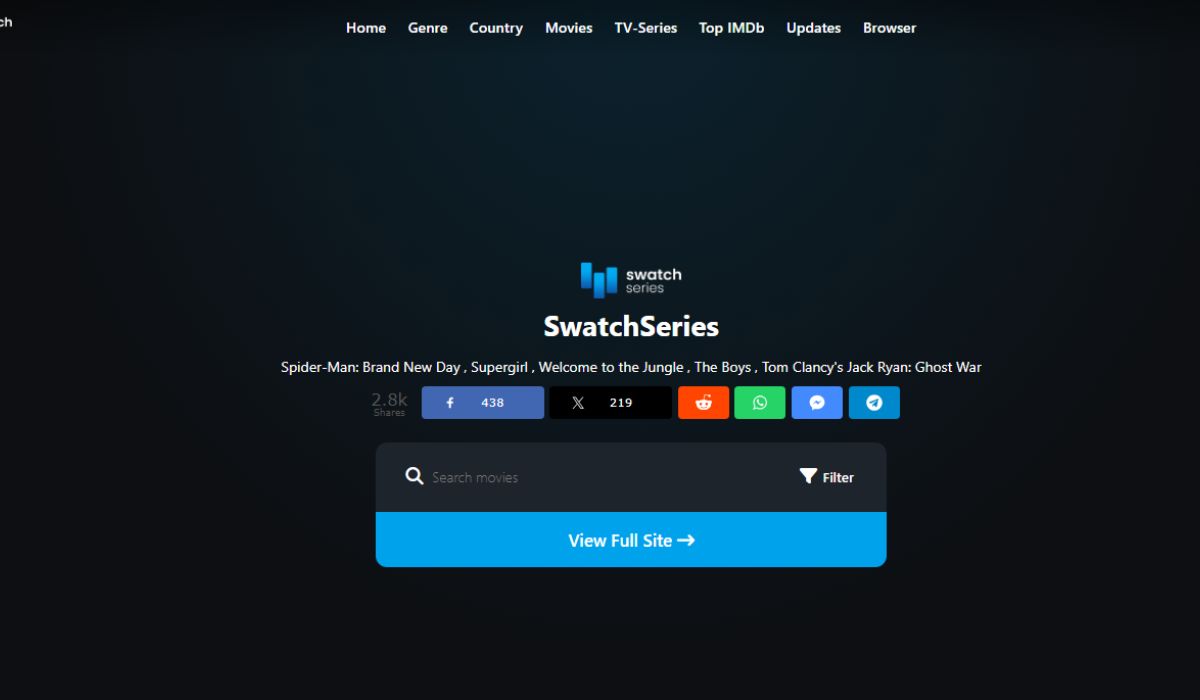
SwatchSeries may stop working when its website server or a separate video source goes offline. The homepage and video player may use different services, so one can work while the other fails. A saved bookmark may also point to an address that no longer responds.
Problems on your device are possible as well. Old browser data can prevent pages from loading correctly. A privacy extension might block a player script, while slow Wi-Fi can cause constant buffering.
Other possible causes include:
- The website is temporarily unavailable.
- The selected video source has been removed.
- Cookies or cached files are damaged.
- A browser extension blocks part of the page.
- The browser is outdated.
- Your internet connection is unstable.
- DNS cannot find the correct server address.
- The device has the wrong date or time zone.
- A school, workplace, hotel, or internet provider blocks the page.
- The address leads to an unrelated or copied website.
- Browser security has stopped a suspicious connection.
You shouldn’t assume that every similarly named domain belongs to the same operator. If the old address stops working, searching for random replacement domains can put your device and personal information at risk.
Before Troubleshooting, Check the Address and Warning
Look closely at the browser address bar before doing anything else. Strange spelling changes, added words, or an unusual ending may indicate a copied website. A padlock or HTTPS connection only means the connection is encrypted. It doesn’t prove that the website itself is trustworthy.
Close the page if you notice any of these warning signs:
- The browser reports a deceptive or dangerous website.
- A certificate warning blocks the connection.
- The page asks you to install a special video player.
- A pop-up says you must download a browser update.
- A verification page asks you to run a command.
- The website requests payment details without a clear reason.
- Clicking anywhere opens several unrelated tabs.
- An unknown file begins downloading automatically.
Don’t enter an email password, card number, or Security Code on an unfamiliar streaming page. Avoid allowing browser notifications too. Those permissions can be used to send misleading alerts even after you close the website.
How to Fix SwatchSeries Not Working
If SwatchSeries isn’t loading normally and your browser shows no safety warning, follow these fixes in order. Stop if the page redirects repeatedly, starts a download, or triggers a security alert.
1. Check Whether the Website Is Down
Test the page in another updated browser. You can also try it on another device connected to the same Wi-Fi. If it fails in every browser and on every device, the website itself may be unavailable.
To separate a website outage from a network problem, briefly test the page using mobile data. Don’t start a full video because streaming can consume a lot of data. If the website fails on Wi-Fi and mobile data, local router settings are less likely to be responsible.
When a website is offline, changing browser settings won’t bring it back. Give it some time and check again later. Avoid repeatedly refreshing the page because that rarely helps and may open more advertisements.
Be careful with unofficial status pages. Some may use an outage claim to send visitors toward lookalike streaming domains. A missing website is safer to leave alone than replace with an unverified copy.
2. Confirm Your Internet Connection Works
Open two unrelated and trusted websites. If they also load slowly or fail, the problem is probably your internet connection rather than one streaming page.
Try these connection checks:
- Pause other downloads, cloud backups, and video streams.
- Move closer to the Wi-Fi router.
- Disconnect and reconnect Wi-Fi.
- Restart your phone, tablet, or computer.
- Turn the router off without pressing its factory-reset button.
- Wait about one minute, then turn it back on.
- Test the browser after the internet connection returns.
Use an Ethernet cable if one is available. A wired connection can help show whether weak Wi-Fi is causing buffering.
If every website remains slow, contact your internet provider. Don’t make advanced router changes for a problem affecting the whole connection.
3. Try Another Browser or a Private Window
Open a private or Incognito window and test the page there. Private browsing usually starts with fresh site data, and some extensions may not run in that window. This makes it a useful test, though it doesn’t make an unsafe website safe.
If the page works privately, your normal browser may have a cookie, cache, or extension problem. Close the private window and continue with the next fixes. There’s no need to use private browsing every time.
You can also test one other trusted browser, such as Chrome, Firefox, Edge, or Safari. When the website fails in one browser but works in another, the website server probably isn’t the main problem. Focus on the settings and saved data in the browser that fails.
Don’t install a browser promoted by a pop-up or streaming page. Download browser updates only through the browser’s built-in update screen or your device’s official app store.
4. Clear Cookies and Cache for the Website
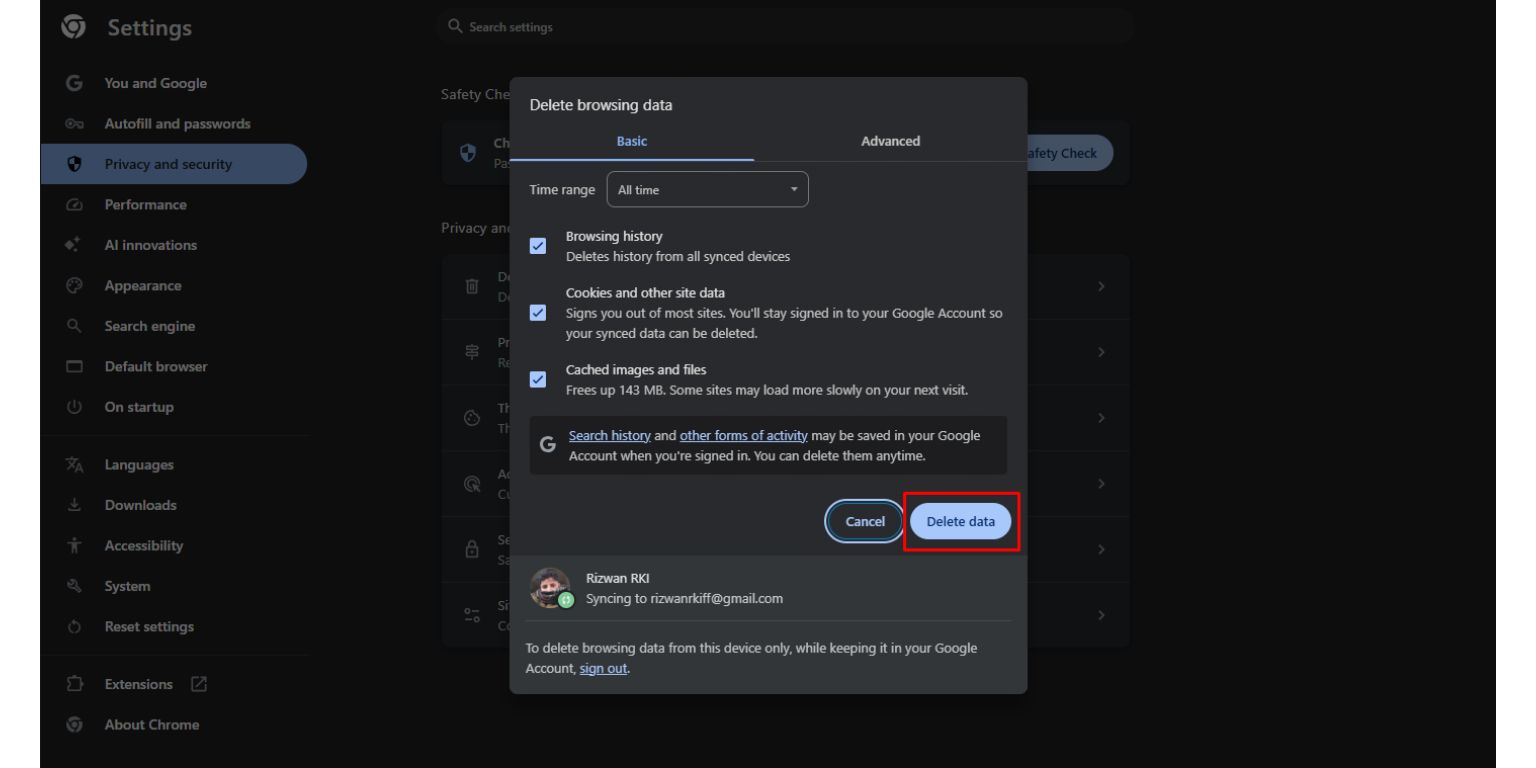
Browsers save cookies and temporary files to make websites load faster. Those files can become outdated after a page changes, which may leave the player blank or keep the site stuck on a loading screen.
Clear data only for the affected website when possible. This avoids removing saved sessions and preferences from every other page you use.
Chrome or Edge
Open the website and select the site-information control near the address bar. Find the cookies or site-data option, then remove data stored for that page. Close the tab and reopen the browser before testing again.
Firefox
Open the site-information or privacy control beside the address. Clear cookies and site data for the current website, then reload the page. You can also manage individual websites through Firefox privacy settings.
Safari
Open Safari’s privacy settings and find the website-data controls. Search for the relevant address, remove its stored data, then close and reopen Safari.
Clearing site data may remove saved preferences or sign you out. Don’t enter account details again if the website address looks different or the page behaves strangely after reloading.
5. Review Browser Extensions and Media Settings
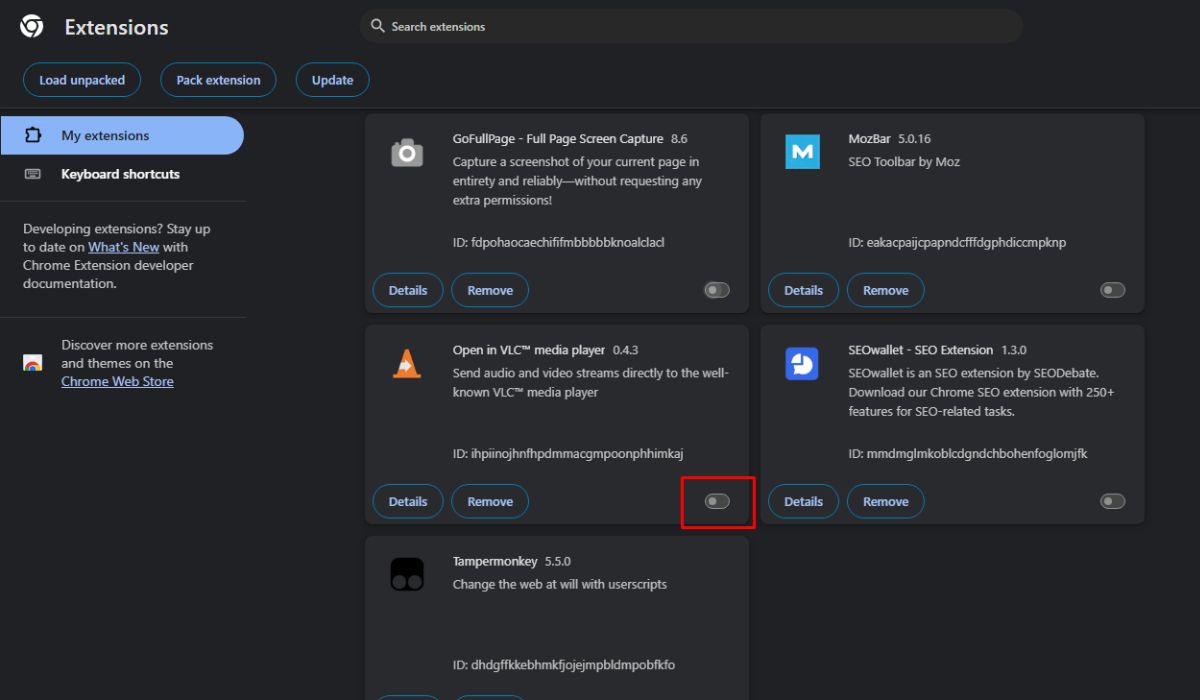
Content blockers, privacy extensions, and script controls may stop a video player from loading. This is more likely when the page works in a private window but fails during normal browsing.
Open your browser’s extension page and review anything installed recently. Disable one extension at a time, reload the page, and check the result. Turn it back on if it wasn’t responsible. This takes a little longer, but it helps you find the exact conflict.
Also check whether JavaScript was disabled across all websites. Many video players require it to display basic controls. If JavaScript works on other trusted media websites, avoid making broad changes just for one page.
Don’t disable these protections to make a streaming page work:
- Phishing and malware protection
- Certificate warnings
- Safe browsing controls
- Antivirus web protection
- Download scanning
- Pop-up blocking across every website
A fake Play button or repeated redirect isn’t a browser compatibility problem. Weakening security may only allow the unwanted page to do more.
6. Fix Video Playback and Buffering Problems
If the homepage opens but a video doesn’t play, test a video on a trusted website. This helps show whether the problem affects your browser generally or only the selected source.
| Playback Result | Likely Direction |
|---|---|
| All trusted video sites buffer | Connection or device performance problem |
| Only one video fails | Missing or broken media source |
| Several videos on one website fail | Player or website-side issue |
| Sound works but the picture is blank | Browser graphics or media problem |
| Lower quality plays normally | Limited bandwidth or source congestion |
| Play opens an unrelated page | Redirect or advertisement |
Pause large downloads and close unused streaming tabs. Restart the browser, then use a lower quality only when the player provides a normal built-in quality control. Don’t click a pop-up claiming that you need a special HD player.
A single missing video usually cannot be repaired through your browser. Its page may still exist even after the actual media file has been removed. In that case, look for the movie or show through a licensed streaming service.
If all browser videos have a black screen, update the browser and restart the device. Hardware acceleration may sometimes affect video display, but change that setting only when the same problem appears on trusted video platforms too.
7. Check the Device Time and Refresh DNS
An incorrect date or time can cause a browser to reject an HTTPS certificate. Check the device clock, date, and time zone. Turn on automatic time if it suits your setup, then close and reopen the browser.
When the clock is correct but the website address still cannot be found, Windows users can clear the DNS cache. DNS connects a domain name to the server address needed by the browser.
Follow these steps:
- Open the Windows Start menu.
- Search for Command Prompt.
- Right-click it and select Run as administrator.
- Enter the following command:
ipconfig /flushdns - Press Enter and wait for the confirmation.
- Close Command Prompt and reopen the browser.
This removes saved DNS information so Windows can request it again. It doesn’t clear browser history or delete personal files.
If a school, workplace, provider, or legal notice is blocking the page, don’t change DNS settings to get around it. A deliberate restriction isn’t the same as a damaged DNS cache.
8. Stop If You See Redirects, Downloads, or Security Warnings
Some failures aren’t normal website errors. If clicking the player opens several tabs, requests notification access, or starts an unknown download, stop troubleshooting that page.
Take these steps if something suspicious happened:
- Close the tab without clicking inside the pop-up.
- Cancel any unexpected download.
- Delete the file without opening it.
- Remove notification permission granted to the website.
- Check for extensions installed around the same time.
- Run a scan with your device’s trusted security software.
- Restart the browser after the scan finishes.
If you entered a password on a suspicious page, change it from a clean device. Change the password anywhere else you reused it too. Turn on two-factor authentication for important accounts where available.
Contact your card provider promptly if you entered payment information. Explain what happened and follow its advice. Don’t return to the page to look for a cancellation button.
When the website remains unavailable, search for the movie or series on licensed streaming platforms. You can also check the official website of the studio, broadcaster, or distributor. That’s safer than moving between unknown replacement domains.
How to Prevent Similar Streaming Problems
Not every streaming error is dangerous. Still, keeping the browser clean and updated can prevent common loading problems while reducing exposure to fake pages.
A few habits can help:
- Keep your browser and operating system updated.
- Leave phishing and malware protection turned on.
- Avoid addresses promoted through redirects and pop-ups.
- Never install an unknown video player or codec.
- Use a different password for each important account.
- Check browser notification permissions regularly.
- Remove extensions you no longer use.
- Download applications only through trusted stores.
- Avoid entering payment information on unverified pages.
- Use licensed services when the title is available there.
Bookmark verified services rather than relying on search advertisements each time. Search ads can sometimes lead to copied pages with names that closely match the website you expected.
Final Thoughts
If SwatchSeries is not working, identify the exact failure first. Test another trusted website, browser, device, and connection. When the problem happens only in one browser, clearing that website’s data or checking extensions may fix it.
If the website fails everywhere, there may be nothing to repair on your device. Don’t ignore certificate warnings, install unknown players, or move through random lookalike domains. Which problem are you seeing: the page won’t open, the video won’t play, or the site keeps redirecting you?