


You open YouTube and choose a video, but the player says “Video unavailable” or “This content isn’t available.” You try another video and get the same result. Even popular public videos may refuse to play.
One unavailable video is usually caused by deletion, privacy, age limits, copyright, or a regional restriction. When every YouTube video is unavailable, the cause is more likely connected to your account, app, browser, device, network, or YouTube itself. This guide will help you identify the affected area before you start clearing data or reinstalling apps.
What Does “Video Unavailable” Mean on Every YouTube Video?
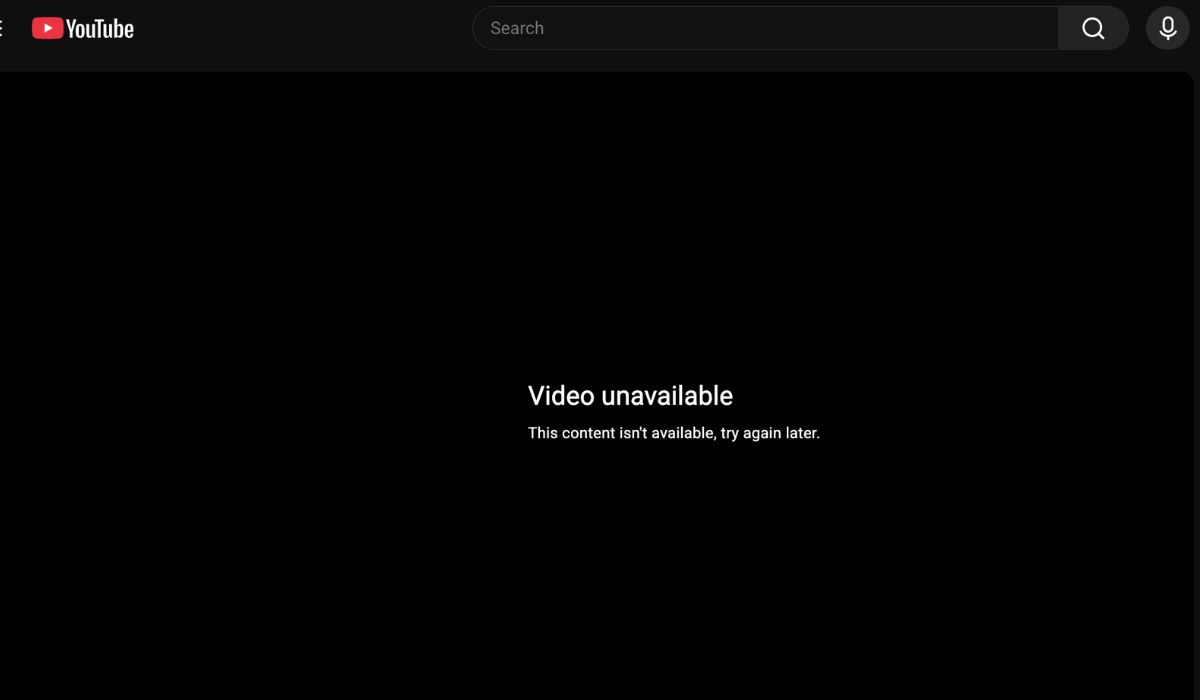
The message means YouTube cannot provide the selected video to your current app, browser session, account, or connection. It doesn’t always mean the creator removed the video. That explanation becomes less likely when many unrelated public videos fail together.
The number of affected videos gives you an important clue:
| What Is Affected? | More Likely Cause |
|---|---|
| One video | Deletion, privacy, copyright, age, or country restriction |
| Videos from one channel | Removed content or a channel-level issue |
| Mature videos | Restricted Mode, age setting, or supervised account |
| Every video on one account | Account or YouTube channel problem |
| Every video on one device | App, browser, or device issue |
| Every video on one network | Router, DNS, filter, or ISP problem |
| Every video everywhere | YouTube service problem |
Test a known public video while troubleshooting. Don’t use an unlisted, private, members-only, or age-restricted upload because it can confuse the results.
Why Does YouTube Say Every Video Is Unavailable?
A temporary problem with YouTube can make videos unavailable to many viewers. Sometimes the fault affects only certain accounts, devices, or networks. The homepage may still load normally even though the player cannot request the actual video.
Common causes include:
- A temporary YouTube playback problem
- An issue affecting one Google Account or YouTube channel
- Restricted Mode or a supervised account
- School, workplace, or family network controls
- Damaged YouTube cookies or app cache
- A browser extension interfering with the player
- An outdated browser or YouTube app
- An older device that YouTube no longer supports
- A VPN, proxy, private DNS, or parental-control filter
- Router or ISP routing trouble
- An incorrect date, time, or time zone
Deletion and copyright restrictions normally affect individual uploads. They’re unlikely to make every unrelated public video unavailable at the same time.
Find Out Whether the Account, Device, or Network Is Responsible
Before changing settings, run a few controlled tests. Use the same public video each time, and change only one thing during each test.
| Test | If the Video Works | Likely Problem Area |
|---|---|---|
| Watch while signed out | Account is removed from the test | Google Account or YouTube channel |
| Switch to another account | Device and network remain unchanged | Original account |
| Open an Incognito window | Normal browser data is bypassed | Cookies or extensions |
| Try another device | Account and network can be compared | Original device |
| Switch to mobile data | Home Wi-Fi is bypassed | Router, DNS, filter, or ISP |
| Try another Wi-Fi network | Device and account remain unchanged | Original network |
These results can save a lot of time. For example, if one account fails on your phone, computer, and TV, reinstalling the app on all three devices probably won’t help. The account is the shared factor.
How to Fix Every YouTube Video Being Unavailable
If every YouTube video says unavailable, follow these fixes one by one. Begin with the account test, then check the service, network, app, and browser.
1. Test YouTube While Signed Out or Using Another Account
Open a known public video while signed into the affected account. Next, sign out and play that same video again. You can also open a private or Incognito window, which usually starts without your active YouTube session.
If the video works while signed out, sign in with another Google Account and test it again. Users with multiple YouTube channels under one Google Account should switch channels too. A problem may follow one YouTube channel rather than the entire Google Account.
Compare the results carefully:
- Affected account fails, but signed-out viewing works
- Another account works on the same device
- One YouTube channel fails, but another channel works
- The affected account fails on several devices
- Clearing local browser data makes no difference
These results point toward an account-specific or channel-specific issue. Don’t delete your account, channel, subscriptions, or watch history. Move to the feedback step later in this guide if the same account fails everywhere.
2. Check for a Temporary YouTube Service Problem
YouTube can experience a playback fault even when its homepage and search results still load. Before reinstalling anything, see whether every account fails across several devices.
A service problem becomes more likely when:
- Multiple Google Accounts cannot play videos.
- Phones, computers, and smart TVs fail together.
- The problem continues on Wi-Fi and mobile data.
- The error started suddenly without any setting changes.
- Many other users began reporting the same message.
When those signs appear together, wait and test again later. A local app reset cannot repair a problem on YouTube’s side. Constantly reinstalling the app may only sign you out and remove saved downloads.
If one account fails while other accounts play normally, the issue probably isn’t a full YouTube outage. Continue with the account and browser checks instead.
3. Switch Networks and Restart the Router
A network can load YouTube’s homepage while blocking or failing to reach the servers used for video playback. Testing another connection helps reveal this difference.
Follow these steps:
- Open another trusted streaming website and test a short video.
- On your phone, turn off Wi-Fi and switch to mobile data.
- Play the same public YouTube video again.
- Restart the affected phone, computer, or television.
- Turn off your router without pressing its factory-reset button.
- Wait about one minute, then turn the router back on.
- Test YouTube after the internet connection returns.
If YouTube works on mobile data but fails on Wi-Fi, focus on the home network. The router, DNS settings, parental controls, or ISP route may be involved. Mobile video can use a lot of data, so keep the test short.
Try an Ethernet cable if Wi-Fi keeps dropping. When every device still fails only through one internet connection, contact the ISP and explain that YouTube pages load but video playback does not.
4. Turn Off a VPN, Proxy, or Custom Network Filter
A VPN changes the route and location YouTube sees for your connection. If that route is blocked or unstable, every video may appear unavailable. A browser VPN extension can cause the same problem even when no separate VPN application seems active.
Disconnect the VPN completely, then close and reopen YouTube. On a computer, also review the proxy settings. If you don’t intentionally use a proxy on a personal device, make sure an old manual setup isn’t still enabled.
Private DNS services, parental controls, and router content filters can also block parts of YouTube. The website may open while the video stream fails. Temporarily pause a filter you personally control, run one test, then turn it back on if it wasn’t responsible.
Don’t try to bypass controls managed by a school, employer, parent, or network administrator. Ask the person responsible for that network whether YouTube playback is permitted.
5. Check Restricted Mode and Supervised Account Settings
Restricted Mode hides content that YouTube identifies as potentially mature. It normally affects some videos rather than every ordinary public upload. Still, it’s worth checking when many videos are missing or unavailable.
Check Restricted Mode in a Browser
- Open YouTube and select your profile picture.
- Find Restricted Mode in the account menu.
- Check whether it is on.
- Turn it off if you control the setting and don’t need it.
- Reload the video.
Check It in the Mobile App
- Open the YouTube app.
- Tap your profile picture.
- Select Settings.
- Open General.
- Review the Restricted Mode control.
You may be unable to change this setting on a supervised Google Account. A school, university, library, workplace, or family network may also enforce it. When YouTube says an administrator controls Restricted Mode, contact that administrator instead of trying to bypass it.
If Restricted Mode is off and even harmless public videos fail, it probably isn’t the main cause. Continue with the app and browser repairs.
6. Update YouTube, the Browser, and Your Device
YouTube changes its app and playback requirements over time. An old app may open but fail when it tries to play current video formats or make account requests.
Use the correct update path for your device:
| Platform | What to Update |
|---|---|
| Android | YouTube, Google Play Store, and Android |
| iPhone or iPad | YouTube and iOS |
| Windows or macOS | Chrome, Firefox, Edge, or Safari |
| Smart TV | YouTube app and TV firmware |
| Streaming device | YouTube app and device software |
| Game console | YouTube app and console system |
Restart the device after installing updates. This gives the app a clean start and completes any pending system changes.
Older phones, televisions, and streaming devices may no longer support the current YouTube app. If a mobile device cannot install the latest version, try m.youtube.com in an updated browser. A TV may need a firmware update, though not every older model receives one.
If YouTube clearly says the device is no longer supported, clearing cache won’t change that requirement. Use a supported browser or another current streaming device instead.
7. Clear YouTube Cache, Cookies, or App Data
Saved YouTube files can become damaged or conflict with a newer website or app version. Clear them only after tests show that the problem is limited to one browser or device.
Clear YouTube Data in a Browser
Open the browser’s privacy or site-data settings and search for YouTube. Remove YouTube cookies and cached data, then close and reopen the browser. Sign in again and test the same public video.
Removing data for YouTube alone is better than clearing every saved website when the browser provides that option. You may be signed out, but unrelated browsing sessions should remain untouched.
Clear YouTube Cache on Android
Open the phone’s Settings, then go to Apps > YouTube > Storage and cache. Select Clear cache, restart the app, and test playback.
Use Clear storage only if clearing cache doesn’t help. That stronger option can reset app preferences, sign you out, and remove downloaded videos. Read the warning shown by your phone before confirming it.
Refresh YouTube on an iPhone or iPad
Close YouTube completely and restart the device first. If playback still fails only in the app, update it through the App Store. Offload or reinstall YouTube only after the simpler checks fail.
Reinstalling should not be your first move when the same account also fails in browsers and on other devices. That result points away from local app files.
8. Disable Browser Extensions One at a Time
Ad blockers, privacy tools, script blockers, and other extensions can interfere with YouTube’s player. An extension update may create a problem even when the browser worked normally the day before.
Private browsing provides a useful clue. If videos play in Incognito mode but fail in the normal window, cookies or extensions are likely involved.
Test extensions carefully:
- Open the browser’s extension manager.
- Start with recently installed or updated extensions.
- Disable one extension.
- Reload the same YouTube video.
- Repeat until playback returns.
- Update or remove the extension that causes the problem.
- Turn the other extensions back on.
Changing one extension at a time takes a bit longer, but it tells you which one is responsible. Disabling everything at once may make YouTube work without showing what caused the failure.
Also check whether JavaScript has been blocked for YouTube. The player requires it. Avoid weakening phishing, malware, certificate, or download protection just to make a video load.
9. Report an Account-Specific Playback Problem to YouTube
Report the issue when one account cannot play any public video across several devices, but signed-out viewing and other accounts work. At that point, repeatedly clearing cache and reinstalling the app is unlikely to help.
Open YouTube, select your profile picture, and choose Send feedback. Describe the problem clearly and include useful test results.
Add these details:
- The exact error message
- Confirmation that every public video fails
- Whether videos work while signed out
- Whether another account works
- Devices and browsers tested
- Networks tested
- The affected YouTube channel address
- When the problem started
- A screenshot of the error
Remove personal information from the screenshot before sending it. Never include your Google password, two-factor code, backup codes, or private account details.
You may not receive a personal reply. The report still gives YouTube the account, device, and error information needed to examine a wider fault. Keep the affected account instead of deleting it or creating a new account as a rushed permanent fix.
How to Prevent YouTube Playback Problems
You cannot prevent a YouTube service outage or an internal account fault. You can reduce common device, browser, and network problems by keeping your setup current and changing settings carefully.
A few habits can help:
- Keep the YouTube app and browser updated.
- Remove extensions you no longer trust or use.
- Change only one troubleshooting setting at a time.
- Keep the device date, time, and time zone correct.
- Review Restricted Mode after changing browser profiles.
- Keep smart TV and streaming-device firmware updated.
- Restart the router when several devices develop connection trouble.
- Keep Google Account recovery details current.
- Avoid deleting app data before checking whether the problem follows your account.
- Report account-specific failures instead of deleting the channel.
Save any important offline downloads before clearing app storage or reinstalling YouTube. Those actions may remove downloaded videos even when they don’t solve the original issue.
Final Thoughts
When every YouTube video is unavailable, look for the common factor. Test the same public video while signed out, with another account, in Incognito mode, on another device, and through another network. These checks show whether the problem follows your account, device, or internet connection.
If one account fails everywhere while other accounts work, report the issue to YouTube instead of repeatedly reinstalling apps. Do videos begin playing when you sign out or switch to another Google Account? Share that result in the comments.