


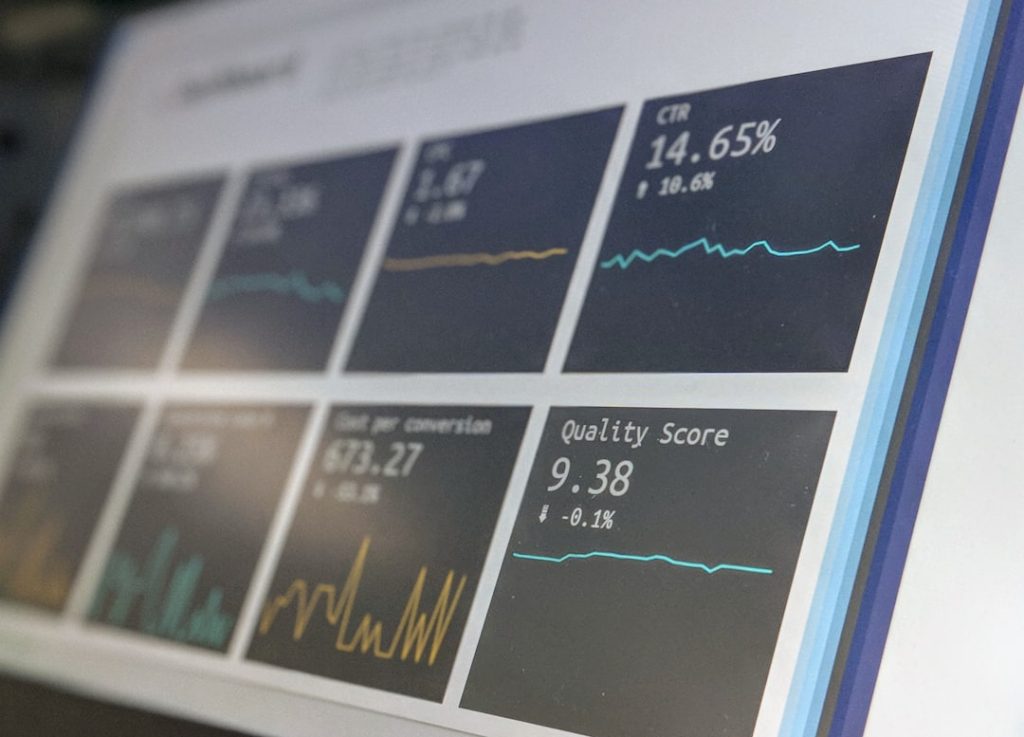
The average WooCommerce store has somewhere between fifteen and thirty active plugins. Shipping calculators, SEO optimizers, caching layers, security firewalls, image compressors, analytics dashboards. Each one solves a real problem, and collectively they form the operating stack that store owners spend most of their configuration time thinking about. The plugin ecosystem is the reason WooCommerce works as well as it does for small businesses. It’s also the reason so many store owners develop a blind spot about what plugins can’t tell them.
Plugins operate inside WordPress. They see the PHP process, the database queries, the hooks and filters that make up the application layer. What they don’t see is everything outside that boundary: whether customers can actually reach the store, whether the third-party services the store depends on are functioning, and whether the infrastructure underneath WordPress is healthy. A caching plugin can make your homepage load in 400 milliseconds. It cannot tell you that your SSL certificate expired three hours ago and every browser on earth is now showing a full-page security warning instead of your products.
These are the blind spots that live below the plugin layer. Five of them show up repeatedly in WooCommerce outage postmortems, and every one of them is preventable with monitoring that doesn’t exist inside the WordPress admin panel.
1. Your Checkout Is Down but Your Homepage Isn’t

WooCommerce stores with any kind of caching — WP Super Cache, W3 Total Cache, a Cloudflare page rule, or an NGINX FastCGI cache at the hosting level — serve their public pages from a static layer. The homepage, product listings, and category pages load from cache without ever touching PHP. This is a good thing for performance. It is a terrible thing for outage detection.
When PHP crashes, when MySQL stops accepting connections, when the server runs out of memory during a traffic spike, cached pages keep loading normally. A customer browsing your catalog sees a fast, perfectly functional store. The moment they click “Add to Cart” or proceed to checkout, they hit the dynamic layer, and that layer is gone. The cart page throws a 500 error or a white screen. The checkout form never loads.
You find out about this when a customer emails you, or when you check your orders at the end of the day and realize the last three hours are empty. The store looked fine from the outside. The buying path was broken underneath.
Monitoring the homepage is the equivalent of checking whether a restaurant’s sign is lit. It tells you nothing about whether the kitchen is open. The checkout page, the cart, and the account login are the pages that exercise the full WooCommerce stack, and those are the pages worth watching.
2. Payment Gateways Fail Without Telling You
Stripe had a partial outage in March 2024 that lasted about ninety minutes. PayPal has had multiple degraded-service windows in the past year. Square’s API has its own history. These aren’t obscure services run by small teams. They’re the payment processors that millions of stores depend on, and they go down.
When your payment gateway is experiencing issues, here’s what the customer sees: they fill out the checkout form, enter their card number, click “Place Order,” and get an error message. Sometimes a vague one. Sometimes the page just hangs. Your store is technically up, WooCommerce is running, the checkout page loaded fine. But no transaction can complete, and from the customer’s perspective, your store is broken.
Most store owners have no idea this is happening until the orders stop. The WooCommerce dashboard doesn’t show a banner that says “Stripe is having problems.” The gateway plugin might log a failed charge in the order notes, but nobody is watching order notes in real time. The gap between “payment processor is down” and “store owner notices” can be hours, and during those hours every customer who tries to buy something walks away.
Monitoring the status pages of your payment providers (Stripe publishes theirs at status.stripe.com, PayPal at status.paypal.com) closes that gap. Knowing about a gateway outage within minutes lets you switch to a backup processor, post a notice on the checkout page, or at least stop running ad campaigns that are sending paid traffic into a broken funnel.
3. SSL Certificates Expire on a Schedule You’ve Probably Forgotten

SSL certificates have expiration dates. This sounds obvious, and most hosting providers automate renewal through Let’s Encrypt or a similar certificate authority. The automation works almost all the time. The problems start in the gap between “almost all the time” and “all the time.”
Auto-renewal fails when the DNS validation record can’t be created because someone changed the DNS configuration. It fails when the hosting provider’s renewal cron job breaks during a server migration. It fails when you’ve moved to a new host but the old certificate’s renewal is still pointed at the old server. It fails when the domain has been transferred to a new registrar and the API credentials for DNS validation are stale.
When an SSL certificate expires, browsers don’t show a subtle warning. They show a full-page interstitial that says the connection is not private, with a big red warning icon and text that might as well say “this website will steal your credit card.” On Chrome, the user has to click through multiple warnings to proceed, and almost nobody does. Your store is effectively offline. Not because anything is wrong with WooCommerce or your server, but because a certificate that was supposed to auto-renew didn’t.
The fix is knowing the expiration date and getting an alert before it arrives, not the day it happens. Thirty days of advance warning is enough to fix any renewal problem. Zero days of warning means you discover it the way your customers do.
4. Shipping Rate APIs Go Down at the Worst Possible Time
WooCommerce stores that calculate shipping rates at checkout depend on external APIs. ShipStation, EasyPost, Shippo, or direct carrier APIs from UPS, FedEx, and USPS all serve real-time rate lookups when a customer enters their shipping address. These are third-party services with their own uptime characteristics and their own failure modes.
When a shipping rate API is unreachable, the checkout page either shows no shipping options (making it impossible to complete the purchase), displays an error message, or falls back to a flat rate that might be wildly inaccurate. The experience depends on how the plugin handles API failures, and most of them don’t handle failures gracefully because the failure case wasn’t the developer’s priority.
This is particularly frustrating because the store owner’s first instinct is to debug their own setup. The shipping plugin looks configured correctly. The API keys are valid. Test transactions work from the admin panel, because the API came back up twenty minutes later and now everything looks fine. The customer who abandoned their cart during the outage is already gone, and there’s no log entry that clearly says “ShipStation was unreachable for forty minutes during your busiest sales window.”
Carriers tend to have their worst outage days during peak shipping seasons, which are the same days your store has the most traffic. Black Friday, Cyber Monday, and the pre-holiday rush are when both your traffic and your carrier API’s load are highest.
5. DNS Problems Make Your Store Vanish Completely
DNS is the system that translates your domain name into the IP address where your store actually lives. It’s the most fundamental layer of your web presence, and it’s the one that store owners think about least.
DNS problems come in a few forms. The domain itself can expire if the registrar’s auto-renewal fails or if the credit card on file is outdated. DNS records can be misconfigured after a hosting migration, pointing the domain at the old server while the new one sits there waiting. Nameserver delegations can break if you switch DNS providers without updating the registrar. Each of these makes the store completely unreachable. Customers don’t see a slow page or a partial error. They see nothing at all.
The insidious part is that DNS failures look different depending on when you check. DNS records are cached at every layer between the customer and the authoritative nameserver, so the store might resolve fine for you (because your local resolver has the old answer cached) while it’s already broken for customers whose cache has expired. You visit your own store, see it working, and close the laptop. Meanwhile, customers in a different city are getting “server not found” errors.
After hosting migrations, this is the most common source of unexpected downtime for WooCommerce stores. The migration itself goes perfectly, the new server runs flawlessly, and then three days later the DNS TTL expires and nobody remembered to update the A record.
What to Actually Do About This
The common thread across all five blind spots is that they’re invisible from inside the WordPress admin. No plugin can tell you whether your store is reachable from the outside, because the plugin is on the inside. Monitoring these layers requires something that checks from the customer’s perspective: an external request to the checkout page, a certificate expiry check, a DNS lookup from a resolver that isn’t yours.
Some hosting providers offer basic uptime monitoring, and that covers the simplest case. For stores where downtime has a real cost per hour, an external monitoring service that checks the checkout path, watches SSL expiry dates, and monitors DNS resolution fills the gaps that hosting-level monitoring doesn’t reach. You can also set up manual checks with cron jobs and scripts if you have the technical background, though maintaining those becomes its own project over time.
The important thing is that these checks exist at all. Most WooCommerce stores running a dozen plugins for SEO, security, and performance have zero monitoring on the five things most likely to silently cost them revenue. The plugins are doing their jobs. The infrastructure underneath them is nobody’s job, and that’s where the failures happen.