


Virtual Private Networks (VPNs) have become essential tools for protecting online privacy, securing sensitive data, and bypassing geographic restrictions. However, simply turning on a VPN does not automatically guarantee that it is working as intended. Misconfigurations, DNS leaks, or software glitches can silently expose personal information. Understanding how to properly verify VPN functionality is crucial for anyone who values digital security and anonymity.
TLDR: A VPN is only effective if it properly hides your IP address, encrypts your traffic, and prevents data leaks. Users can confirm this by checking their IP address, running DNS and WebRTC leak tests, testing for IPv6 leaks, and verifying location changes. Performing regular checks ensures that the VPN delivers the privacy and protection it promises.
Why Verifying a VPN Matters
Many users assume that once the VPN application displays a “connected” status, their online activity is fully protected. In reality, technical issues can prevent a VPN from working correctly. Some of the most common problems include:
- IP address leaks that expose a user’s real location
- DNS leaks that reveal browsing activity to internet service providers (ISPs)
- WebRTC leaks within browsers
- IPv6 leaks if the VPN does not support IPv6 traffic
- VPN disconnections without the user noticing
Failure in any of these areas can undermine privacy efforts. That is why routine testing is essential, especially after installing a new VPN, updating software, or switching servers.
1. Check Your IP Address
The most basic and effective way to test a VPN is by verifying your IP address before and after connecting.
Step-by-Step Guide:
- Disconnect from the VPN.
- Visit an IP checker website and note your public IP address and location.
- Connect to your VPN and choose a server in another city or country.
- Refresh the IP checker page.
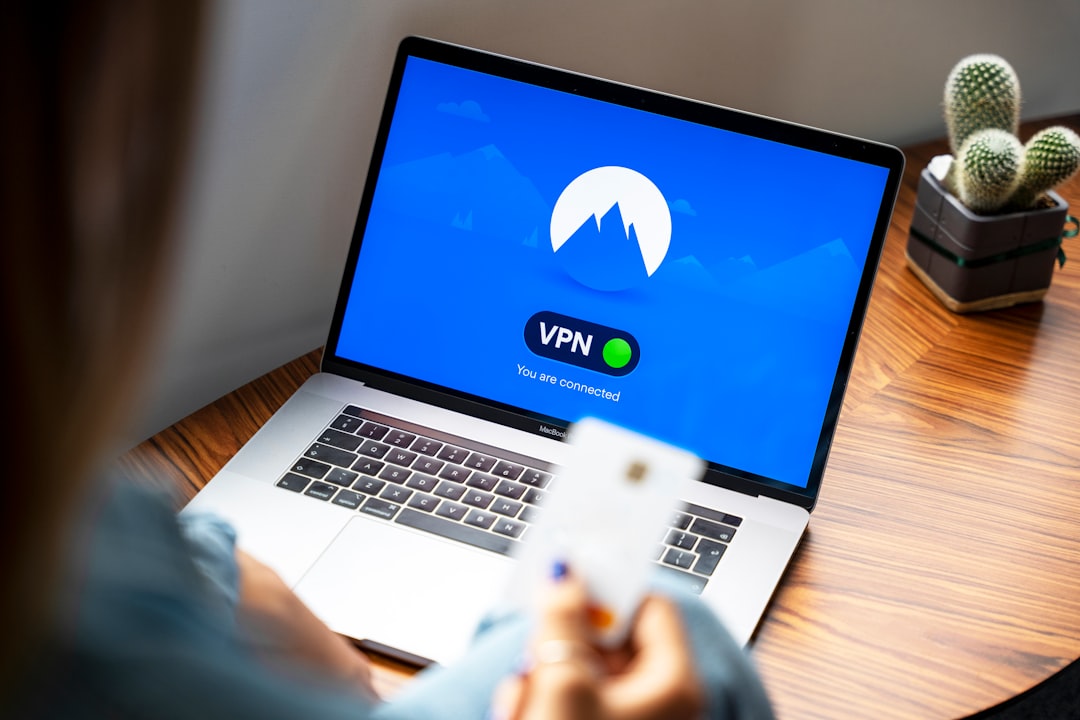
If the VPN is functioning correctly, the displayed IP address and location should reflect the chosen VPN server—not your actual physical location.
What to look for:
- A completely different IP address after connecting
- A geographic location matching your selected VPN server
- No signs of your real city or ISP
If your IP address remains the same, your VPN is not properly masking your connection.
2. Test for DNS Leaks
Even if your IP address appears hidden, DNS leaks can still expose your browsing activity. The Domain Name System (DNS) translates website names into IP addresses. If DNS requests are routed outside the VPN tunnel, your ISP may still track your activity.
How to Perform a DNS Leak Test:
- Connect to your VPN.
- Visit a DNS leak testing website.
- Run the standard or extended test.
The results should show only DNS servers associated with your VPN provider. If you see your ISP’s DNS servers listed, your VPN is leaking DNS requests.
How to fix DNS leaks:
- Enable “DNS leak protection” in VPN settings
- Manually configure DNS to use secure servers
- Switch to a different VPN protocol
- Update or reinstall the VPN application
3. Check for WebRTC Leaks
WebRTC is a browser feature that enables real-time communication, such as video chats. However, it can reveal your real IP address even when connected to a VPN.
To check for WebRTC leaks:
- Keep your VPN connected.
- Visit a WebRTC leak testing site.
- Review the displayed IP addresses.
If your real IP address appears, your browser is leaking information.
Ways to prevent WebRTC leaks:
- Disable WebRTC in browser settings
- Install browser extensions that block WebRTC
- Use browsers that offer built-in WebRTC leak protection
This step is especially important for users who rely on browser-based privacy tools.
4. Verify IPv6 Leak Protection
Some VPN services only protect IPv4 traffic. If your internet connection supports IPv6 and your VPN does not properly manage it, your real IP address could be exposed.
Testing for IPv6 Leaks:
- Visit an IPv6 testing website before connecting to your VPN.
- Take note of your IPv6 address.
- Connect to your VPN.
- Refresh the test page.
If the same IPv6 address appears, your VPN may not provide adequate IPv6 protection.
Solutions include:
- Disabling IPv6 in network settings
- Switching to a VPN with full IPv6 support
- Enabling built-in IPv6 leak protection if available
5. Test VPN Kill Switch Functionality
A kill switch automatically disconnects your internet if the VPN connection drops. Without this feature, temporary disconnections could expose your real IP address.
To test the kill switch:
- Enable the kill switch feature in your VPN settings.
- Connect to the VPN.
- Manually disconnect from the VPN or disable your network briefly.
If the kill switch works correctly, your internet access should immediately stop until the VPN reconnects.
This feature is particularly important when using public Wi-Fi networks or handling sensitive information.
6. Confirm Encryption Is Active
While encryption itself is not directly visible, there are indirect ways to verify it:
- Check your VPN’s connection protocol (such as OpenVPN, WireGuard, or IKEv2)
- Monitor network traffic using packet analysis tools
- Review VPN connection logs for errors
Most reputable VPNs clearly display connection details, including protocol and encryption method. Ensuring that a modern encryption standard is active adds confidence that data is protected.
7. Perform a Speed and Stability Test
A functioning VPN typically slows internet speeds slightly due to encryption. If there is no difference in speed, it could indicate that traffic is not being routed through the VPN.
Testing Steps:
- Run a speed test without the VPN.
- Connect to the VPN and run the test again.
- Compare download, upload, and latency results.
Minor reductions are normal. However, identical results or unusually fast performance could warrant further investigation.
Additionally, monitor stability:
- Check for random disconnections
- Observe whether streaming or downloads are interrupted
- Confirm that the VPN reconnects automatically if enabled
8. Test Geo-Unblocking Capabilities
Many users rely on VPNs to access content restricted by region. To confirm this feature:
- Connect to a server in another country.
- Attempt to access region-specific content or services.
- Verify that the platform recognizes the new location.

If the service still detects your real location, the VPN server may be blocked or misconfigured.
9. Use Multiple Testing Tools
No single test provides complete assurance. Combining several verification methods increases confidence in your VPN’s effectiveness. A recommended checklist includes:
- IP address check
- DNS leak test
- WebRTC leak test
- IPv6 leak test
- Kill switch test
- Speed comparison
Running these tests periodically, especially after system updates or VPN software upgrades, helps ensure continued protection.
Common Signs Your VPN Is Not Working
Users should remain alert for warning signs, including:
- Websites detecting your true location
- Advertising that targets your real geographic area
- Captchas appearing unusually often
- Connection dropouts without notifications
- Your ISP still logging DNS activity
If any of these occur, immediate troubleshooting is recommended.
Best Practices for Ongoing VPN Reliability
Maintaining VPN effectiveness requires more than a one-time test. Consider the following best practices:
- Keep the VPN app updated
- Enable automatic reconnection features
- Use trusted VPN protocols
- Avoid free VPNs with limited security controls
- Regularly review security settings
Proper configuration, combined with regular monitoring, ensures continuous privacy and protection.
FAQ
How often should someone test their VPN?
Testing once after installation is essential, but periodic checks—especially after updates or changing servers—help maintain ongoing protection.
Is seeing a different IP address enough to confirm a VPN works?
No. While a different IP address is a good sign, DNS, WebRTC, and IPv6 leaks can still expose data. Comprehensive testing is recommended.
Why does a VPN slow down internet speed?
Encryption and rerouting traffic through remote servers add processing time and distance, which typically reduces speed slightly. Moderate speed loss is normal.
Can a VPN fail without notifying the user?
Yes. Network fluctuations, software errors, or server issues can disconnect a VPN silently. A kill switch helps prevent accidental exposure.
Do mobile VPN apps need the same tests?
Absolutely. Mobile devices are equally vulnerable to leaks, and the same IP, DNS, and WebRTC checks should be performed.
What should someone do if their VPN fails a leak test?
They should enable leak protection features, switch protocols, update the application, or contact customer support. If problems persist, changing providers may be necessary.
Ensuring a VPN functions correctly requires a proactive approach. Through careful testing and ongoing monitoring, users can confirm that their private data remains protected and that their digital footprint stays hidden from prying eyes.