


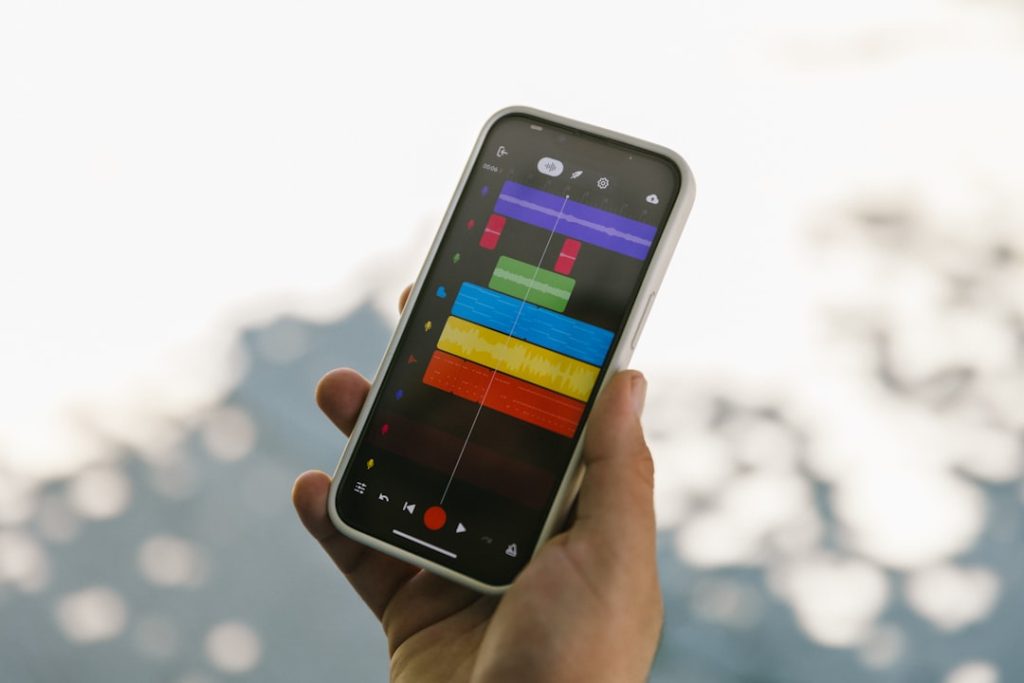
Have you noticed that your phone’s battery is draining unusually fast while streaming music on Plexamp? You’re not alone. While Plexamp is revered for its sleek interface and audiophile-grade playback features, several users have experienced issues with excessive battery consumption. But don’t worry—there are ways to reduce its impact on battery life without sacrificing sound quality or usability.
TL;DR (Too long, didn’t read)
Plexamp is a powerful music streaming app, but its rich features can lead to high battery usage, especially on mobile devices. To fix it, start with basic steps like updating the app, reducing background activities, and disabling visualizers. Advanced tweaks include audio settings optimization and managing server connections. With a few adjustments, you can keep the music going without sacrificing battery life.
Why Is Plexamp Using So Much Battery?
Let’s address the why before we get into the how to fix it. There are a few reasons why Plexamp can be heavy on your device’s energy resources:
- High-Quality Playback: Plexamp supports FLAC, AAC, and other lossless audio formats. These files demand greater processing power compared to compressed formats like MP3.
- Persistent Server Sync: Constantly syncing your music library with your Plex server can require steady network usage and background resources.
- Visualizations and UI Effects: Cool visualizers and animated transitions look great but they can tax your GPU and CPU, leading to more power consumption.
- Background Activity: Playback that continues while multitasking or when the screen is off may still consume sizeable amounts of energy.
Quick Fixes That Make a Big Difference
Before diving deep into settings, try the following basic strategies. They often solve the problem for most users without complicated adjustments.
1. Update Plexamp and Plex Media Server
Make sure both the Plexamp app and your home server software are updated to the latest versions. Developers frequently release optimizations that can lessen battery usage.
2. Disable Visualizers
While Plexamp’s music visualizers look stunning, they can drain the battery significantly. Here’s how to disable them:
- Go to Settings > Visual Experience.
- Set Visualizer Mode to Off.
Your battery will thank you immediately—especially when you’re using the app while charging isn’t an option.
3. Turn Off Background Refresh
Background refresh keeps the app updated even when you’re not actively using it but it also contributes to battery drain. On iOS or Android:
- iOS: Go to Settings > General > Background App Refresh and disable Plexamp.
- Android: Access app info > Battery > toggle off Allow background activity.
4. Use Mobile-Optimized Audio Settings
Audio enhancements like EQ, ReplayGain, and crossfade can require more processing power. Consider tweaking them:
- Go to Settings > Audio.
- Reduce sample rate to 44.1 kHz (CD quality).
- Disable ReplayGain and Crossfade unless absolutely necessary.

Deep Dives: Advanced Solutions for Persistent Battery Issues
If battery drain persists after trying basic fixes, don’t worry—we’ve got more in-depth strategies that target specific causes of resource overuse.
1. Adjust Server Connection Settings
When using Plexamp with a remote or cloud-based Plex Media Server, constant syncing or streaming large files can hit your battery hard.
Solutions:
- Download your playlists for offline access—no network = less battery use.
- Limit library auto-refresh in Plex Server Settings.
- Set cache limits to avoid excessive reads and writes.
2. Use Audio-Only Mode
AUDIO-ONLY Mode is perfect for those who just want to listen—not watch animations or album art transitions. You can enable it by:
- Going to Settings > User Interface.
- Selecting Minimal player or Low-resource mode.
This can lead to dramatic improvements in battery longevity, especially on older devices.
3. Reconfigure Streaming Quality
High bitrates mean more data processing. If your library contains FLAC files or other large formats, configure playback settings accordingly.
- Set Mobile Streaming Quality (under Settings > Network) to “Original” only when on Wi-Fi.
- Use “Conserve Bandwidth” features when on cellular networks.
4. Check Battery Usage Reports
Both iOS and Android offer ways to review exactly how much energy each app consumes. Here’s how you can use this to pinpoint Plexamp’s behavior:
- iOS: Go to Settings > Battery > scroll for Plexamp stats.
- Android: Tap Battery > App usage > select Plexamp for specifics.
If you find unusually high background use, consider restricting battery access or reinstalling the app to reset all preferences.
Extra Tips for Power Users
Want to squeeze the most out of your phone and Plexamp? Here are some lesser-known tweaks that make a huge difference.
Turn on Offline Mode Entirely
If you’re somewhere with limited Wi-Fi or don’t want to use cellular data, enabling offline mode ensures minimum battery usage:
- Tap profile icon > select Offline Mode.
- Pre-sync music you want to listen to beforehand.
Custom Transcoding Profiles
If you’re running your own Plex Media Server, configure it to transcode files at lower bitrates for mobile playback sessions. This reduces file sizes, meaning the phone works less to decode them.
Disable Album Art Fetching
The app constantly pulling metadata and album art for songs can put stress on the phone’s CPU and networking stack. Temporarily disable this via:
- Settings > Library Sync > turn off Fetch artwork dynamically.
When All Else Fails: Try Alternatives
If you’ve tried all the above and Plexamp is still eating away at your battery, it might be time to consider alternatives for certain scenarios:
- Use Plex Web or Plex Mainland App for background music duties—it often uses fewer resources.
- Try Lighter Music Players like VLC or Poweramp for general playback, especially when battery conservation is a priority.
Conclusion
Plexamp offers high-fidelity music streaming wrapped in a beautiful interface, but its intensive features can strain your battery if left unchecked. Fortunately, with the right mix of settings tweaks—from disabling visualizer effects to refining server syncing—you can maintain great audio quality without compromising battery life.
Try out a few suggestions at a time and monitor your device’s battery report. You’ll likely see noticeable improvements sooner than expected, helping you enjoy Plexamp the way it was meant to be: smooth, seamless, and sustainable.