


When the Pit Boss app is not working, cooking can become stressful very quickly. Many people rely on the app to monitor temperatures, adjust settings, and keep an eye on long cooks without standing next to the grill. If the app fails, you lose that control and peace of mind. This issue matters because timing and temperature are important when using a pellet grill.
This guide explains what the problem means, why it happens, and what usually causes issues with the Pit Boss app, so you can understand the situation before taking action.
What Does Pit Boss App Not Working Mean?
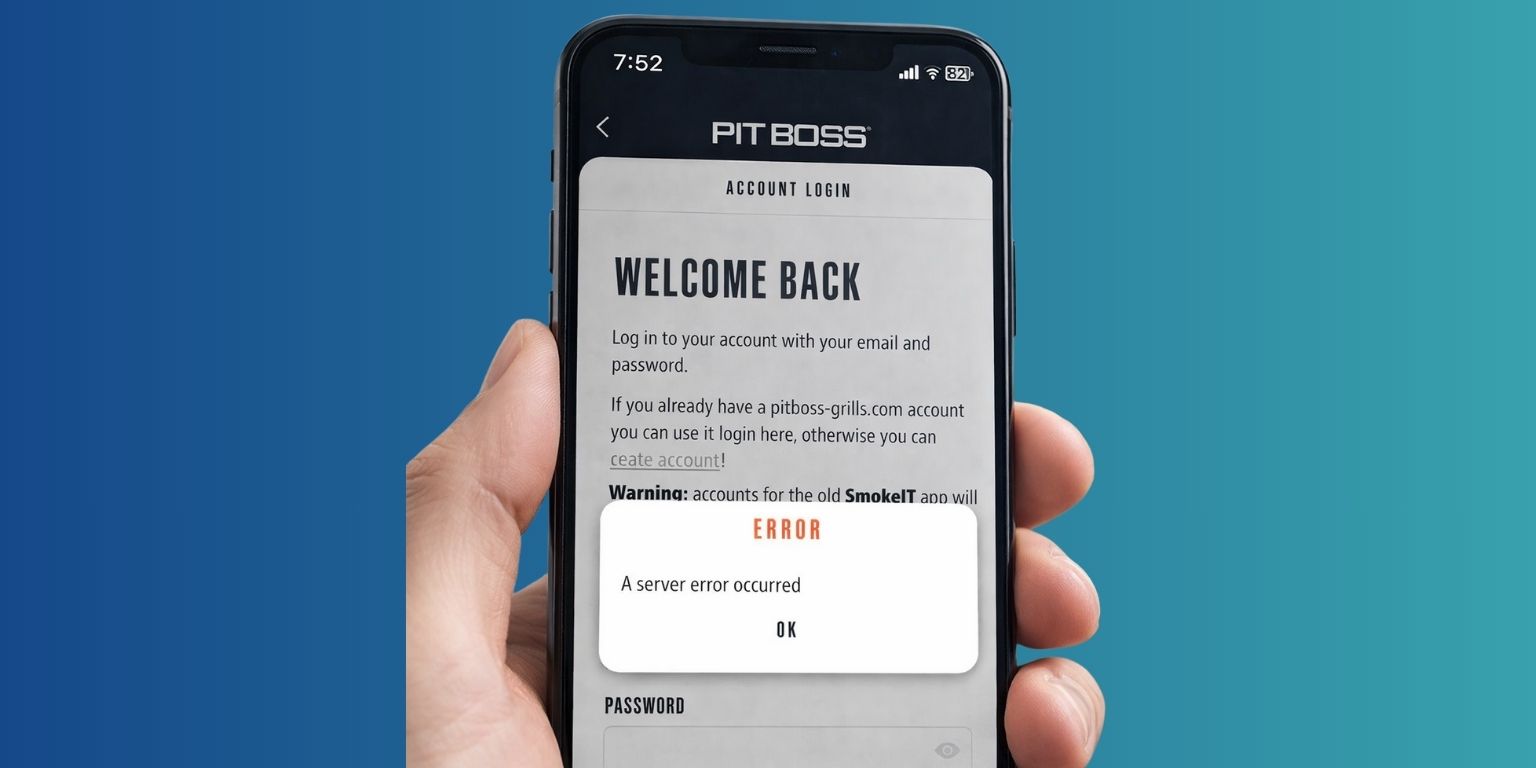
When users say the Pit Boss app is not working, they usually mean the app fails to connect to the grill or does not behave as expected. The app may not open, may crash, or may stay stuck on a connecting screen. In some cases, the grill itself still works and cooks food normally, but the app cannot show temperatures or accept commands. This means the problem affects remote control and monitoring, not the basic cooking function.
Most people notice this issue during pairing, when checking grill temperature, or when trying to change settings from their phone. The problem may appear right after opening the app, during a cook, or after switching phones or networks. Sometimes the app shows outdated data or stops updating completely, which makes it unreliable during longer cooking sessions.
Common Causes of Pit Boss App Not Working
The Pit Boss app depends on several things working together. The phone, the grill, and the network all need to communicate properly. When one part fails, the app may stop responding or lose connection. This does not always mean the grill is broken. Often, the issue is temporary or related to setup.
Here are some common causes include:
- Bluetooth or Wi-Fi connection failure
- App version not matching the phone operating system
- Grill firmware not up to date
- Using an unsupported Wi-Fi band
- Weak or unstable network signal
- App permissions disabled on the phone
- Temporary service or server issue
How to Fix Pit Boss App Not Working?
When the Pit Boss app stops working, the problem usually sits between the phone, the grill, and the network. Sometimes it is a quick connection issue. Other times it is a mismatch between app version, firmware, or Wi-Fi settings.
Start with the simple fixes first. Each step below helps narrow the real cause without breaking working parts.
Fix #1: Restart the Grill and Your Phone
Restarting both the grill and your phone helps clear temporary connection problems that build up during use. When the app runs for a long time, background services can freeze or lose sync with the grill. Turning everything off forces a fresh connection between the app, Bluetooth, Wi-Fi, and the grill control system.
After restarting, open the app again and allow it a few moments to reconnect. In many cases, this simple reset restores normal app behavior without changing any settings.
Fix #2: Check Bluetooth and Wi-Fi Are Enabled
The app uses Bluetooth for pairing and Wi-Fi for remote control. If one is off, the app will not connect.
Follow these easy steps.
- Open phone settings
- Turn on Bluetooth
- Turn on Wi-Fi
- Disable airplane mode
- Reopen the app
Make sure the phone stays close to the grill during pairing.
Fix #3: Use a 2.4 GHz Wi-Fi Network
Most Pit Boss grills only work on 2.4 GHz Wi-Fi. A 5 GHz network will fail silently.
Try these steps to confirm network compatibility.
- Check router Wi-Fi settings
- Enable 2.4 GHz band
- Connect your phone to 2.4 GHz
- Reconnect the grill in the app
- Test connection again
Once connected, the app should stay stable.
Fix #4: Update the Pit Boss App
An outdated app may stop working after phone system updates.
Follow the steps below to update safely.
- Open the app store
- Search for the Pit Boss app
- Install any available updates
- Restart the app
- Sign in again
Updates often fix crashes and pairing bugs.
Fix #5: Update Grill Firmware
Old firmware on the grill can block communication with newer app versions.
You can perform the following steps to check firmware.
- Open the app settings
- Check for firmware updates
- Start the update if available
- Do not turn off the grill
- Wait until update completes
Firmware sync improves temperature updates and control.
Fix #6: Re-Pair the Grill with the App
Pairing data can break after network or phone changes.
Here’s how you can re-pair cleanly.
- Remove the grill from the app
- Turn off the grill
- Turn it back on
- Start pairing mode
- Add the grill again
This rebuilds the connection from scratch.
Fix #7: Check App Permissions on Your Phone
If permissions are blocked, the app cannot access Bluetooth or Wi-Fi.
Try these simple steps.
- Open phone app settings
- Select the Pit Boss app
- Enable Bluetooth access
- Enable network access
- Allow background activity
Permissions often reset after phone updates.
Fix #8: Reset the Grill or Contact Support
If none of the earlier fixes work, the problem may be deeper than app or network settings. At this stage, the grill itself may not be communicating correctly, or there may be an account-level or hardware issue. Resetting the grill can help clear stored pairing data and restore default communication settings.
If the app still does not work after a reset, contacting Pit Boss support is the safest next step. Support teams can confirm known issues, firmware problems, or hardware faults and guide you through proper repair or replacement options.
Prevention Tips to Avoid Pit Boss App Issues in the Future
App problems often happen at the worst time, usually when food is already cooking. A few simple habits can reduce the chance of connection issues and help the app work more reliably. These steps focus on preparation rather than technical changes.
Follow given helpful prevention tips:
- Keep the app updated on your phone
- Use a stable home Wi-Fi connection
- Avoid switching networks during cooking
- Keep the phone close to the grill during setup
- Restart the app before long cooks
- Check permissions after phone updates
- Save account login details securely
Conclusion
In short, when the Pit Boss app is not working, the issue usually comes from connection problems, updates, or communication between the phone and the grill. The grill itself often continues cooking, but remote features stop working, which causes frustration. Understanding this difference helps reduce panic during a cook.
Before assuming something is broken, it helps to know what can affect the app and how it behaves when issues appear. Staying prepared and informed makes cooking smoother. If this article helped you understand the problem, consider sharing it with other Pit Boss users or leaving a comment about your experience.