


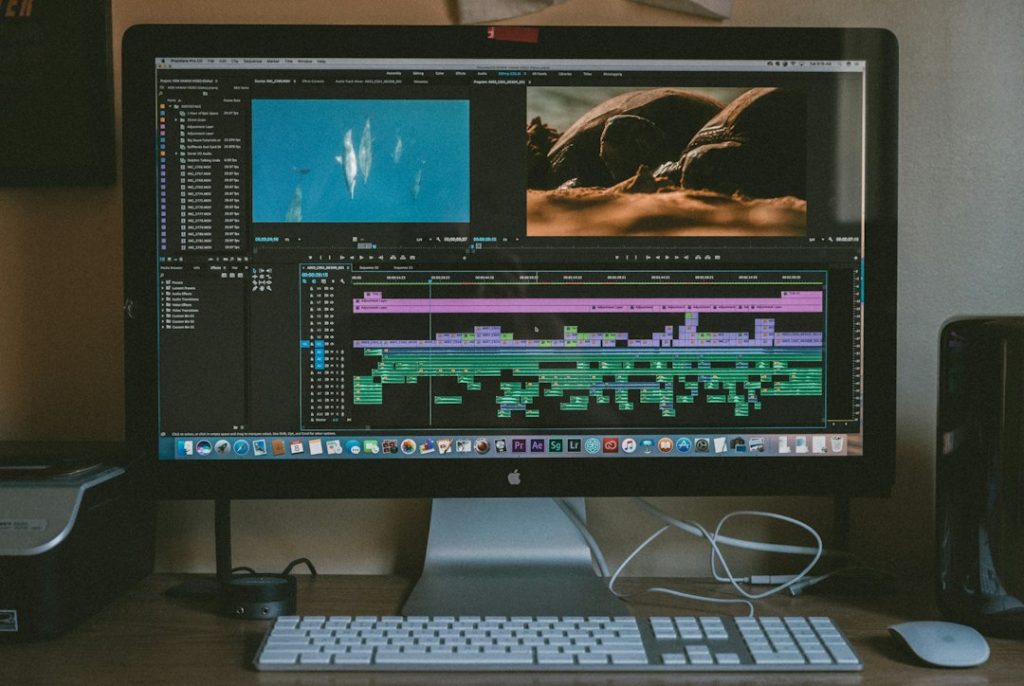
Use YouTube Studio when the video is already uploaded and you need safe, simple background music; use CapCut when you want tighter timing, edits, fades, voice balance, and a more polished final cut. YouTube Studio is best for quick fixes because its Audio Library includes music and sound effects that creators can use in videos [source: YouTube Help]. CapCut is better before upload, especially for Shorts, tutorials, ads, and videos where the music needs to hit exact moments.
TLDR: If your video is already live or scheduled, YouTube Studio is the fastest option because you can add approved music without re-exporting the whole file. If you are still editing, CapCut gives you more control over cuts, volume, fades, beats, and captions. For example, a 90-second Short with three cuts and a voiceover may take about 3 minutes to score in CapCut, while YouTube Studio can fix a quiet background track in roughly 1 minute. The tradeoff is simple: speed in YouTube Studio, control in CapCut.
Quick comparison: YouTube Studio vs. CapCut
| Feature | YouTube Studio | CapCut |
|---|---|---|
| Best for | Uploaded videos, quick music fixes | Editing before upload, Shorts, polished videos |
| Music control | Basic | Detailed |
| Copyright safety | Strong when using YouTube Audio Library | Depends on the track and license |
| Export needed? | No | Yes |
| Best workflow | Post-upload adjustment | Full edit before publishing |

How to add music in YouTube Studio
YouTube Studio is the cleaner choice when you have already uploaded the video. You do not need to open a video editor, export again, or risk lowering quality with another render. That saves time, especially when the change is small.
- Open YouTube Studio.
- Go to Content.
- Select the video you want to edit.
- Click Editor in the left menu.
- Choose Audio.
- Search or filter tracks from the Audio Library.
- Preview a track, then add it to the timeline.
- Adjust placement and mix level if the option is available.
- Click Save.
The main benefit is confidence. Music from the YouTube Audio Library is designed for creator use, so it is usually the safest pick for public uploads. That matters if the video is monetized or tied to a business account.
The catch is that YouTube Studio feels limited fast. You cannot shape the soundtrack with the same detail you get in a real editor. If the chorus needs to land exactly when a product appears, expect to waste time trying to make a basic tool act like a full timeline editor.
When YouTube Studio is the better choice
- Your video is already published. You can add music without taking it down.
- You need copyright-safe background audio. The Audio Library keeps things simple.
- You only need light music. Think low-volume background tracks, not detailed sound design.
- You want to avoid exporting again. This helps with long videos.
For example, if you uploaded a 12-minute talking-head tutorial and it feels too dry, YouTube Studio can add soft background music quickly. Set the music low. Keep speech clear. A decent rule is to keep background music around 15% to 25% of the voice level, then check it with headphones and phone speakers.
How to add music in CapCut
CapCut is better when music is part of the edit, not an afterthought. It lets you cut clips to the beat, fade audio in and out, lower music under speech, and add effects. This matters for Shorts, product demos, vlogs, workouts, travel clips, and social ads.
- Open CapCut and start a new project.
- Import your video clips.
- Tap or click Audio.
- Choose music from CapCut, extract audio, or upload your own track.
- Place the track under your video timeline.
- Trim the track so it starts at the right moment.
- Add fade in and fade out.
- Lower the music under dialogue.
- Export the video and upload it to YouTube.
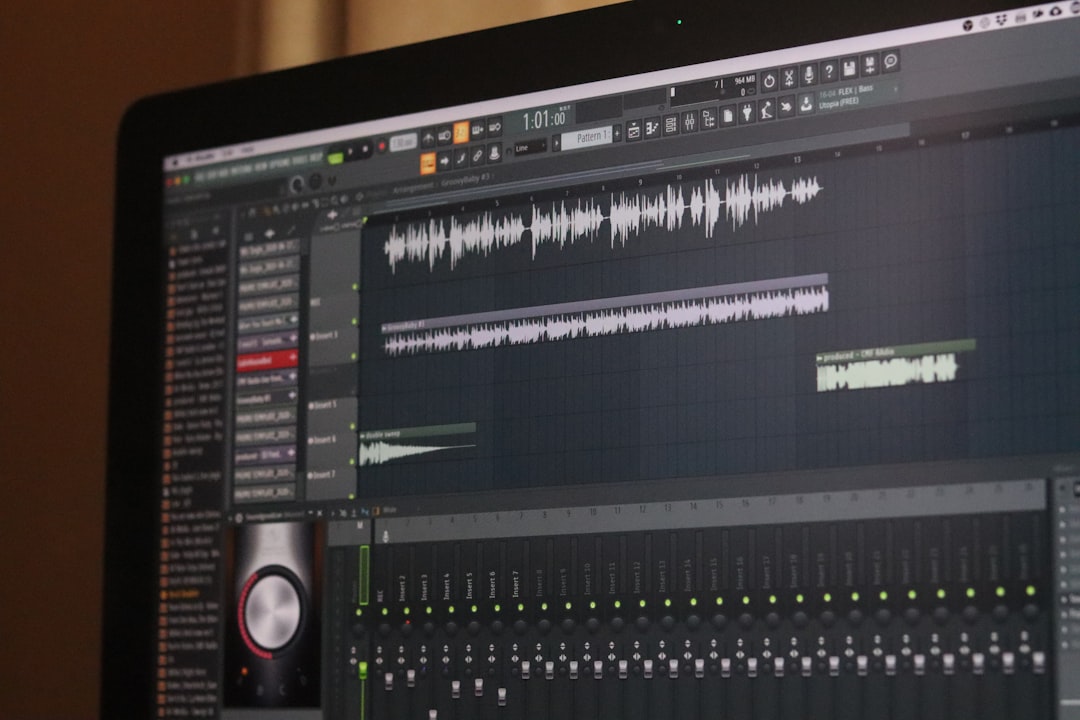
CapCut gives you the control YouTube Studio lacks. You can split audio, sync cuts to beats, use keyframes, remove background noise, and control loudness more carefully. Honestly, it feels like the right tool when a three-second delay ruins the mood of the whole clip.
When CapCut is the better choice
- You are making Shorts. Music timing is often the hook.
- Your video has voiceover. You can lower music during speech.
- You need fades and beat cuts. CapCut handles this far better.
- You want captions and music together. This is useful for mobile viewers.
- You are editing for multiple platforms. Export once, then post to YouTube, TikTok, or Instagram.
CapCut is not perfect. Some tracks may be approved inside one platform but not safe for YouTube monetization. That is where creators get burned. A song may sound harmless, then trigger a claim after upload. If revenue matters, use properly licensed music or YouTube’s own library.
Copyright and monetization risks
This is the part you should not skip. Music rights are strict on YouTube. If you use a popular song without permission, your video can receive a copyright claim, lose monetization, get blocked in some countries, or be muted.
YouTube Studio is safer because its Audio Library is built for YouTube use. Some tracks may still require attribution, so read the track details before publishing. Do not assume every free track has the same rules.
CapCut requires more checking. If you use CapCut’s music library, confirm whether the track is cleared for YouTube and commercial use. If you upload client work, brand content, or an ad, be extra careful. A copyright claim on a client video is not a small mistake. It can damage trust fast.
Audio quality tips that make a real difference
- Keep speech first. If viewers struggle to hear the voice, the music is too loud.
- Use fades. Hard starts and stops sound cheap.
- Match the mood. Do not place dramatic music under a simple software tutorial.
- Check on a phone. Most viewers will not use studio headphones.
- Avoid busy vocals under narration. Lyrics compete with speech.
Which one should you use?
Use YouTube Studio if the video is already uploaded, the music is only background support, and you want the safer route for copyright. It is fast, practical, and good enough for simple edits.
Use CapCut if you care about timing, rhythm, pacing, captions, voice balance, and a cleaner final video. It takes longer, but the result usually feels more intentional.
For most creators, the best workflow is simple: edit music in CapCut before upload, then use YouTube Studio later for small fixes or safe replacement tracks. That gives you control first and safety later. It is not fancy. It just works.