



In today’s digital world, keeping personal data secure is more important than ever before. With billions of active users every month, Facebook remains a primary social platform connecting people around the globe. Given the amount of personal information shared on Facebook — from photos and messages to financial and location data — regularly updating your password is a crucial habit. Whether you’re worried about someone snooping on your profile or you just want peace of mind, changing your Facebook password is a simple yet powerful step toward enhancing your online security.
TL;DR
To change your password on Facebook, go to your account settings, then to the security section, and select the option to change your password. Use a strong, unique password that includes a mix of letters, numbers, and symbols. Always log out of unfamiliar devices afterward and consider enabling additional security features like two-factor authentication. Regular password changes are a proactive step in safeguarding your online information.
Why Changing Your Password Matters
Facebook accounts are a goldmine for cybercriminals. From identity theft to phishing schemes, the misuse of Facebook credentials can have serious consequences. By regularly updating your password, especially after suspicious activity or data breaches reported in the news, you significantly minimize your risk.
Steps to Change Your Facebook Password
Before changing your password, ensure you’re either logged in to your Facebook account or have access to the email or phone number associated with it. Here are the exact steps:
- Log In: Open Facebook and log into your account using your current credentials.
- Access Settings: Click on the small arrow in the top right corner of the screen (desktop) or the three-line menu (mobile app), then select Settings & Privacy and click on Settings.
- Open Security Settings: From the left-hand menu on desktop, choose Security and Login. On mobile, you may need to tap Security after entering Settings.
- Locate “Change Password” Option: Within the Login section, find the line labeled Change password and tap Edit.
- Enter Your Information: Type in your current password, then your new password twice for confirmation. Make sure it’s something secure!
- Click Save Changes: Once you’ve entered the new password details, hit Save Changes. Facebook will prompt you to review your logged-in devices. Choose whether to stay logged in or log yourself out of other devices.

Creating a Strong Password
Simply updating your password is not sufficient — it’s also important that the new password is strong and secure. Here are some tips to help:
- Use at least 12 characters: The longer, the better.
- Mix it up: Combine uppercase and lowercase letters, numbers, and symbols.
- Avoid common patterns: Stay away from passwords like “123456” or “password123.” These are the first options hackers will try.
- No personal info: Don’t include names, birthdays, or anything else someone could easily guess.
- Use a password manager: If remembering complex passwords is difficult, rely on a reputable password manager to store them securely.
What to Do If You’ve Forgotten Your Current Password
If you don’t know your current password, don’t worry. You can still change it using Facebook’s password recovery tool:
- Go to the Facebook login page.
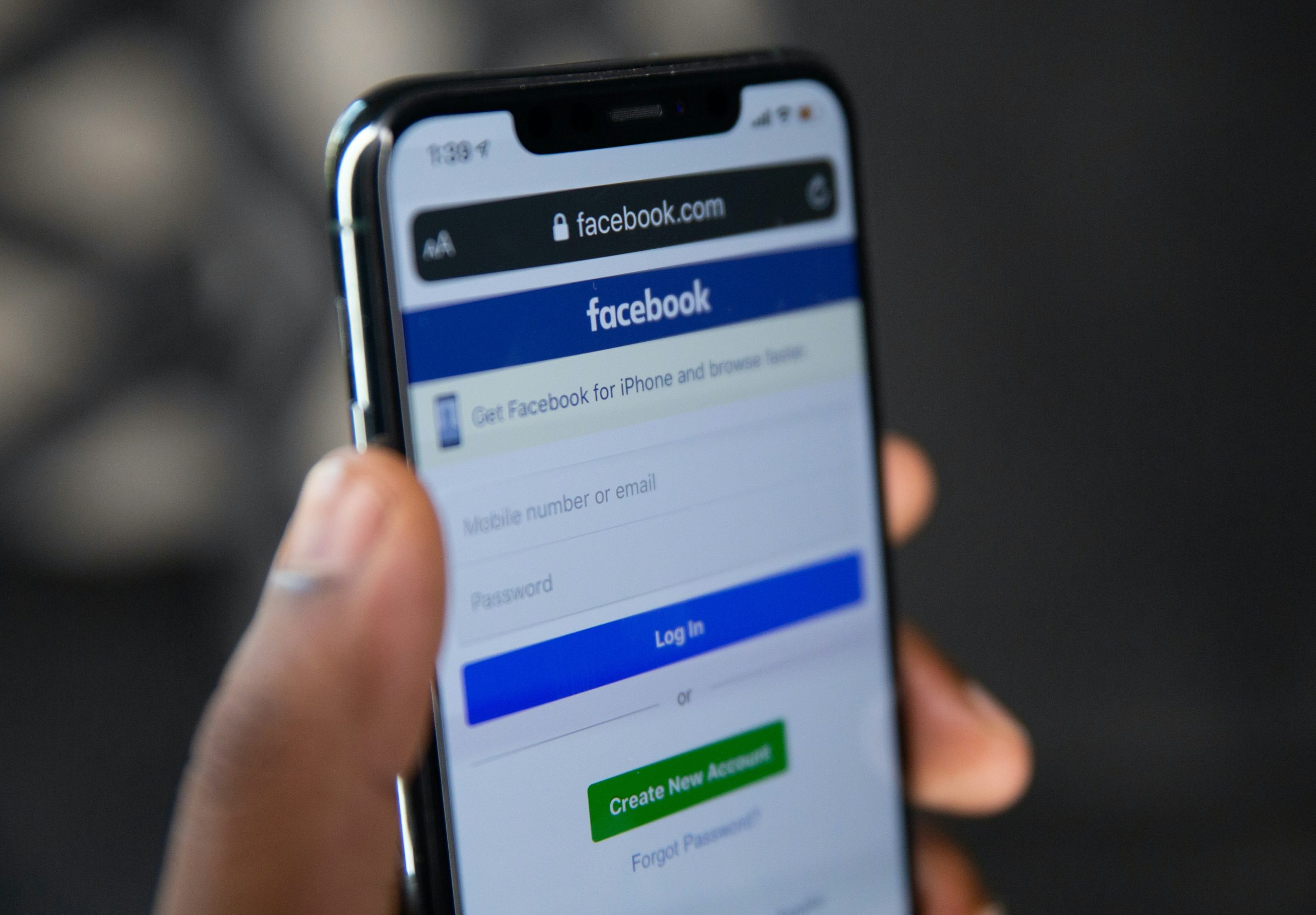
- Click on Forgotten password? under the login fields.
- Enter your email or phone number associated with your account.
- Follow the instructions sent to your email or phone to reset your password.
Once you regain access to your account, follow the steps above to change your password securely and immediately set up enhanced security measures.
Enable Two-Factor Authentication
To add a layer of security, Facebook offers two-factor authentication (2FA). This means that even if someone gets your password, they won’t be able to log in without the second verification step, usually a code sent to your mobile device.
To enable 2FA:
- Go to Settings & Privacy > Settings.
- Select Security and Login.
- Scroll to Two-Factor Authentication and click Edit.
- Follow the on-screen instructions to choose your preferred method — text message or authentication app.
Using 2FA is one of the best ways to protect your account from unauthorized access.
What Happens After You Change Your Password?
After successfully changing your password, Facebook gives you the option to review all devices where your account is currently logged in. You can choose to stay logged in on those devices or log out of all sessions except for your current one.
It is strongly recommended to log out of all other devices. This closes any backdoors for unauthorized users who may have had access to your account previously.
Additional Security Tips
Here are a few more ways to secure your Facebook account beyond just changing your password:
- Update your recovery options: Make sure your email and phone number are up to date.
- Check login alerts: Enable notifications for unrecognized logins so you’re aware of any suspicious activity.
- Review active sessions: Go to the Where You’re Logged In section and end access to any unfamiliar devices.
- Be mindful of phishing: Never click on suspicious links claiming to be from Facebook.
Conclusion
Changing your Facebook password is a vital step in maintaining digital hygiene and safeguarding your personal information. By following these steps and adopting additional security measures like two-factor authentication and login alerts, users can significantly reduce the risk of unauthorized access to their accounts.
Consider updating your password regularly and staying informed about modern security practices no matter which social platform you use. After all, proactive choices today can prevent long-term consequences tomorrow.
Frequently Asked Questions
- How often should I change my Facebook password?
- It’s recommended to change your password every 3–6 months, or immediately after noticing suspicious activity.
- Will changing my password log out all users?
- Facebook offers the option to log out from all other devices once the password is changed. It’s highly recommended to use this feature for added security.
- What if I don’t remember my current Facebook password?
- You can use the Forgotten password feature on the login page to reset your password via email or mobile verification.
- Can I use the same password as another platform?
- It’s unsafe to reuse passwords across platforms. Doing so increases your vulnerability if one account is compromised.
- Is it really necessary to use two-factor authentication?
- Yes. Two-factor authentication adds a second layer of security and is one of the most effective ways to protect your account from hackers.