


It’s pretty stressful when TikTok Live Studio shows a network error right before you start your stream. The app freezes, the preview won’t load, or it disconnects the moment you hit “Go Live.” This guide explains what the error means, why it happens, and how you can fix it with easy steps anyone can follow.
What Is the TikTok Live Studio Network Error?
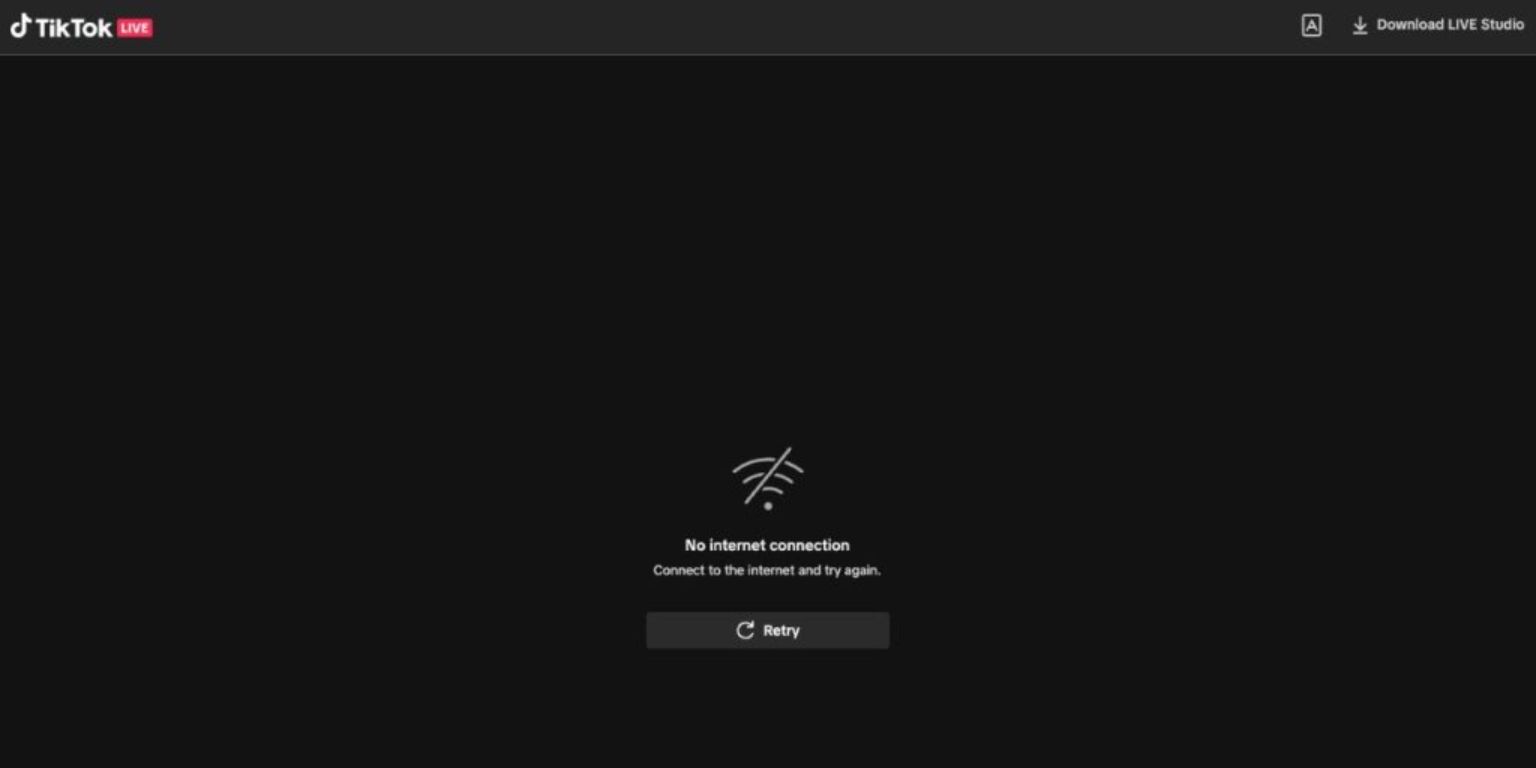
This error appears when TikTok Live Studio cannot connect to TikTok’s live servers. The app needs a stable internet connection to load your preview, send your stream, and log in to your account. When the connection breaks, Live Studio throws a network error instead of starting your stream.
You can see this message in different places: while opening the app, logging in, loading your webcam or screen, clicking “Go Live,” or trying to manage your settings. It can also show up randomly if your upload speed drops for a second.
Common Causes of Network Error in TikTok Live Studio
This issue can show up for many reasons depending on your internet, PC settings, or TikTok’s servers. Some of the most common causes include:
- Weak or unstable Wi-Fi
- VPN or proxy blocking TikTok traffic
- High bitrate settings inside Live Studio
- Windows firewall blocking the app
- Background apps using your internet
- Outdated TikTok Live Studio version
- TikTok server outages
How To Fix Network Error in TikTok Live Studio?
Start with the simple checks, then move down until the error goes away.
Fix 1: Restart TikTok Live Studio
Sometimes the app loads wrong on the first try. A restart refreshes your connection and clears temporary glitches. Close Live Studio fully, wait a moment, then reopen it and try again.
Fix 2: Switch From Wi-Fi to Ethernet
Wi-Fi drops for a second, and that’s enough to break your stream. An Ethernet cable gives TikTok Live Studio a more stable connection. It reduces lag spikes, lowers ping, and keeps your upload speed steady.
Here are the following steps which help you switch:
- Plug an Ethernet cable into your PC.
- Connect the other end to your router.
- Restart TikTok Live Studio.
- Try loading your stream preview again.
Fix 3: Disable VPN or Proxy
VPNs often block TikTok servers or route your connection through slow locations. When that happens, the app cannot reach the live server.
Try these simple steps to turn off your VPN:
- Open your VPN app.
- Disconnect from the current server.
- Close the VPN app completely.
- Reload TikTok Live Studio.
Fix 4: Lower Bitrate and Resolution in Live Studio
If your bitrate is too high for your upload speed, the stream fails to connect. Lowering the settings makes the stream easier to send.
You can perform the following steps:
- Open TikTok Live Studio settings.
- Go to Stream Quality.
- Lower bitrate to something stable like 2500–3500 Kbps.
- Drop resolution to 720p if needed.
- Try loading the preview again.
Fix 5: Close Bandwidth-Hungry Apps
Apps like Steam, YouTube, Discord, cloud backups, and game launchers can eat your upload speed. When this happens, TikTok Live Studio can’t stay connected.
Close any app downloading, uploading, or streaming in the background. Even small uploads can break your connection.
Fix 6: Allow Live Studio Through Windows Firewall
Windows Firewall can block TikTok Live Studio if it thinks the traffic looks unusual. Allowing the app fixes most connection blocks.
Follow the steps below to easily allow it:
- Open Windows Search and type Firewall.
- Select “Allow an app through firewall.”
- Find TikTok Live Studio on the list.
- Check both Private and Public boxes.
- Save changes and restart the app.
Fix 7: Flush DNS and Reset Network Settings
Old DNS data can point your PC to outdated server routes. Resetting it gives your PC a clean network path.
Here’s how you can reset it:
- Open Command Prompt as admin.
- Type ipconfig /flushdns
- Press Enter.
- Restart your PC.
- Run Live Studio again.
Fix 8: Update TikTok Live Studio
Old versions can break or lose connection. Updating the app often fixes bugs, improves stability, and refreshes login sessions. Check for updates in the TikTok Live Studio download page and install the latest build.
Fix 9: Test Your Upload Speed
Live streaming depends on upload speed. If your upload speed drops too low, Live Studio disconnects or fails to load.
Follow these easy instructions to test your speed:
- Visit an internet speed test site.
- Run a quick test.
- Check your upload speed — you need at least 5 Mbps for stable streaming.
- Contact your ISP if speeds are too low.
Fix 10: Check TikTok Server Status
Sometimes the issue is not your PC. TikTok servers may have problems or temporary outages. If the servers are down, no fix will work until TikTok restores service. You can check TikTok outage reports or social media updates to confirm.
Prevention Tips to Avoid Errors in Future
Here are a few ways to avoid network errors in the future:
- Use Ethernet instead of Wi-Fi
- Keep bitrate low if your internet is slow
- Restart your router weekly
- Update Live Studio often
- Close background apps during streaming
- Monitor your internet speed
- Check TikTok status before big events
Conclusion
The TikTok Live Studio network error usually comes from internet issues, high bitrate settings, or blocked connections. Most of the time, switching to Ethernet, lowering bitrate, or turning off VPN solves it fast.
If nothing works, TikTok may be having server issues. In that case, wait a little and try again. And if the error keeps returning, reaching out to TikTok support can help you get your streaming setup working smoothly.