


The message “Claude Code process exited with code 1” means Claude Code stopped because something failed. Code 1 is a general exit status, not the real cause. The useful error often appears a few lines earlier in the terminal, Claude Desktop log, or VS Code Output panel.
This problem can come from an expired login, a blocked project folder, broken settings, a missing Windows shell, or a bad app update. Sometimes Claude Code works in Terminal but fails inside Claude Desktop or VS Code. That difference matters, so don’t start by deleting every Claude file or reinstalling everything.
What Does “Claude Code Process Exited With Code 1” Mean?
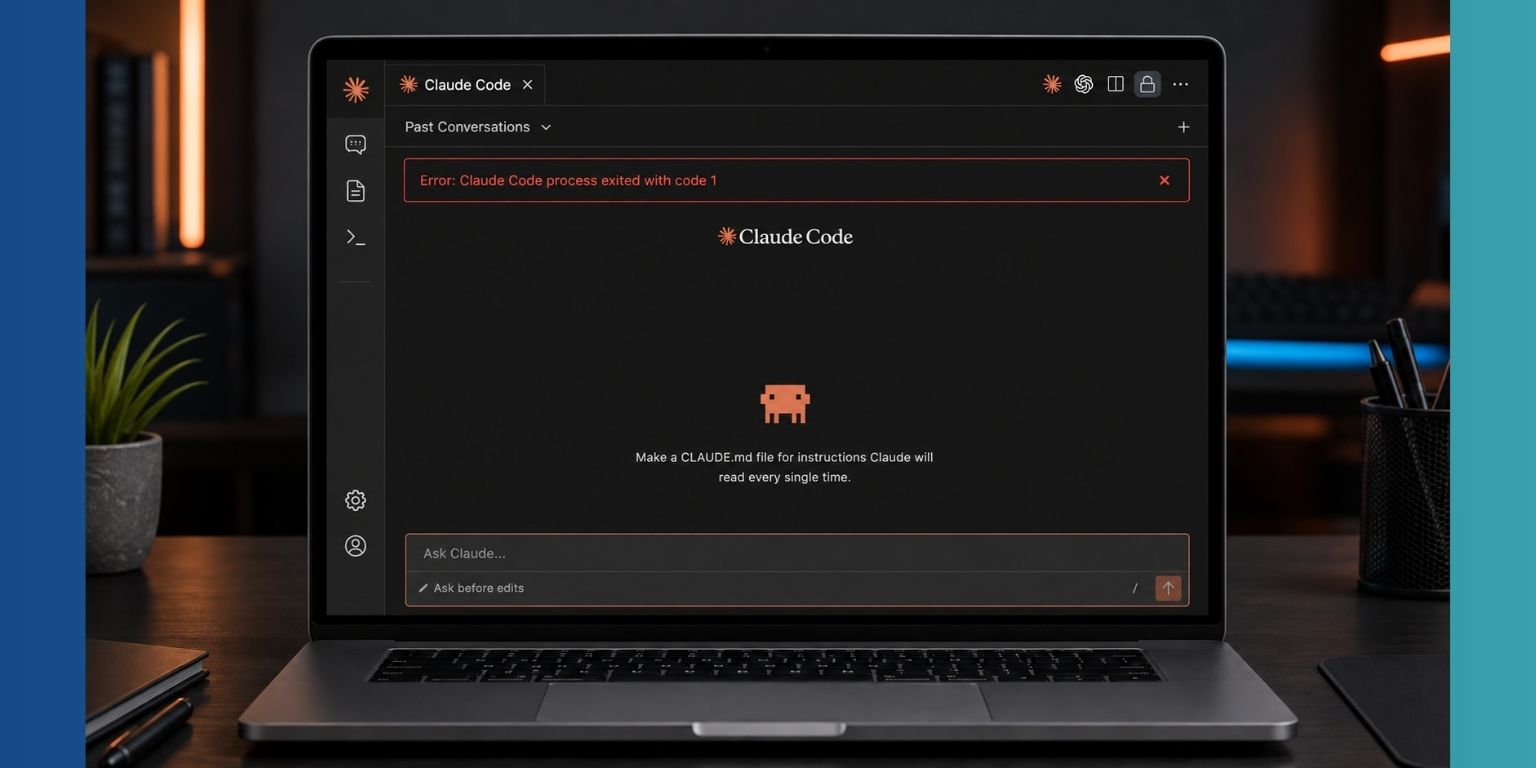
Claude Desktop, VS Code, or another app starts Claude Code as a separate process. If that process can’t continue, it closes and returns an exit status to the app that started it. Exit code 1 only says the process ended unsuccessfully.
| Where the error appears | What it tells you |
|---|---|
| Claude Desktop Code tab | The local Claude Code process launched by Desktop stopped |
| VS Code or Cursor | The extension’s Claude Code process stopped |
| Terminal | Claude Code itself failed and may show a more useful message |
| Agent SDK | A child process ended and the SDK reported its status |
| One project only | The folder, permissions, or project settings may be involved |
| Every project and interface | Installation, login, network, or account access is more likely |
Look above the Code 1 line for messages about authentication, file access, Git Bash, JSON settings, MCP servers, or a missing working directory. That earlier message is usually much more useful. Without it, Code 1 can’t tell you which fix will work.
Why Does the Claude Code Process Exit With Code 1?
The cause depends on where Claude Code is running. Claude Desktop can fail while its bundled local process starts. An IDE extension may fail because of workspace restrictions or an extension update. The CLI may stop because it can’t authenticate, find a shell, or load valid settings.
Common causes include:
- An expired Claude login or invalid provider credentials
- A damaged or outdated Claude Desktop or Claude Code installation
- A mismatch between Desktop, CLI, or extension versions
- A project folder that was moved, deleted, or unmounted
- Missing access to a protected macOS folder
- VS Code running the workspace in Restricted Mode
- Git Bash or PowerShell not being found on Windows
- Invalid JSON in a Claude settings file
- A failing hook, plugin, or MCP server command
- An environment variable changing how the child process starts
- A VPN, proxy, firewall, or filtered company network
- A temporary Anthropic service problem
Not every failed MCP server or hook will close Claude Code. Still, configuration errors can create startup problems in some setups. The right approach is to test the layers separately instead of treating every cause as equally likely.
Is This a Claude Service Problem or a Local Error?
Exit code 1 alone does not prove that Anthropic is having an outage. A service problem becomes more likely when Claude fails across the Desktop app, terminal, web, and several projects. You may also see a clearer API, login, overload, or connection message.
| What you observe | More likely area |
|---|---|
| Only one project fails | Project folder, settings, hooks, or MCP configuration |
| CLI works but Desktop fails | Claude Desktop integration or permissions |
| CLI works but VS Code fails | Extension host, Workspace Trust, or extension version |
| Every local interface fails | Login, installation, network, or service access |
| Another network works | Proxy, firewall, DNS, or network filtering |
| Error began after an app update | Version-specific problem or incomplete update |
| Claude web works but local tools fail | Local setup rather than a full service outage |
Check Anthropic’s service status if several interfaces stop working at the same time. Don’t wait for an outage to end when only one folder or one VS Code workspace fails. That pattern usually points back to your machine or project.
How to Fix Claude Code Process Exited With Code 1?
Start by saving the complete error and testing Claude Code in a terminal. Then try a clean local folder. Those two checks quickly show whether the problem belongs to the host app, Claude Code installation, or one project.
Keep changes reversible. Rename a suspected settings file rather than deleting it, and record your current versions before updating. Reinstall only after simpler checks have narrowed down the failing part.
1. Save the Full Error and Identify Where It Appears
Capture more than the final Code 1 line. In VS Code, open the Output panel and select Claude Code from the output list. In Claude Desktop, note whether the problem happens in the Code tab, Cowork, or every part of the app. Terminal users should copy the first error shown after running claude.
Write down:
-
- Your operating system and version
- Whether you’re using Desktop, VS Code, Cursor, CLI, or an SDK
- The Claude Desktop and Claude Code versions
- The project folder where it fails
- Whether all projects fail
- Whether the process stops immediately or after running a command
- The first error before “process exited with code 1”
- The time the problem started
- Any update or settings change made shortly before it
For an Agent SDK failure, capture the child process’s standard error output if the integration allows it. The SDK stack trace may show only the final exit code, while the child process printed the real reason elsewhere.
Remove API keys, access tokens, organization IDs, private file paths, and source code before sharing a screenshot. Logs can contain more private information than the visible error suggests.
2. Restart the Affected App and Try a New Session
Fully quit the app that shows the error. Closing a Claude Desktop window may leave background processes running, so use the app’s Quit option. On Windows, check Task Manager if it refuses to close. On macOS, use Force Quit only when a normal exit doesn’t work.
For VS Code, open the Command Palette and run Developer: Reload Window. Start a new Claude Code conversation after the reload instead of reopening the failed one. A damaged session can keep failing even when the extension itself is fine.
Restart the computer if the process still exits immediately. This clears stuck child processes and pending app updates. If the same error returns after a clean restart, continue because the cause is probably persistent.
3. Test Claude Code From a Terminal
Open a terminal in the same project folder and run:
claude
Anthropic recommends trying the CLI when the VS Code integration does not respond because the terminal may show a more specific error. Claude Code IDE documentation
The result creates a useful split:
- CLI works: Claude Code and your account can run. Focus on Claude Desktop, the IDE extension, host permissions, or the bundled version.
- CLI fails: Read the terminal message above Code 1. Focus on installation, authentication, the shell, project settings, or environment variables.
- The command isn’t found: Claude Code may not be installed correctly or its directory may be missing from
PATH. - A different project works: The original repository or its configuration is the likely cause.
A separately installed CLI may not match the copy bundled with Claude Desktop. Run this to record the terminal version:
claude --version
If the CLI works while Desktop always fails, reinstalling the CLI probably won’t help the Desktop copy. Keep the repair aimed at the interface that is broken.
4. Check Versions and Install Available Updates
Record each current version before changing it. This helps if the problem began after an update or needs to be reported later.
| Component | Where to check |
| Claude Code CLI | Run claude --version |
| Claude Desktop | Open the app’s About or settings area |
| VS Code | Open Help, then About |
| Claude Code extension | Open Extensions and select Claude Code |
| Cursor | Open its About screen and extension details |
Update the failing component first. If the CLI works but the VS Code extension fails, update the extension and VS Code. When only Claude Desktop fails, update or repair Desktop before changing the terminal installation.
Restart the app after updating. Try a new session in a small local project. Don’t install old builds from unofficial download sites when an update causes trouble. Save the affected and last working version numbers, then check official issue reports or contact support.
5. Check Login, Subscription, and Connection
An expired login can cause the local process to end before it answers. Open Claude Code in a terminal and check whether it asks you to sign in. If it does, complete the official login flow and then reopen the failing Desktop or IDE interface.
The correct account path depends on how Claude Code is provided:
- Claude subscription login
- Anthropic Console or API credentials
- Amazon Bedrock credentials
- Google Vertex AI credentials
- Microsoft Foundry credentials
- A company-managed Claude setup
Don’t mix credentials from different providers. For example, fixing a Claude subscription login won’t repair an expired cloud-provider credential used by an SDK.
If the log mentions connection or TLS trouble, test a different trusted network. Temporarily disconnect a VPN or proxy and check whether a company firewall is filtering Anthropic services. Turn your normal network protection back on after the test. Anthropic groups OAuth, 403, expired token, proxy, and provider credential problems in its installation and login troubleshooting guide.
Never paste an API key into a public issue or screenshot. If a credential may have been exposed, revoke it through the provider and create a new one.
6. Test a New Local Folder
Create a small test folder on the computer’s local drive. Add a plain text file, open a terminal in that folder, and start Claude Code. You can also select the folder in Claude Desktop or VS Code.
This test should not use a network drive, cloud-only folder, removable disk, or protected system directory. Keep it simple. The goal is to remove the original repository and its configuration from the test.
If the clean folder works, inspect the original project for:
- A missing or renamed working directory
- Access restrictions
- Invalid
.claudesettings - A project
.mcp.jsonfile - Hooks or plugins loaded for that repository
- A large or unusual startup instruction file
- Network-mounted files that aren’t currently available
If the clean folder also fails, the problem is probably global. Move on to account, operating-system, shell, user settings, or installation checks. Don’t delete the original project just because the test folder works.
7. Repair Project and Operating-System Permissions
Claude Code needs permission to read the project and write changes when allowed. The selected working directory must also exist. A folder that was moved, deleted, disconnected, or renamed can cause the host process to stop before a session begins.
macOS
Open System Settings, then review Privacy and Security. Check whether Claude Desktop, Terminal, or your IDE can access the folder where the project is stored. Desktop, Documents, Downloads, removable volumes, and network volumes may have separate access controls.
Grant access only where it is needed. Full Disk Access is a broad permission, so don’t use it as the first response to every error. Start with the specific Files and Folders permission when that covers the project location.
Windows
Confirm that the same Windows user can open and edit files in the project folder. Avoid running the project from a protected system directory. A company-managed folder may have rules that prevent child processes or script tools from running.
Linux
Check that the current user owns or can read the repository. Avoid changing ownership across your full home directory. Fix only the affected project path after confirming its current permissions.
VS Code and Cursor
Check Workspace Trust. The Claude Code extension does not work in VS Code Restricted Mode, so trust the workspace only if you know and trust its contents. Claude Code IDE documentation
Restart the host app after changing access. Then open a new session in the same folder.
8. Verify Git Bash or PowerShell on Windows
This section applies to native Windows. Skip it on macOS, Linux, and WSL.
Claude Code on native Windows needs a supported shell. Anthropic recommends Git for Windows and supports PowerShell as a fallback. WSL does not need Git for Windows. Claude Code installation troubleshooting
Open PowerShell and check Git:
where.exe git
If Git for Windows is installed in the usual location, Git Bash may be here:
C:\Program Files\Git\bin\bash.exe
When Claude Code can’t find an existing Git Bash installation, the path can be set in Claude Code settings:
{
  "env": {
    "CLAUDE_CODE_GIT_BASH_PATH": "C:\\Program Files\\Git\\bin\\bash.exe"
  }
}
Use the real path from your computer. Don’t copy the default path if Git is installed somewhere else. Reopen the terminal and host app after changing PATH or the setting.
Also make sure you’re not using the x86 edition of PowerShell. Claude Code requires 64-bit Windows. If PowerShell or Git still can’t start from the same terminal that launches Claude Code, repair that shell installation before reinstalling every Claude component.
9. Validate Claude Code Settings, Hooks, MCP Servers, and Plugins
A project may load settings from several locations. One broken JSON value, failing startup command, or project-only plugin can explain why Claude Code works elsewhere. Don’t delete these files straight away. Rename suspected files temporarily or move them to a safe backup location.
When Claude Code can stay open long enough, run:
/doctor
/doctor can report settings validation problems. Use these commands for other loaded components:
/hooks
/mcp
/hooks shows registered hooks and where they came from. /mcp shows MCP servers and whether they connected, failed, or need approval. Anthropic documents these tools for checking what Claude Code loaded from user and project configuration. Claude Code configuration debugging
Review these locations:
~/.claude/settings.jsonfor user settings.claude/settings.jsonfor shared project settings.claude/settings.local.jsonfor local project settings.mcp.jsonat the project root for project MCP servers- User and project plugin settings
- Hook commands and their paths
On Windows,
~/.clauderefers to%USERPROFILE%\.claude.
Test one change at a time. Disable a suspected group of hooks or one plugin, then start a fresh session. If several items are changed together, you won’t know which one caused the crash.
A failed MCP server doesn’t always close Claude Code. Look for a direct connection between its startup error and the process exit before treating it as the cause.
10. Check Environment Variables and Generate a Debug Log
Desktop apps and IDEs may start Claude Code with a different environment from your terminal. That can explain why the CLI works but a hosted session fails. Compare custom Claude variables, cloud-provider credentials, proxy variables, shell paths, and Node debugger settings.
Pay special attention to:
NODE_OPTIONS- Proxy and certificate variables
CLAUDE_CODE_GIT_BASH_PATH- Anthropic API variables
- Bedrock, Vertex AI, or Foundry variables
- Variables injected by VS Code debugging
- Project
.envfiles loaded by another tool
Don’t clear every environment variable. Remove or change one suspected value for a test, then restore it if the error remains.
Claude Code can create a detailed debug log with:
claude --debug
That writes a log under the Claude debug directory rather than printing all details in the terminal. To choose a known output file, use:
claude --debug-file /path/to/claude-debug.txt
Anthropic documents both options in its debug logging guidance. Windows users can provide a valid Windows file path instead.
Search the log from the start of the failed launch. The first permission, authentication, settings, shell, or child-process error matters more than repeated shutdown messages near the end.
Before sharing the file, remove tokens, private prompts, usernames, repository names, source code, and organization details. Keep a clean copy for yourself so the original evidence isn’t lost.
11. Reinstall Only the Component That Fails
Reinstalling everything at once can hide the source and remove useful settings. Use the terminal and clean-folder tests to choose the right target.
| Test result | Component to repair |
| CLI works, Desktop fails | Claude Desktop |
| CLI works, VS Code fails | Claude Code extension or VS Code host |
| CLI fails in every folder | Claude Code CLI installation |
| One project fails | Project configuration or access, not the full installation |
| SDK only fails | SDK package, child-process options, or runtime environment |
For a VS Code-only issue, uninstall the Claude Code extension, reload VS Code, and install the current official extension again. Check Workspace Trust and the Output panel after reinstalling.
When Desktop alone fails, reinstall Claude Desktop from its official download. Save the version number and relevant logs first. Don’t remove all application-support files unless official support calls for a full reset.
If the CLI installation is damaged, reinstall it using Anthropic’s supported method for your operating system. The native installer is the recommended path in the current Claude Code installation guide.
Keep a reversible copy of custom settings, hooks, MCP configuration, and plugins. Restore them one group at a time after the clean component works. That makes it much easier to catch a configuration file that brings the error back.
12. Report the Problem With Reproducible Details
Report the issue when the process still exits after the correct component is updated or reinstalled. Search the official Claude Code issue tracker first. A report with the same final Code 1 message may have a completely different earlier error, so compare logs and environments carefully.
Include:
- A short description of what fails
- Expected and actual behavior
- Exact reproduction steps
- Operating system and architecture
- Claude Desktop, CLI, IDE, and extension versions
- Whether the terminal CLI works
- Whether a clean local folder works
- The first meaningful error before Code 1
- A small redacted debug-log section
- Authentication method without any credentials
- Whether the problem began after an update
- The last version known to work
Don’t upload a full private log without checking it. Remove API keys, tokens, internal hostnames, repository content, personal paths, and organization data. If the issue involves a company-managed account, use the approved support route rather than a public repository.
How to Prevent Claude Code Exit Code 1 Errors?
Keep Claude Desktop, Claude Code, and IDE extensions reasonably current, but record working versions before large updates. Test new settings, hooks, MCP servers, and plugins one at a time. If something fails later, you’ll have a much smaller list of changes to review.
A few habits help:
- Validate JSON settings after editing them.
- Keep project folders on a stable and accessible drive.
- Avoid moving an active project while Claude Code is open.
- Use absolute paths for local MCP commands where needed.
- Confirm Git Bash or PowerShell remains available after Windows updates.
- Keep authentication recovery details current.
- Save a known-good copy of custom Claude settings.
- Review /doctor, /hooks, and /mcp after configuration changes.
- Keep private debug logs only as long as they’re useful.
- Record the last working app and extension versions.
These steps won’t prevent service outages or software bugs. They do make local failures easier to isolate, which saves a fair bit of time.
Final Thoughts
“Claude Code process exited with code 1” is the end result, not the full diagnosis. Find the first specific error, then compare the same project in Terminal, Desktop, and your IDE. A clean-folder test can quickly show whether the problem belongs to one repository or the wider installation.
Keep reinstalling near the end. Login checks, project access, shell discovery, settings validation, and debug logs often point to a much smaller repair. Where are you seeing Code 1, in Claude Desktop, VS Code, Terminal, or an SDK?