


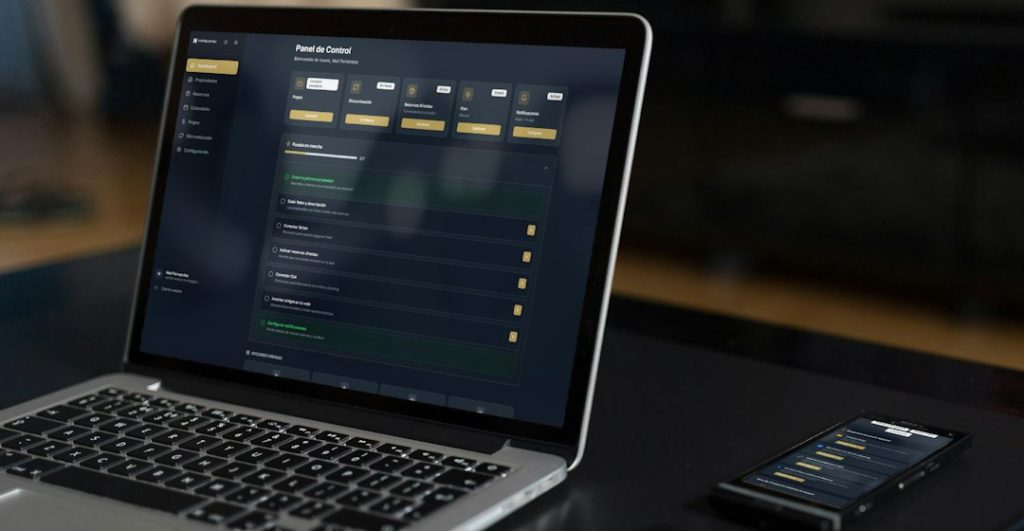
Use BitBrowser when you need clean, separate browser profiles for work, testing, ecommerce, ads, or social media. It keeps logins, cookies, device fingerprints, and proxies apart, so one messy account does not bleed into another. This matters because Chrome alone holds about 65% of the global browser market, so many tools and sites are built around Chrome-style behavior [source: StatCounter].
TLDR: BitBrowser lets you create many browser profiles that act like separate computers inside one app. For example, a small marketing team can run 20 client profiles without logging in and out all day. If each login switch takes 45 seconds, that can save about 15 minutes per person per day. It is not magic, but it does make account work much less annoying.
What is a browser profile?
A browser profile is like a tiny room inside your browser.
Each room has its own stuff:
- Cookies
- Saved logins
- Browser history
- Extensions
- Language settings
- Timezone
- Device fingerprint details
In a normal browser, profiles are useful. But they are basic. They help with family accounts or work accounts. That is fine for simple use.
BitBrowser goes much further. It is built for people who need many separate browser identities. Think of it like a locker room for browsers. Each locker has a name, a setup, and a purpose.

Why people use BitBrowser
People use BitBrowser because switching accounts in a normal browser gets old fast.
Honestly, it feels like normal browsers were built to forget that people manage more than one account. You sign out. You sign in. Then a code arrives. Then the wrong account opens. Then your coffee gets cold. Great.
BitBrowser helps with this by keeping profiles separate.
Common uses include:
- Social media management: one profile for each client.
- Ecommerce: one profile for each store or marketplace account.
- Ad testing: separate profiles for campaigns and regions.
- Affiliate work: clean sessions for different projects.
- Web testing: check how a site behaves under different settings.
- Team access: share profiles without sharing raw passwords in chat.
That last point matters. Sending passwords through messages is a bad habit. It is also very common. BitBrowser can help teams reduce that chaos.
How BitBrowser works in plain English
BitBrowser creates controlled browser profiles.
Each profile can have its own setup. That setup may include a proxy, cookies, fingerprint settings, and login state. When you open the profile, it feels like opening a separate browser on a separate machine.
A fingerprint is not a fingerprint from your hand. It is the way websites read your browser and device.
They may check things like:
- Your screen size
- Your operating system
- Your browser version
- Your timezone
- Your fonts
- Your WebGL data
- Your canvas data
- Your IP address
BitBrowser helps you keep those details organized. It does not mean you can do anything you want. Websites still have rules. Platforms still ban abuse. Use it for clean work, not shady tricks.
A simple example
Meet Ava. She manages five small brands.
Each brand has:
- One Instagram account
- One TikTok account
- One Facebook page
- One ad account
That is 20 logins. Without profiles, Ava keeps bouncing between accounts. She uses private windows. She clears cookies. She gets security codes. She mutters at her laptop.
With BitBrowser, Ava makes one profile per brand. She names them:
- Brand One Social
- Brand Two Social
- Brand Three Ads
Now she opens the right profile and gets to work. No cookie pileup. No accidental posting from the wrong account. Fewer “wait, why am I logged in as Bob?” moments.
Key BitBrowser features beginners should know
1. Profile management
This is the main feature.
You create a profile. You name it. You choose settings. Then you use it again later. Simple.
Good naming helps a lot. Do not name profiles “Profile 1” and “Profile 2.” That road leads to pain.
Use names like:
- Client A, Instagram, US
- Store B, Marketplace, UK
- Testing, Mobile View, Canada
2. Proxy support
A proxy changes the IP address that a profile uses.
This can be useful when accounts belong to different regions or teams. But use quality proxies. Cheap, dirty proxies can cause login checks and blocks. Expect to waste time on bad proxies if you buy the cheapest pack you can find.
3. Fingerprint controls
BitBrowser can help manage browser fingerprint settings.
For beginners, do not overthink this on day one. Start simple. Use realistic settings. Match the timezone, language, and proxy location when possible.
If your profile says it is in Germany, but the timezone screams Los Angeles, that looks odd. Keep things tidy.
4. Team features
Teams can often share access to profiles.
This is handy for agencies. A manager can set up profiles. A team member can open only the profiles they need. That is cleaner than passing around passwords in a spreadsheet named “final final passwords.”
5. Automation options
Some advanced users connect BitBrowser with automation tools.
Beginners should be careful here. Automation can save time. It can also trigger platform limits if used badly. Start by learning manual profile use first.
How to start with BitBrowser
Here is a simple beginner plan.
- Install BitBrowser. Get it from the official site.
- Create your first profile. Give it a clear name.
- Add a proxy if needed. Skip this if you do not understand proxies yet.
- Set basic details. Check timezone, language, and browser type.
- Open the profile. Log in to one account only.
- Save notes. Add what the profile is for.
- Repeat slowly. Build profiles one by one.
Do not create 100 profiles on your first afternoon. That sounds brave. It is usually a mess.
Start with three to five profiles. Learn how they behave. Then scale up.
Best practices for clean profiles
Keep your setup boring. Boring is good here.
- Use one account per profile. This avoids confusion.
- Keep names clear. Future you will say thank you.
- Match location settings. Proxy, timezone, and language should make sense together.
- Do not share profiles with everyone. Set access carefully.
- Write notes. Add client name, purpose, and login rules.
- Back up key data. Do not trust memory.
- Follow platform rules. A tool is not a free pass.

Common beginner mistakes
New users often make the same mistakes.
The first mistake is mixing accounts. One profile should not become a junk drawer. Keep it focused.
The second mistake is using bad proxies. A weak proxy can create more alerts than it solves.
The third mistake is changing settings too often. If a profile looks like a laptop in Paris on Monday and a tablet in Tokyo on Tuesday, that is weird.
The fourth mistake is forgetting team permissions. Give people only what they need. Not everything.
Who should use BitBrowser?
BitBrowser is a good fit if you manage many accounts and need order.
It is useful for:
- Agencies
- Freelancers
- Ecommerce sellers
- Ad buyers
- QA testers
- Growth teams
- Virtual assistants
It may be too much if you only have two Gmail accounts. In that case, normal browser profiles may be enough.
Final thoughts
BitBrowser is best understood as a control panel for browser identities.
It helps keep accounts separate. It cuts down login friction. It makes team work tidier. It also helps prevent silly mistakes, like posting to the wrong client account at 9:03 a.m. while half awake.
Start small. Name profiles well. Use clean settings. Respect platform rules. Do that, and BitBrowser becomes less scary fast.
The big idea is simple: one profile, one purpose, less chaos.