


WordPress is moderately hard to learn for beginners, but it is not hard in the same way coding is hard. The real challenge is learning how its pieces fit together: hosting, themes, plugins, blocks, updates, backups, and settings. A simple five-page site can be built in a weekend. A polished business site often takes several weeks of steady practice.
TLDR: WordPress is beginner-friendly at the surface, but it has a steeper learning curve than most drag-and-drop site builders. A new user may spend 10 to 20 hours learning the basics and 40 to 80 hours becoming comfortable with themes, plugins, SEO, and maintenance. For example, a local fitness coach could publish a basic service website in two days, but may need another month to refine booking forms, speed, mobile layout, and search visibility.
How Hard Is WordPress to Learn?
For most beginners, WordPress sits in the middle of the difficulty scale. It is easier than building a website with HTML, CSS, JavaScript, and PHP. It is harder than using a closed website builder with fewer settings.
The main reason is simple: WordPress gives you control. That control is useful. It also means you must make more decisions. You choose a host. You install or connect WordPress. You pick a theme. You configure plugins. You handle updates. You fix odd layout issues when a plugin and theme do not behave well together.
Honestly, it feels like WordPress is easy until something small breaks. Then a task that should take 30 seconds can become a 25-minute search through settings, support threads, and plugin screens.
The Beginner Learning Curve in Real Terms
A fair estimate for a complete beginner looks like this:
- First 2 to 5 hours: Learning the dashboard, pages, posts, menus, themes, and basic settings.
- First 10 to 20 hours: Building a simple site with a homepage, about page, contact form, and blog.
- First 30 to 50 hours: Understanding plugins, backups, SEO basics, image sizing, and mobile design.
- After 80 hours: Most users can manage a small business website with confidence.
These numbers vary. A person who has used content tools before may move faster. Someone new to web terms may need more time. The hardest part is not clicking buttons. It is knowing which button matters.
What Beginners Usually Find Easy
WordPress is not all pain. Some parts are genuinely simple.
- Creating pages: Adding a page is straightforward once you understand the block editor.
- Writing blog posts: WordPress began as a blogging tool, and it still handles posts well.
- Adding images: Uploading media is simple, though image size can affect speed.
- Changing basic text: Editing headings, paragraphs, buttons, and links is easy after a short practice period.
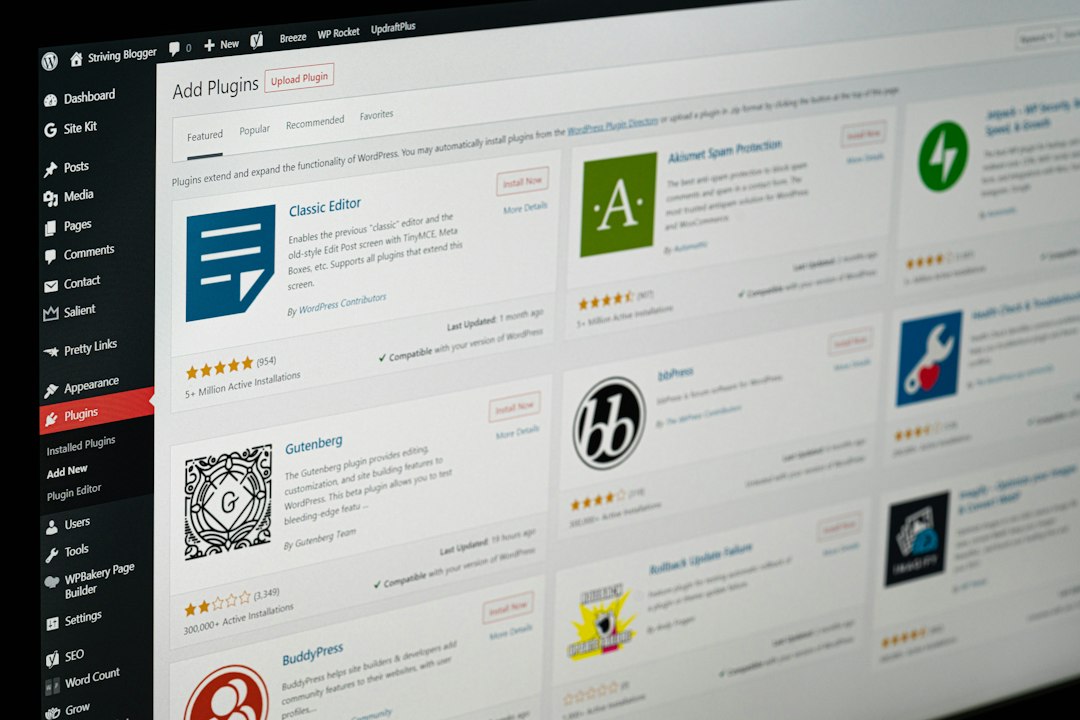
- Installing plugins: Searching for and adding plugins takes only a few clicks.
The block editor is a good example. At first, it can feel strange. After a few hours, most users understand how blocks work. Text, images, buttons, columns, and embeds each have their own controls. The system is flexible, but it takes patience.
What Makes WordPress Hard for Beginners?
The difficulty begins when WordPress stops being just a page editor and becomes a full site system.
Plugins are the first major problem. They add features like forms, SEO tools, caches, memberships, stores, and spam protection. That sounds great. The catch is that too many plugins can slow your site, create conflicts, or add confusing settings.
Themes are another common issue. Some themes are clean and simple. Others add their own panels, templates, design controls, and demo import systems. A beginner may think they are learning WordPress, when they are really learning one theme’s custom interface.
Hosting also matters. Poor hosting can make WordPress feel broken. Slow admin screens, failed updates, and timeout errors can make beginners blame themselves. Sometimes the problem is the server, not the user.
WordPress.com vs WordPress.org
Many beginners get stuck before they even start because of the two WordPress options.
- WordPress.com is a hosted service. It is simpler at first, but some features are locked behind paid plans.
- WordPress.org is the self-hosted version. It gives more control, but you must handle hosting, security, backups, and updates.
If you want a hobby blog or a very simple personal site, WordPress.com may be easier. If you want a business site, online store, membership site, or serious content platform, self-hosted WordPress is usually the better long-term choice.
Do You Need to Know Code?
No, you do not need to know code to start with WordPress. You can build a standard site without writing HTML, CSS, PHP, or JavaScript.
Still, basic code knowledge helps. Even a little CSS can fix spacing, colors, and layout issues. Knowing what HTML headings mean can also improve accessibility and SEO. You do not need to become a developer, but learning basic web terms will save time.
For most beginners, the better goal is this: learn how WordPress works before trying to customize everything. Build a simple version first. Then improve it.
A Practical Learning Path
The easiest way to learn WordPress is to build one small project. Do not start with an online store, course platform, or membership site. Start with a normal website.
- Set up hosting and install WordPress. Use a reputable managed WordPress host if possible.
- Choose a lightweight theme. Avoid themes packed with features you do not need.
- Create five core pages. Home, About, Services, Blog, and Contact are enough.
- Install only essential plugins. Start with SEO, security, backup, and contact form tools.
- Test mobile layout. More than half of many sites’ visitors come from phones.
- Set up backups before making big changes. This prevents panic later.
This approach keeps the learning curve realistic. It also avoids the classic beginner trap: installing 18 plugins, importing a demo site, and then wondering why nothing makes sense.
How Long Before You Feel Comfortable?
If you practice for one hour a day, you can understand the basics in one to two weeks. You can manage a simple website in about a month. To feel confident with troubleshooting, performance, SEO, and security, expect two to three months of practical use.
A realistic user case: Sarah runs a small catering business. She spends 15 hours over two weekends creating her first WordPress site. It has six pages, a contact form, testimonials, and a blog. She spends another 20 hours over the next month learning image compression, local SEO, and plugin updates. By week six, she no longer feels lost in the dashboard.
Common Beginner Mistakes
- Choosing a complex theme too early. More features often mean more confusion.
- Installing too many plugins. Each plugin adds risk and maintenance.
- Ignoring backups. One bad update can erase hours of work.
- Using huge images. Large files can make pages painfully slow.
- Skipping mobile checks. A site can look fine on desktop and poor on a phone.
- Expecting instant SEO results. Search traffic takes time, content, and technical care.
Is WordPress Worth Learning?
Yes, WordPress is worth learning if you want ownership and flexibility. It powers a large share of the web for a reason. You can use it for blogs, business sites, portfolios, directories, stores, and publishing platforms.
But it is not the best choice for everyone. If you need a one-page site by tonight and never want to touch settings, a simpler builder may suit you better. If you want a site that can grow, WordPress is a strong option.
The best answer is honest: WordPress is easy to start, harder to master, and very manageable with a structured approach. Beginners should expect confusion at first. That is normal. The learning curve is real, but it is not a wall. It is a set of steps, and each step gets easier after you build something real.