


Older PCs can still deliver a surprisingly playable gaming experience if Windows, drivers, background services, and in-game settings are tuned carefully. While no software tweak can turn outdated hardware into a modern gaming rig, many systems lose performance because of unnecessary startup apps, poor power settings, bloated overlays, outdated drivers, or graphics options that demand more than the machine can provide.
TLDR: To increase FPS on an older PC without upgrading hardware, focus on reducing background load, using the correct Windows power settings, updating or clean-installing GPU drivers, and lowering the right in-game graphics options. Prioritize settings that heavily affect performance, such as resolution, shadows, anti-aliasing, ambient occlusion, and post-processing. Keep expectations realistic: optimization can improve smoothness and stability, but it cannot overcome severe CPU, GPU, or RAM limitations.
Start With a Realistic Performance Baseline
Before changing settings, establish a baseline. Run the game you want to improve and note the average FPS, minimum FPS, stuttering, input delay, and loading behavior. Use built-in game benchmarks if available, or tools such as the Xbox Game Bar, Steam FPS counter, NVIDIA overlay, AMD Adrenalin metrics, or MSI Afterburner with RivaTuner Statistics Server.
The goal is not only to chase a higher average FPS number. Consistent frame pacing often matters more than peak FPS. A game that runs at 45 FPS steadily can feel better than one that jumps between 70 and 25 FPS. If your older PC suffers from sudden freezes, long texture loading, or heavy stutter, you may need to reduce memory usage as much as graphics quality.
Write down your starting numbers. That way, you can tell which changes actually help instead of relying on guesswork.
Optimize Windows Power and Performance Settings
Windows often defaults to balanced power behavior, especially on laptops. This is reasonable for battery life and noise, but it can limit CPU and GPU performance. On an older system, every bit of stable clock speed matters.
- Use High Performance or Best Performance mode: Open Settings > System > Power and select the highest performance option available. On Windows 10, you can also check Control Panel > Power Options.
- Keep laptops plugged in: Many laptops heavily reduce CPU and GPU speed when running on battery.
- Disable unnecessary power saving features: Advanced users can review processor power management settings, but avoid changing values you do not understand.
If you use a laptop, also check the manufacturer’s control software. Brands often include their own power profiles, such as silent, balanced, performance, or turbo modes. Select a performance-oriented mode while gaming, but monitor temperatures to avoid thermal throttling.
Reduce Startup Apps and Background Processes
Older PCs usually have limited CPU cores, slower storage, and less memory. Background apps can compete directly with games for these resources. Browsers, cloud sync tools, launchers, RGB utilities, updaters, chat apps, and recording software can all reduce performance.
Open Task Manager by pressing Ctrl + Shift + Esc. In the Startup apps tab, disable programs that do not need to launch with Windows. In the Processes tab, check what is consuming CPU, memory, disk, and GPU resources before starting a game.
- Close web browsers, especially with many tabs open.
- Pause cloud synchronization tools while gaming.
- Exit game launchers you are not actively using.
- Disable third-party overlays unless needed.
- Avoid running antivirus scans during gaming sessions.
Important: Do not randomly end Windows system processes. If you are unsure what a process does, look it up first. A stable PC is more valuable than a small FPS gain from closing the wrong service.
Update GPU Drivers, or Clean Install Them
Graphics drivers can make a meaningful difference, particularly in newer games or titles that recently received optimization updates. If your drivers are very old, updating them may improve FPS, reduce crashes, or fix shader compilation issues.
Download drivers directly from NVIDIA, AMD, or Intel, depending on your GPU. Avoid unofficial driver websites. If you have installed many drivers over the years, consider a clean driver installation. NVIDIA provides a clean install option during setup. AMD also offers cleanup tools. Advanced users sometimes use Display Driver Uninstaller, but it should be used carefully and preferably after reading instructions.
However, the newest driver is not always best for very old GPUs. If a new driver causes instability, rolling back to a previous stable version is reasonable. Trust stability over novelty.
Use GPU Control Panel Settings Wisely
Your GPU control panel can improve performance when configured correctly. The exact options depend on whether you use NVIDIA Control Panel, AMD Software Adrenalin, or Intel Graphics Command Center.
- Set power mode to maximum performance: This can prevent the GPU from downclocking too aggressively during games.
- Disable forced anti-aliasing: Let the game control anti-aliasing settings.
- Use performance texture filtering: This may slightly reduce image quality but can help older GPUs.
- Turn off unnecessary enhancements: Features such as supersampling or forced high-quality filtering can reduce FPS significantly.
- Enable low latency settings carefully: These may improve input response but do not always increase FPS.
If you are unsure, create a profile for one game rather than changing global settings for everything. This keeps your system easier to troubleshoot.
Lower the Right In-Game Graphics Settings
Not all graphics settings affect performance equally. On older PCs, lowering the most demanding options first gives the best results while preserving acceptable visual quality.
Resolution and Render Scale
Resolution is one of the biggest FPS factors. Running a game at 1920×1080 requires far more GPU power than 1600×900 or 1280×720. If your GPU is old, reducing resolution can produce a major improvement. Some games offer render scale, allowing the interface to remain sharp while the 3D scene renders at a lower internal resolution.
Shadows
Shadows are often expensive. Set shadow quality to low or medium. In many games, this improves FPS significantly with limited impact on gameplay clarity.
Anti-Aliasing
Anti-aliasing smooths jagged edges but can reduce FPS. On older hardware, avoid heavy options such as MSAA. Use lighter methods such as FXAA or TAA if available, or turn anti-aliasing off entirely if performance is poor.
Ambient Occlusion and Global Illumination
These lighting features improve depth and realism, but they are demanding. Turn ambient occlusion off or set it to the lowest option. Disable advanced ray tracing, global illumination, or screen space lighting features on older GPUs.
Textures
Texture quality mainly depends on VRAM. If your GPU has 2 GB or less of VRAM, high textures can cause stuttering even if average FPS seems acceptable. Lower texture quality until movement through the game world feels smooth.
Post-Processing, Motion Blur, and Depth of Field
Post-processing effects can reduce performance and make games look less clear. Disable motion blur, film grain, chromatic aberration, and depth of field if you want better visibility and potentially higher FPS.
Use Upscaling When Available
Many modern games include upscaling technologies such as AMD FSR, Intel XeSS, or NVIDIA DLSS. Older GPUs may not support DLSS, but many can use FSR because it is widely compatible. Upscaling renders the game at a lower resolution and reconstructs the image to your display resolution.
For older PCs, try FSR Quality or Balanced modes first. If FPS is still too low, try Performance mode. The image may become softer, but the gain can be worthwhile when the alternative is unplayable performance.
Manage Windows Game Features and Overlays
Windows includes gaming features that may help on some systems but hurt on others. Test them rather than assuming one setting is always best.
- Game Mode: Usually worth enabling. It can help Windows prioritize the running game.
- Xbox Game Bar: Disable it if you do not use it for recording, monitoring, or invites.
- Background recording: Turn it off. Constant recording can reduce FPS and increase disk activity.
- Hardware accelerated GPU scheduling: Test both on and off. Results vary by GPU and driver.
Also review overlays from Steam, Discord, GeForce Experience, AMD Adrenalin, Ubisoft Connect, EA App, and other launchers. One overlay may be harmless; several running at once can create conflicts or stutter.
Keep Storage and Memory Under Control
If your older PC uses a hard drive, games may stutter when loading textures, maps, or assets. Without upgrading hardware, your best option is to reduce disk pressure. Keep at least 15 to 20 percent of the drive free if possible. A nearly full drive can slow down Windows and game loading.
Uninstall games and applications you no longer use. Run Windows Disk Cleanup or Settings > System > Storage to remove temporary files. If the game allows shader cache rebuilding, let it complete before judging performance.
Memory is equally important. If your PC has 8 GB of RAM or less, close everything unnecessary before launching a game. Avoid keeping a browser open in the background. Some modern games are simply too demanding for limited RAM, but careful cleanup can reduce severe stutter.
Improve Cooling to Prevent Throttling
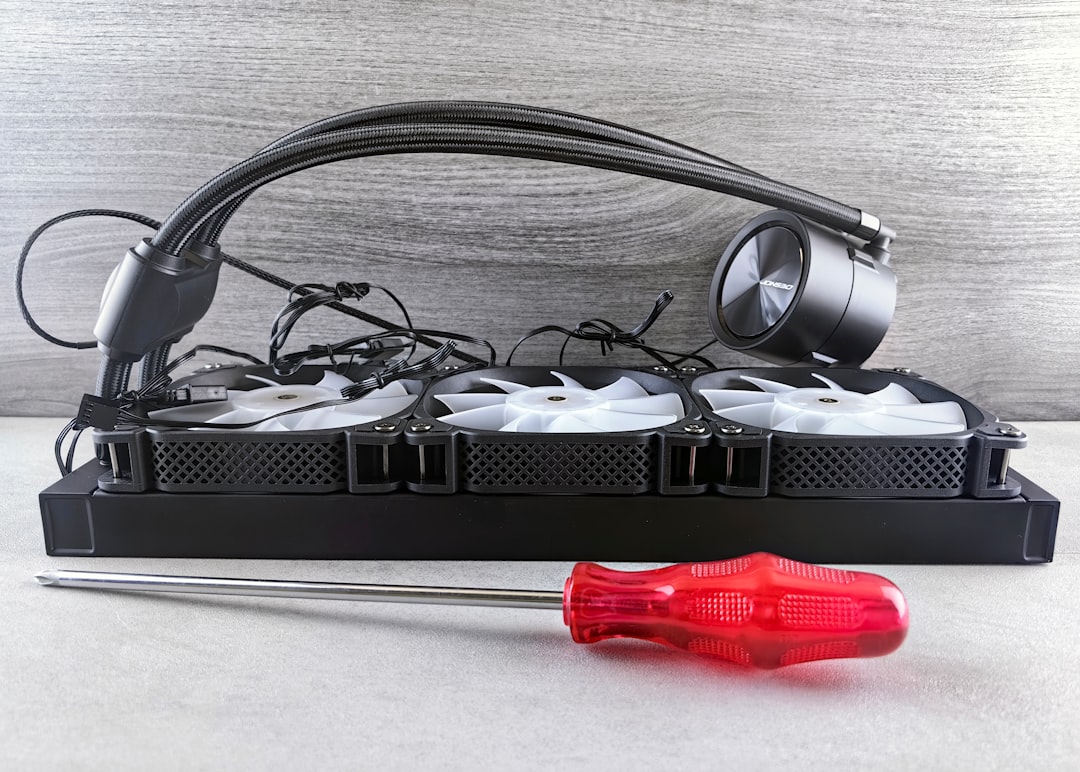
Older PCs often lose performance because they overheat. Dust buildup, dried thermal paste, blocked vents, or weak airflow can force the CPU or GPU to lower clock speeds. This is called thermal throttling, and it can cause FPS drops after several minutes of play.
Use monitoring software to check CPU and GPU temperatures while gaming. If temperatures are very high, shut the system down and clean dust from vents, fans, and heatsinks. For laptops, use a hard flat surface instead of bedding or fabric. A cooling pad may help some laptops, although results vary.
Do not ignore sudden shutdowns, burning smells, or fan failure. Performance tuning should never come at the expense of hardware safety.
Adjust Game Launch Options and Configuration Files Carefully
Some games support launch options that can improve performance. For example, a game may allow DirectX 11 instead of DirectX 12, exclusive fullscreen mode, or reduced startup effects. In certain older systems, DirectX 11 can be smoother than DirectX 12, even if average FPS is similar.
Configuration files may offer deeper settings than the in-game menu, such as disabling extra effects or lowering view distance further. Use these carefully. Back up the original file before making changes, and avoid copying random “FPS boost” configs without understanding what they alter.
Avoid Fake FPS Boosters and Risky Tweaks
Many tools online promise dramatic FPS increases with one click. Be skeptical. Real performance gains come from reducing workload, improving driver behavior, limiting background processes, and preventing throttling. Registry cleaners, aggressive “optimizer” apps, and unknown scripts can damage Windows stability or introduce malware.
Do not disable security features blindly. Do not download modified drivers from unofficial sources. Do not follow advice that tells you to delete system files or disable essential Windows services without explanation. A trustworthy optimization process should be reversible, measurable, and safe.
Use FPS Caps for Smoother Gameplay
It may sound strange, but limiting FPS can make games feel smoother on older PCs. If your system fluctuates between 35 and 60 FPS, try capping the game at 30, 40, or 45 FPS. A stable cap can reduce heat, power use, and frame-time spikes.
Use the in-game FPS limiter if available. If not, your GPU control panel or RivaTuner Statistics Server can set a frame cap. Match the cap to what your PC can maintain consistently, not what it can briefly reach while standing still.
Final Thoughts
Increasing FPS on an older PC without upgrading hardware is mostly about removing waste and making smart compromises. Start with Windows power settings, background apps, driver health, and overlays. Then adjust the heaviest graphics settings: resolution, shadows, anti-aliasing, ambient occlusion, textures, and post-processing.
The best results come from testing one change at a time and measuring its effect. Be cautious with miracle tools and extreme tweaks, and focus on stability as much as raw FPS. With careful optimization, many older PCs can still provide a smoother, more enjoyable gaming experience without spending money on new components.