


If you were working inside Google Antigravity and suddenly saw “Agent terminated due to error,” it can feel frustrating. Your task just stops, and you’re left wondering what went wrong. When this happens, the system could not finish the process, so it shuts it down to avoid further issues.
But sometimes the fix is simple. In this guide, you’ll learn what this error means, why it happens, how to fix it step by step, and how to prevent it from happening again.
What Is “Antigravity Agent Terminated Due to Error”?
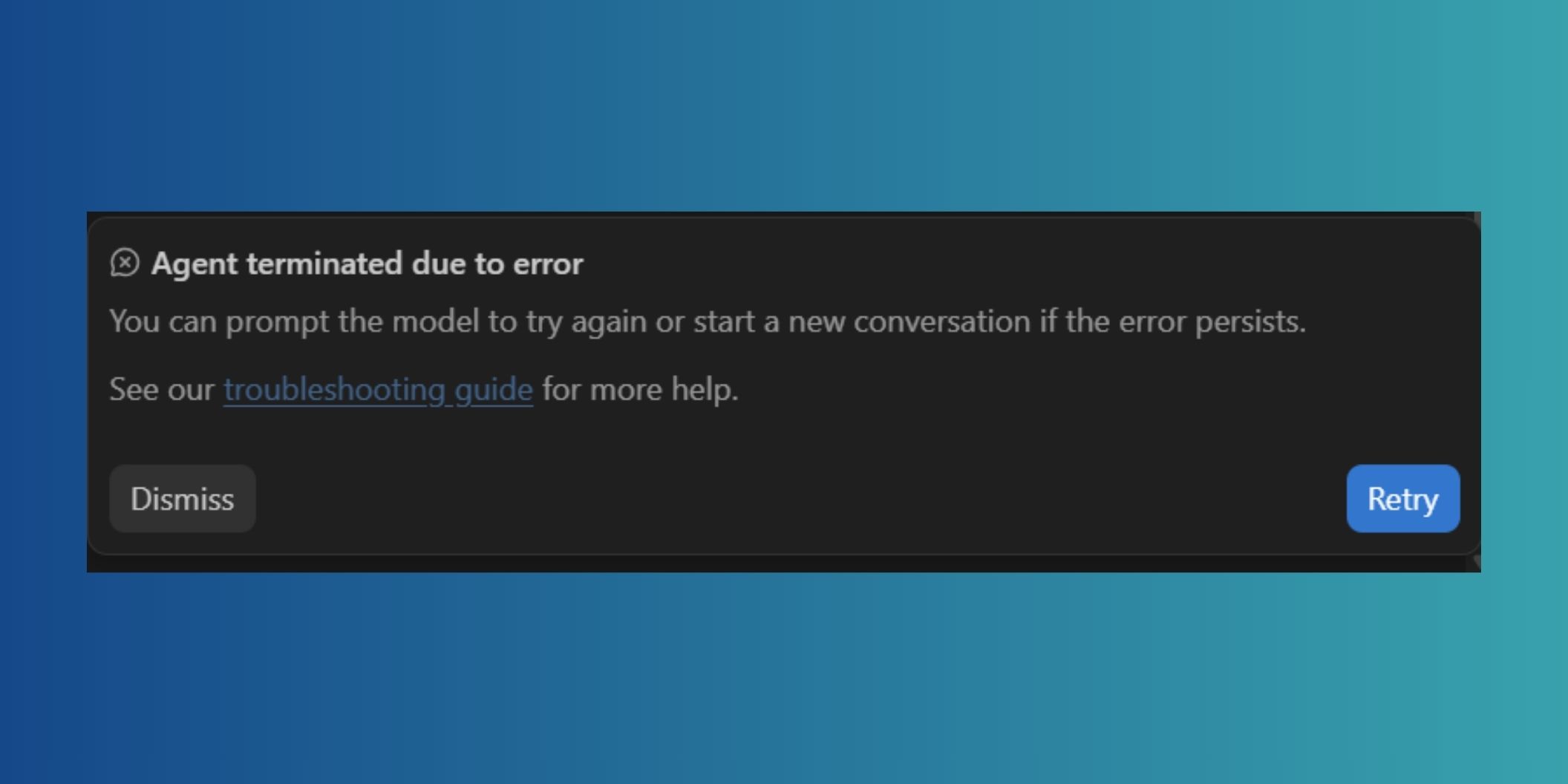
This error means the system stopped an active task because something failed during execution. In Google Antigravity, which is an agent-first IDE built by Google DeepMind, AI agents handle tasks like planning, coding, testing, and debugging. When one of these steps fails, the system triggers an Execution Failure and ends the process.
You may see this message while using Google Antigravity in your system. It often appears during long workflows like code generation or debugging. The task stops in the middle, and the system may require you to retry, adjust the request, or refresh your session to continue.
Common Causes of Antigravity Agent Error
This error can happen for several reasons, depending on system limits and how the task is processed. Below are the most common causes you should be aware of.
- Failed request in API communication
- Task timeout due to long execution time
- Exceeding Memory Limit during code generation
- Corrupted Cache in your system
- Complex or unclear development instructions given to the agent
- Server overload on Cloud Server used by Google Antigravity
- Unstable internet connection interrupting the workflow
How to Fix “Agent Terminated Due to Error”
To resolve this issue efficiently, try the fixes below one by one. Some problems come from system limits, while others depend on your input or connection.
Fix #1: Retry the Task
Sometimes this error happens because of a temporary system glitch. The AI agents in Google Antigravity may fail for a moment due to load or internal processing issues. When this happens, simply retrying the same task can restart the process and complete it successfully.
Fix #2: Simplify Your Request
This error often appears when the task is too large or complex. Since Google Antigravity uses Artificial Intelligence to manage workflows, very long or unclear instructions can overload the agent. Try breaking your request into smaller steps. For example, generate code first, then test it separately.
Fix #3: Restart or Reinstall Antigravity Setup
This error can happen when the Antigravity environment itself is not working properly. Since Google Antigravity runs as an agent-based system and is often used inside tools like Visual Studio Code or its official setup, broken files, failed updates, or session issues can lead to an Execution Failure. When the system cannot load required components correctly, it stops the agent and shows this error.
To fix this, close the Antigravity environment or Visual Studio Code completely, then reopen it and try again. If the problem continues, uninstall the Antigravity setup or extension and install it again from the official source. A fresh setup reloads all files and clears hidden issues, which often helps the agent run tasks without interruption.
Fix #4: Check Internet Connection
A weak or unstable connection can interrupt communication between your system and the Cloud Server. This breaks the workflow and leads to execution failure. Make sure your internet is stable. You can switch networks or restart your router if needed.
Fix #5: Wait and Retry Later
Sometimes the issue is not on your side. The servers used by Google Antigravity may be busy or under heavy load. This can delay or stop tasks. Waiting a few minutes and trying again often solves the problem.
Fix #6: Reduce Task Size
Large tasks can exceed system limits like Memory Limit or timeout restrictions. Instead of running everything at once, split your project into smaller steps. This helps the agent complete each part without failing.
Fix #7: Refresh Your Session
Session issues can also cause this error. Refreshing your session resets the connection between your system and the platform.
Here are the following steps which help you to refresh your session:
- Log out of Google Antigravity
- Close your App
- Reopen the app
- Log back into your account
- Restart your task
This often clears temporary issues.
Prevention Tips to Avoid This Error in Future
Preventing this error helps keep your workflow smooth. A few simple habits can make a big difference.
- Use clear and simple instructions for AI agents
- Avoid running very large tasks at once
- Keep your app updated
- Clear cache regularly
- Use a stable internet connection
- Avoid peak usage times when servers are busy
- Break projects into smaller steps
Conclusion
In short, this error means the system stopped your task because something failed during execution. It often happens due to API issues, system limits, or connection problems inside Google Antigravity.
Try the fixes step by step, and in most cases, the issue will be resolved quickly. If it keeps happening, you may need to check official support from Google DeepMind. If this guide helped you, share it or leave a comment so others can solve the same problem faster.