


Many players run into the same problem when starting Duet Night Abyss. The launcher opens, then a message appears saying “UE4-EMLauncher Game has crashed – Fatal error.” After that, the game closes before it even loads.
This issue is frustrating, but it is usually fixable. The crash happens at launch, not during gameplay, which means the problem is often related to system settings, missing files, or launcher conflicts. Below is a clear guide that explains what causes this error and how to fix it step by step.
What Is the Duet Night Abyss Fatal Error Launcher Crash?
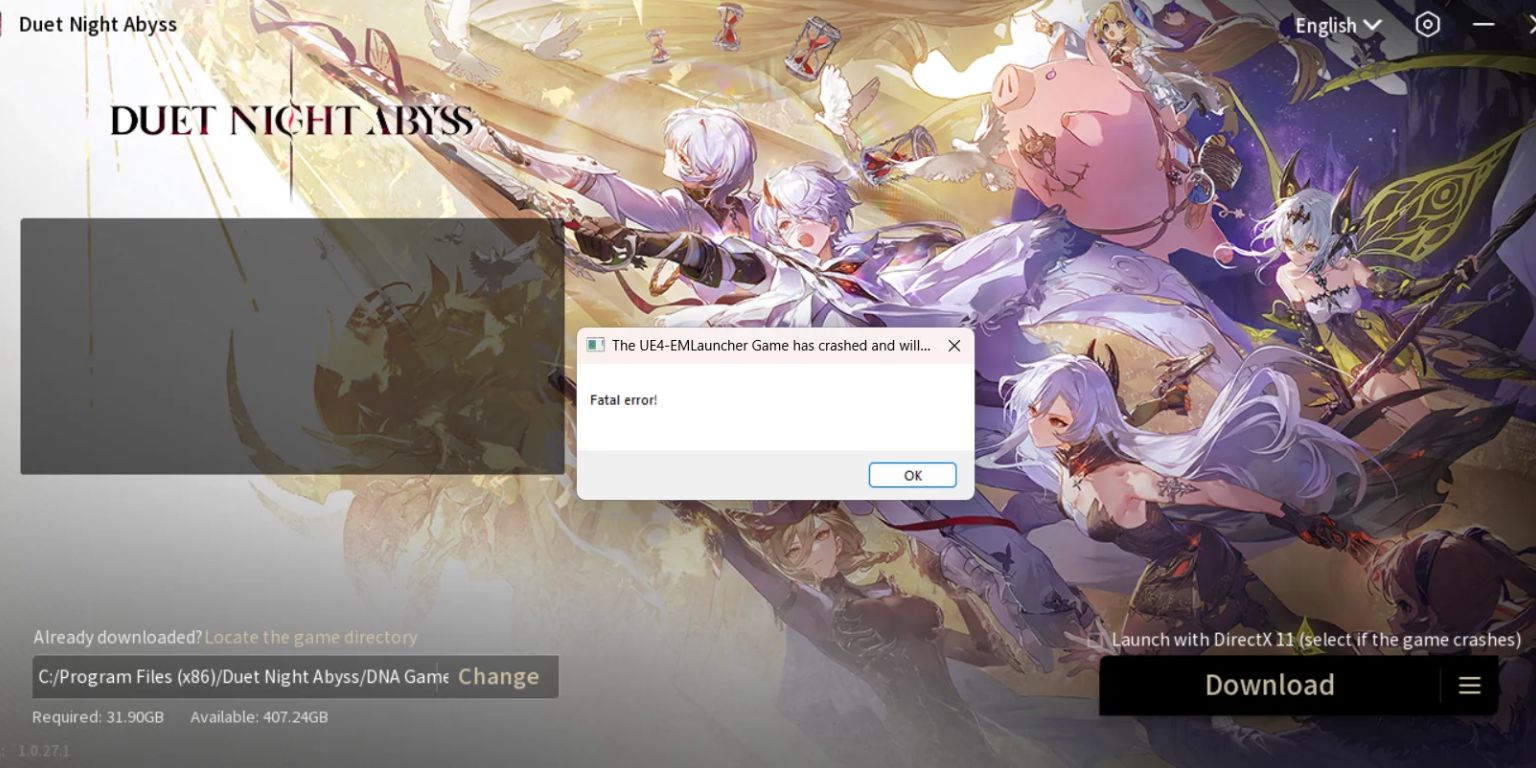
This crash happens when the game launcher fails to start the game engine properly. Duet Night Abyss runs on Unreal Engine 4, and the error appears when the UE4 launcher cannot load required components.
Most players see the crash window right after clicking Launch. No loading screen appears. The game does not reach the main menu. This points to a startup-level issue, not a gameplay bug.
Why Duet Night Abyss Crashes on Launch
Several known causes can trigger this fatal error on Windows systems.
Common reasons include:
- DirectX version conflicts
- Corrupt or incomplete game files
- Missing Visual C++ runtime libraries
- Outdated or unstable GPU drivers
- Antivirus or Windows Defender blocking the launcher
- Permission issues with the install folder
In most cases, more than one factor can be involved.
Fix 1: Launch Duet Night Abyss Using DirectX 11
The launcher includes an option to start the game with DirectX 11 instead of newer APIs.
Why this helps:
- DirectX 11 is more stable on many systems
- Some GPUs struggle with DirectX 12 at launch
- UE4 often falls back better with DX11
Steps:
- Open the Duet Night Abyss launcher
- Look for “Launch with DirectX 11”
- Select it and start the game
Many users report this alone fixes the crash.
Fix 2: Verify or Redownload Game Files
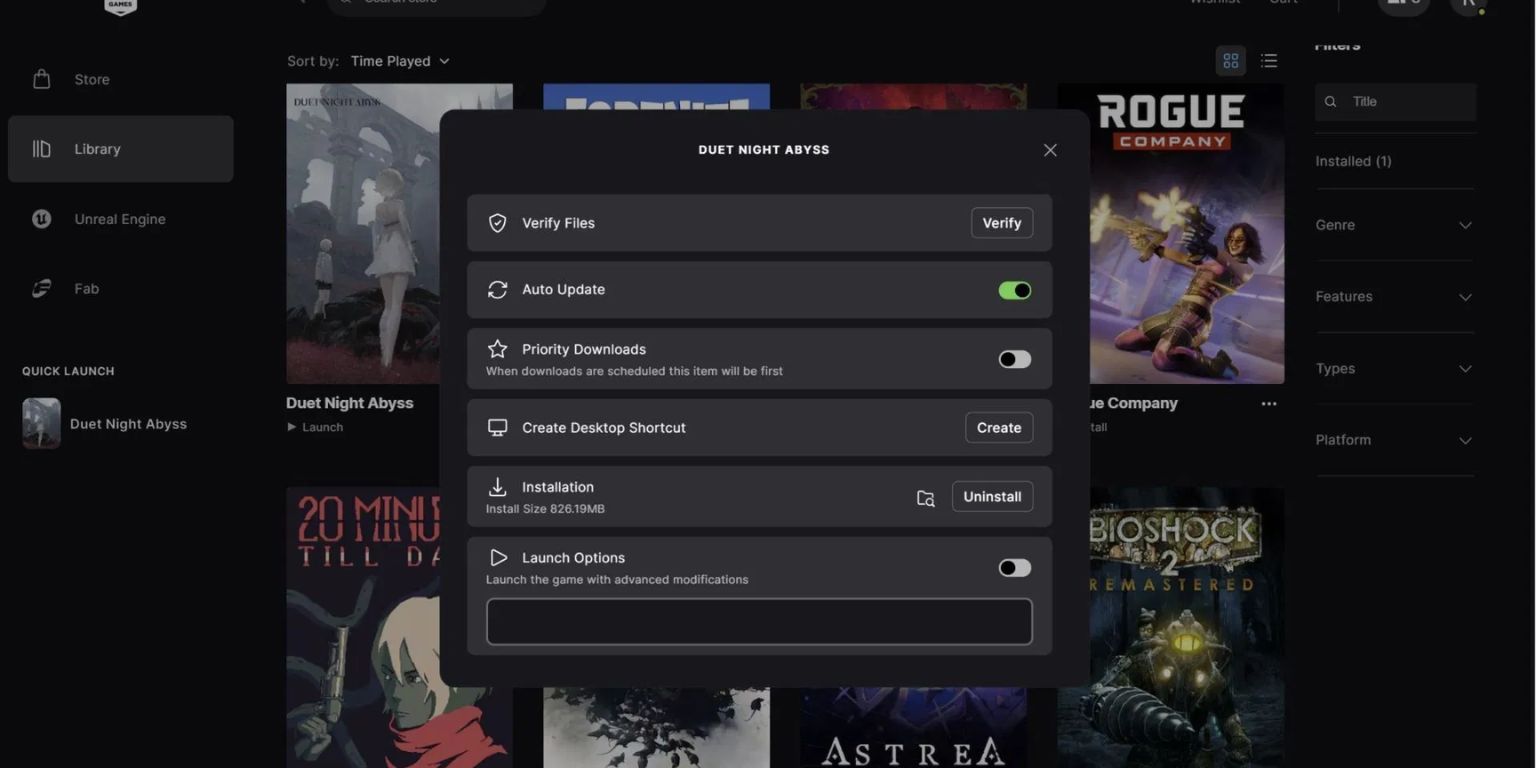
A broken or incomplete download can cause the Duet Night Abyss launcher to crash instantly.
If the launcher has a file verification option, use it. If not:
- Check the installation path is correct
- Make sure the full game size is downloaded properly
- Avoid installing the game in restricted folders
Installing inside Program Files (x86) can sometimes cause permission issues. A custom folder like C:\Games\DuetNightAbyss works better.
Fix 3: Install or Repair Visual C++ Redistributables
Unreal Engine 4 depends on Microsoft runtime files. If they are missing or damaged, the game will not start.
Install or repair:
- Microsoft Visual C++ Redistributable 2015–2022
- Both x64 and x86 versions
After installing, restart Windows before launching the game again.
Fix 4: Update Your Graphics Drivers
Outdated or unstable graphics drivers are a common cause of launcher crashes in Duet Night Abyss. The game depends on proper GPU communication during startup, and older drivers may lack support for required Unreal Engine 4 features.
Update your drivers directly from the official sources provided by NVIDIA or AMD. Avoid third-party driver tools, as they can install incorrect or modified versions. After completing the update, restart your system before launching the game again to ensure the new drivers load correctly.
Fix 5: Run the Launcher as Administrator
Permission issues can stop the launcher from accessing required files.
Do this:
- Right-click the launcher
- Select “Run as administrator”
This gives the launcher full access to its folders and system resources.
Fix 6: Temporarily Disable Antivirus or Windows Defender
Security software sometimes blocks game launchers by mistake.
Programs like Windows Defender may quarantine or restrict game files.
Steps:
- Temporarily disable real-time protection
- Add the game folder to exclusions
- Launch the game
- Re-enable protection after testing
Do not leave antivirus disabled longer than needed.
Fix 7: Check System Requirements and Disk Space
Confirm that the installed Windows version is supported by Duet Night Abyss. The game depends on system components required by Unreal Engine 4, and unsupported or outdated Windows builds can prevent the launcher from initializing correctly.
Review available disk space on the drive where the game is installed. Sufficient free space is required not only for the game files but also for temporary data created during launch. Limited storage can cause the launcher to fail without displaying a detailed error message.
Evaluate system resource usage before starting the game. The graphics card must support the required DirectX features, and graphics drivers should be current. In addition, high memory usage from background applications can limit available RAM and trigger a crash during startup.
What to Do If the Fatal Error Still Happens
If none of the fixes work:
- Perform a clean reinstall of the game
- Remove leftover files from the install directory
- Reboot before reinstalling
- Avoid beta GPU drivers
- Wait for an official patch if the issue is widespread
Some launcher crashes are fixed only by updates from the developers.
Final Thoughts
The Duet Night Abyss fatal error launcher crash looks serious, but it is usually caused by common system issues. DirectX settings, missing runtimes, and security software are the most frequent reasons.
Work through the fixes one by one. Do not rush. If this guide helped you get the game running, share it with others facing the same crash. You can also leave a comment explaining which fix worked on your system.