


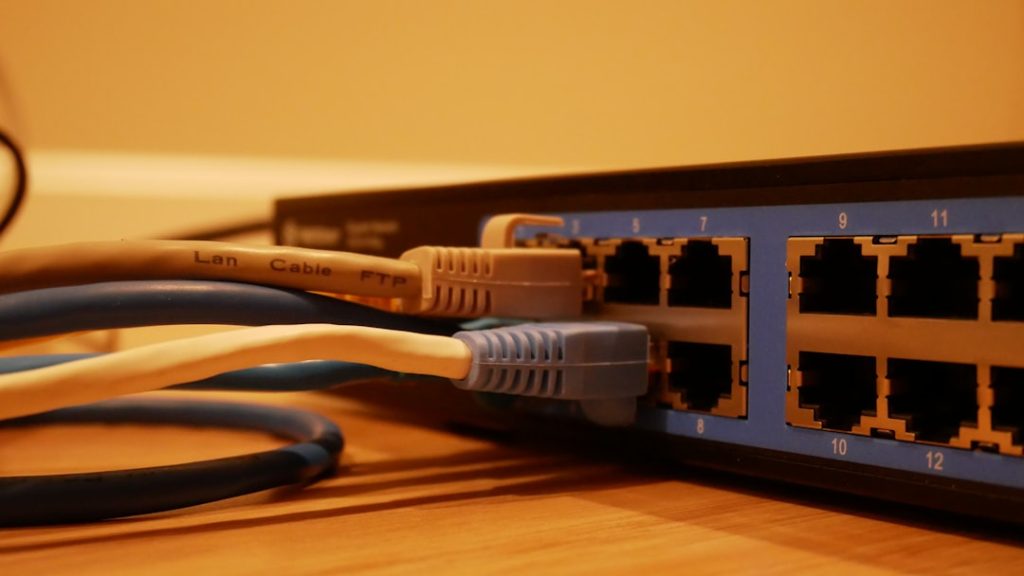
For many home media enthusiasts, Plex has become the go-to software for organizing and streaming their personal libraries of movies, music, and shows. However, nothing is more frustrating than setting up your Plex Media Server, powering on your client device, and realizing it can’t see the server on your local network.
TL;DR (Too Long; Didn’t Read)
If your Plex client can’t detect your Plex server, it’s usually due to networking issues such as firewall settings, incorrect server IP, or problems with network isolation. To fix it, make sure both devices are on the same local network, check Plex’s server settings, and confirm your firewall/router isn’t blocking access. Restarting the server and updating Plex to the latest version often resolves such issues quickly.
Common Causes for Plex Not Showing on Local Network
Several factors can prevent Plex from appearing on your local network. Understanding these will help in identifying the exact issue:
- Network Isolation: Devices may be connected to separate network bands (e.g., one on 2.4GHz Wi-Fi, the other on 5GHz or Ethernet).
- Server Not Running: Plex Media Server might not be actively running or may have crashed.
- Firewall or Antivirus Blocking: Your computer’s firewall or antivirus can block Plex from communicating with client devices.
- Incorrect Server IP or Port: The server might be assigned a new IP or using the wrong port configuration.
- Plex Version Mismatch: Using outdated server or client software can also hinder connectivity.
- Remote Access Confusion: Some users confuse LAN access with remote access settings, which behave differently.
How to Fix Plex Server Not Appearing on Local Network
Let’s walk through several step-by-step solutions to get Plex communicating smoothly again.
1. Make Sure Both Devices Are on the Same Network
This may sound simple but is one of the most common issues. Verify that both the server and the client are on the same local network and IP range.
- Check that both devices are connected to the same router.
- Avoid using guest networks or VPNs that could isolate traffic.
- For dual-band routers, connect both server and client to the same Wi-Fi band or use Ethernet if possible.
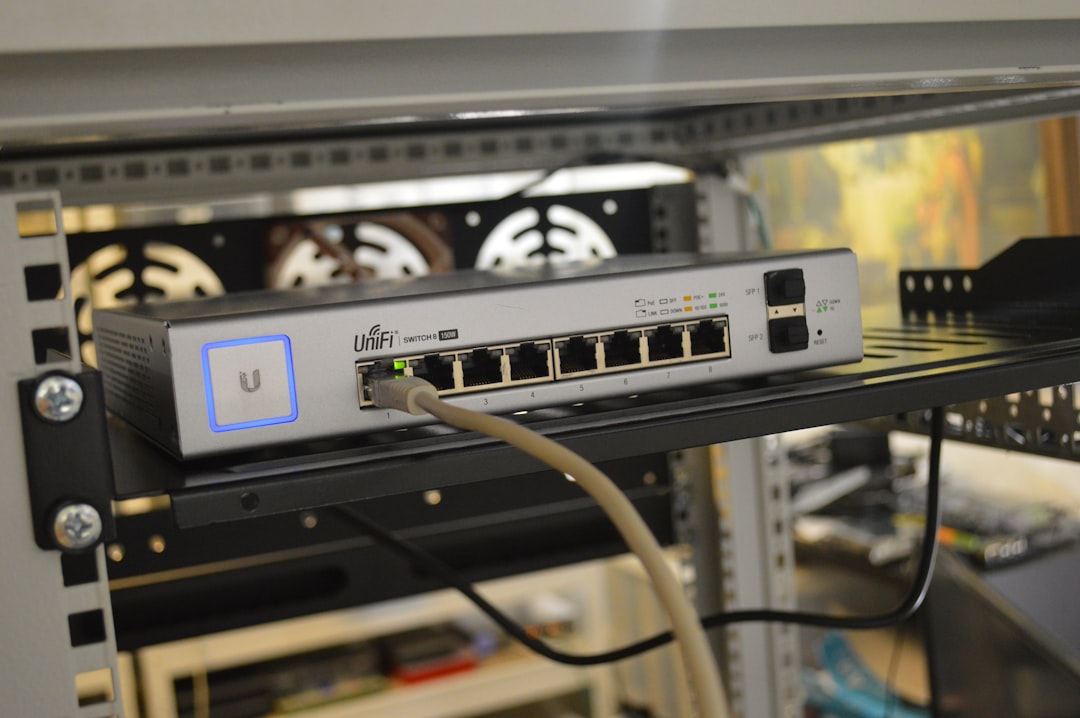
2. Restart Plex and the Host Device
A restart can fix temporary glitches both in the Plex app and host system. Restart the following in order:
- The Plex Media Server software.
- The PC or NAS device hosting the server.
- The client device you’re using to access Plex.
3. Check Whether Plex Server Is Running Smoothly
Go to the Plex dashboard by opening a browser and entering:
http://127.0.0.1:32400/web or http://localhost:32400/web
If it doesn’t load, Plex isn’t running, or the installation is corrupted. If it does load, go into Settings > Status to check the server’s health.
4. Configure Firewall or Antivirus Settings
Firewalls and antivirus programs often block unknown apps like Plex by default. Here’s what to do:
- Allow Plex Media Server in your firewall settings.
- Create an exception for port 32400, which Plex uses to communicate.
- Disable antivirus temporarily to check if it’s the cause.
5. Set a Static IP for the Plex Server
If your server’s IP address changes (due to DHCP), it might make Plex invisible to clients. Assign a static IP in either:
- Your router’s settings page under DHCP reservations.
- Directly on the server under its network configuration settings.
6. Disable VPNs and Network Isolation Settings
VPNs can route traffic differently and make local services like Plex invisible. Disable them temporarily to see if they’re responsible.
Some routers feature network isolation mode (also called client isolation) that prevents devices from communicating with each other. Make sure this is turned off on your router.
7. Use Direct IP Connection to Access Server
If automatic discovery can’t detect Plex, try connecting manually:
http://[Your_Local_IP]:32400/web
For example: http://192.168.1.10:32400/web
8. Update Plex Media Server and App
Outdated software can conflict with modern devices or operating systems. Update using these steps:
- Go to the Plex website and download the latest Plex Media Server version.
- Update the Plex client app on your smart TV, mobile, or streaming box.

9. Clear the Bonjour/Network Cache
Plex relies on Bonjour and other discovery protocols. Over time, cache can become corrupted.
- On Windows, restart the Bonjour service from services.msc.
- On Macs, restart mDNSResponder via Terminal:
sudo killall -HUP mDNSResponder
10. Reinstall Plex if All Else Fails
As a final troubleshooting step, uninstall and reinstall Plex Media Server. Be sure to back up your Plex data (library, metadata, etc.) before uninstalling.
Advanced Fix: Port Forwarding and Remote Access
Sometimes confusion arises between local and remote access. If you’re trying to access through a different Wi-Fi or mobile data while assuming it’s local, you’ll need to configure remote access:
- Log in to Plex and go to Settings > Remote Access.
- Enable manual port and set it to 32400.
- Forward TCP port 32400 in your router to your Plex server’s local IP.
Once configured, you can access your server even away from home using:
https://app.plex.tv/
Conclusion
Not being able to locate your Plex server on a local network can be frustrating, but walking through these steps will usually resolve the problem quickly. Always ensure your server and client are updated and correctly configured to share the same network. If all else fails, connecting via IP or reinstalling Plex might just do the trick.
Frequently Asked Questions (FAQs)
Why can’t my client app find the Plex server?
This usually occurs due to network segmentation or firewall settings. Ensure both devices are on the same subnet and that Plex is not blocked by your operating system’s security software.
Is Plex supposed to work offline or without internet?
Yes, Plex works locally without internet as long as both server and client are on the same LAN and discover each other properly.
What port does Plex use to function on the local network?
Plex primarily uses port 32400 for both local and remote communication. It also uses DLNA-related ports if DLNA is enabled.
Can I change Plex’s port number?
Yes, but it’s not recommended unless you know what you’re doing. Always update the port in both server settings and router port forwarding settings if changed.
Does using a VPN affect local Plex connections?
Absolutely. VPNs can reroute traffic and make local devices invisible to each other. Disable VPNs when troubleshooting local connectivity issues.