


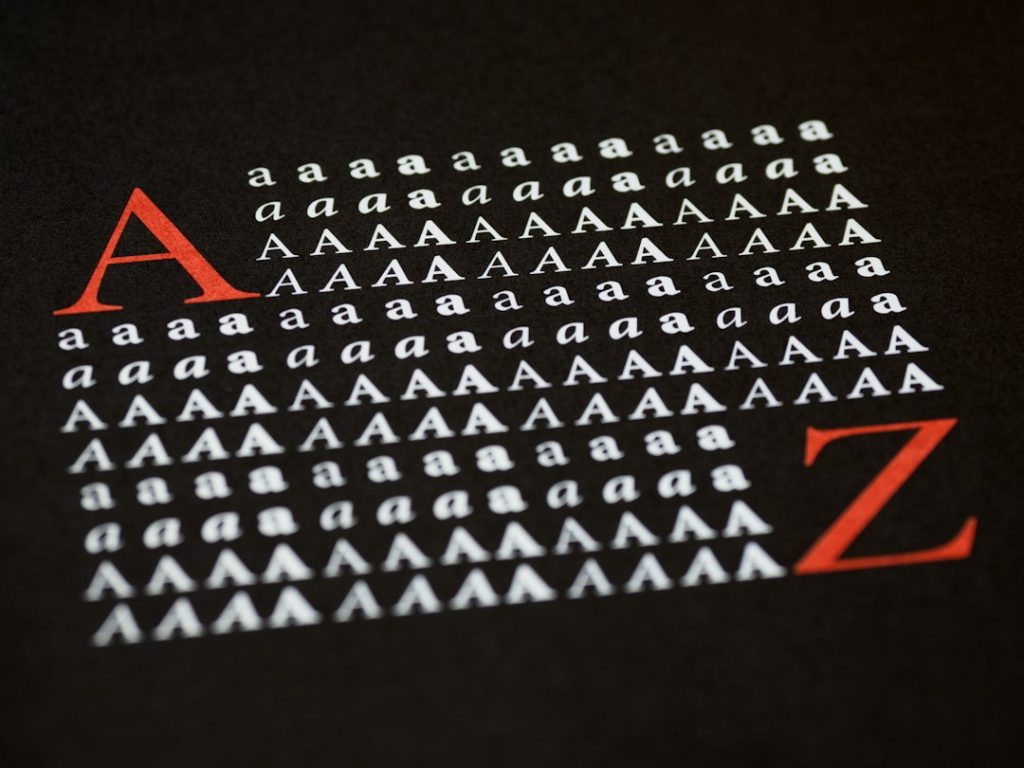
The best Calligraphr alternative depends on how much control you want over the final font. Calligraphr is useful for quick handwriting fonts, but its free plan limits font creation to 75 characters, which can feel tight if you need accents, symbols, or multiple letter forms [source: Calligraphr].
TLDR: If you want the fastest handwritten font, try YourFonts or iFontMaker. If you need serious type design control, use Glyphs Mini, FontForge, or BirdFont. For example, a wedding stationer making 120 custom place cards may only need a simple handwriting font, while a brand designer building a 200-character typeface will need stronger editing tools. Expect simple tools to save hours, but expect pro tools to give cleaner spacing, kerning, and export control.
1. Fontself Maker
Best for: designers who already use Adobe Illustrator or Photoshop.
Fontself Maker turns lettering into fonts inside Adobe apps. That makes it a strong choice for illustrators, logo designers, and lettering artists. You draw letters, drag them into Fontself, and export an OpenType font.
The biggest benefit is speed. You can build a working font from custom lettering without leaving your normal design file. It also supports color fonts, which is useful for playful branding, stickers, and social posts.
The catch is… you need Adobe software. If you do not already pay for Illustrator or Photoshop, the total cost rises fast.
- Pros: fast workflow, good for lettering, supports color fonts.
- Cons: depends on Adobe apps, less ideal for deep font engineering.
- Use it for: logos, social media fonts, product packaging, display type.
2. Glyphs Mini
Best for: clean, professional typefaces without the full cost of Glyphs.
Glyphs Mini is a lighter version of Glyphs, a respected Mac font editor. It is more serious than most handwriting font tools. You get better control over outlines, spacing, kerning, anchors, and exports.
This is a good step up if Calligraphr feels too basic. It suits designers who want to create a real typeface, not just scan handwriting and hope it works.
Honestly, it feels like overkill for a one-time birthday invitation font. But for a brand font, it is worth the extra learning.
- Pros: polished interface, solid spacing tools, good OpenType export.
- Cons: Mac only, learning curve, not built around templates.
- Use it for: brand fonts, display type, refined handwriting systems.
3. FontForge
Best for: advanced users who want a free font editor.
FontForge is a free, open-source tool for building and editing fonts. It supports major font formats and gives users deep control over glyphs, metrics, and technical details [source: FontForge].
This is not the fastest option. The interface can feel old, and simple tasks may take a few extra clicks. Still, it is powerful. If you want to inspect, repair, or expand a custom font, FontForge is hard to ignore.
- Pros: free, powerful, cross-platform, supports many formats.
- Cons: dated interface, not beginner-friendly.
- Use it for: font repair, full typeface projects, technical editing.
4. BirdFont
Best for: beginners who want more control than Calligraphr.
BirdFont is a font editor for creating vector-based typefaces. It sits between easy template tools and heavier programs like FontForge. You can draw glyphs, import SVG files, adjust spacing, and export fonts.
It is helpful for people moving from hand lettering into type design. You can sketch letters on paper, vectorize them, then bring them into BirdFont for cleanup.
- Pros: approachable, supports SVG import, good for learning.
- Cons: less polished than paid pro tools, takes practice.
- Use it for: personal fonts, handmade branding, student type projects.
5. iFontMaker
Best for: making handwritten fonts on an iPad.
iFontMaker is built for drawing letters directly on a tablet. That makes it feel natural if your handwriting or lettering looks better with a stylus than a mouse.
It is a strong choice for teachers, planners, journal creators, and casual designers. You can create a personal font from scratch without scanning paper templates. For many users, that removes the most annoying part of the process.
- Pros: tablet-friendly, quick drawing process, simple export.
- Cons: not as technical as desktop font editors.
- Use it for: handwriting fonts, classroom materials, planners, casual merch.
6. YourFonts
Best for: quick fonts from printed handwriting templates.
YourFonts is one of the closest Calligraphr alternatives. You print a template, write your letters, scan or upload it, and generate a font. It is simple and direct.
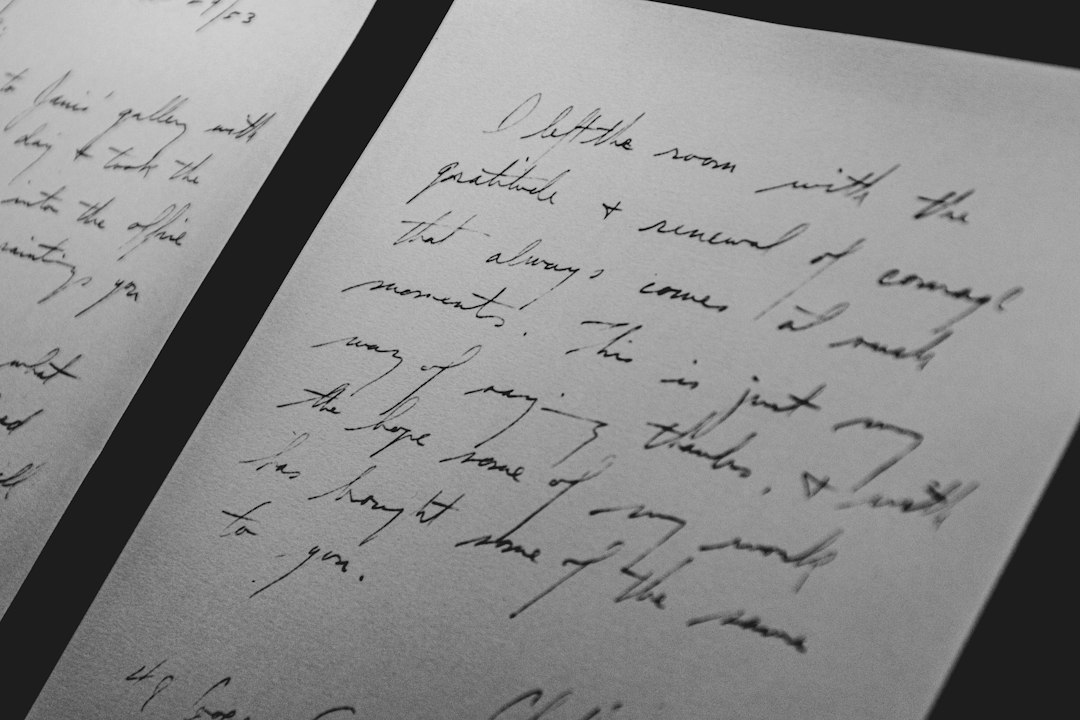
This works well when you need a personal touch fast. Think thank-you notes, recipe cards, wedding signs, or a family history project. It is not the best tool for precise type design, but that is not the point.
- Pros: easy template process, good for real handwriting, beginner-friendly.
- Cons: limited editing compared with font editors.
- Use it for: personal handwriting fonts, event stationery, gifts.
How to Choose the Right Alternative
<pPick based on the final use, not the tool name.
- For speed: choose YourFonts or iFontMaker.
- For Adobe lettering work: choose Fontself Maker.
- For professional control: choose Glyphs Mini.
- For a free advanced editor: choose FontForge.
- For learning type design: choose BirdFont.
If the font will appear in a logo, product label, or paid client project, test it properly. Type full sentences. Check numbers. Check punctuation. Print it at small sizes. A font can look charming in a preview and messy in real use.
Final recommendation: use YourFonts or iFontMaker for quick personal handwriting fonts. Use Fontself Maker for custom lettering. Use Glyphs Mini, BirdFont, or FontForge when the typeface needs to be clean, reusable, and ready for serious work.