



Starting a YouTube channel feels exciting. And scary. You want great videos. You want views. You want subscribers. But first, you need the right tools. The good news? You only need a few apps to get started the right way.
TL;DR: If you are new to YouTube, install YouTube Studio, CapCut (or another beginner-friendly editor), and Canva first. YouTube Studio helps you manage and grow your channel. CapCut makes editing simple and fast. Canva helps you design eye-catching thumbnails and channel art. These three apps cover the basics and help you look professional from day one.
Let’s break it down. Simple. Fun. No tech overwhelm.
1. YouTube Studio – Your Channel’s Control Room
If your YouTube channel were a house, YouTube Studio would be the control room. This app shows you what is working. And what is not.
Best part? It is free.
YouTube Studio is made by YouTube itself. So it connects directly to your channel. No complicated setup.

What You Can Do With YouTube Studio
- Check your views in real time.
- See how many subscribers you gain (or lose).
- Read and reply to comments.
- Check watch time.
- Upload thumbnails.
- Edit titles and descriptions.
As a beginner, this is gold.
Why? Because guessing does not grow your channel. Data does.
Why Beginners Need It
When you first start, every view feels exciting. Every new comment feels personal. You need to respond fast. You need to learn what your audience likes.
YouTube Studio tells you:
- Which videos get the most clicks.
- How long people are watching.
- Where your viewers come from.
- What time they are online.
This helps you improve quickly.
Pro Tip: Do not obsess over numbers every hour. Check once per day. Focus more on creating than refreshing analytics.
2. CapCut – Simple Video Editing Without Stress
You filmed your video. Great. Now what?
You need to edit it.
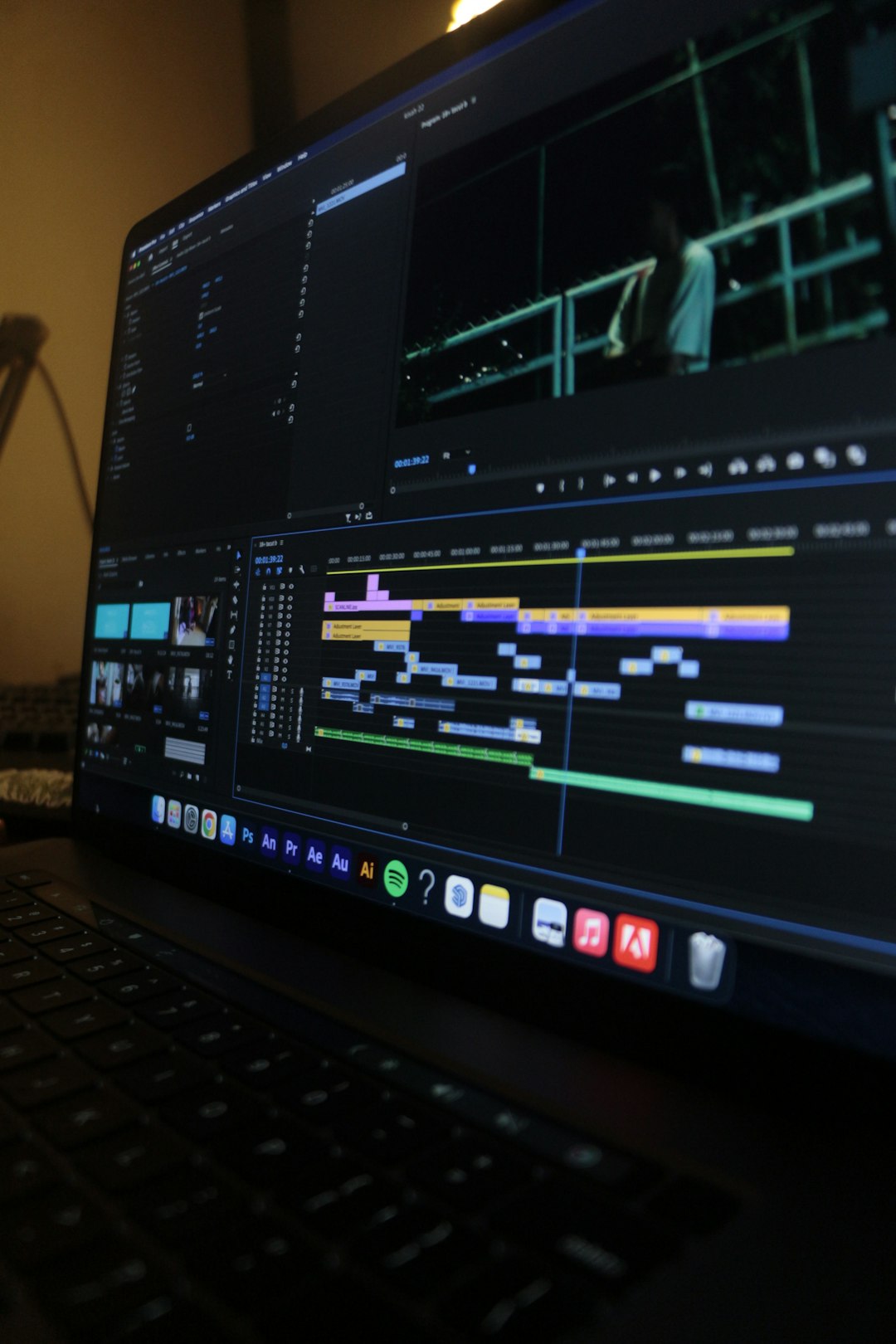
Editing scares many beginners. It looks complicated. Timelines. Cuts. Audio tracks. Effects. It sounds technical.
That is why you need a beginner-friendly editor like CapCut.
It works on mobile and desktop. It is simple. And most features are free.
Why CapCut Is Perfect for New Creators
- Drag-and-drop editing.
- Easy text and captions.
- Built-in transitions.
- Sound effects and music.
- Auto-captions feature.
The interface is clean. Not overwhelming.
You can cut mistakes in seconds. Add zoom effects. Add subtitles. Done.
What Makes It Powerful
Even though it is simple, CapCut is not basic. You can:
- Add keyframe animations.
- Adjust color and lighting.
- Remove background noise.
- Add motion blur.
You can start simple. Then slowly experiment.
You do not need Hollywood-level editing to grow on YouTube. Clean cuts and clear audio are enough.
Alternative Editing Apps
If CapCut is not your style, try:
- InShot (great for mobile)
- VN Editor (clean interface)
- iMovie (for Apple users)
- DaVinci Resolve (more advanced, still free)
But remember. Do not install five editors at once. Pick one. Master it.
3. Canva – Thumbnails That Get Clicks
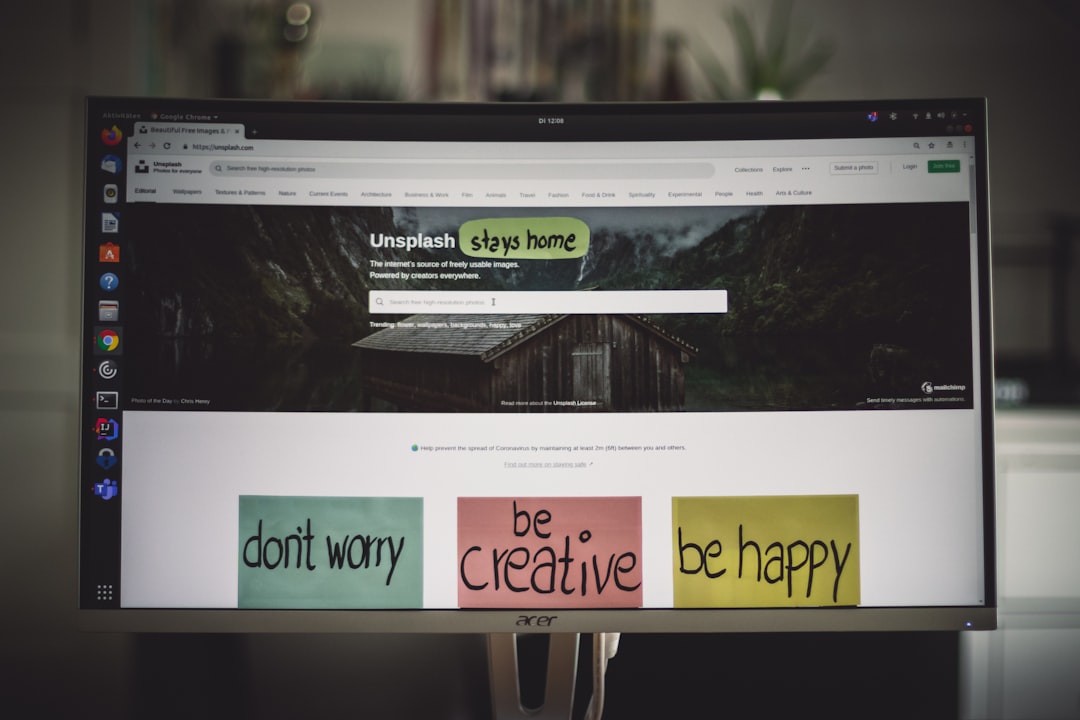
You can have the best video in the world. But if your thumbnail looks boring, people will scroll past it.
YouTube is visual. Fast. Competitive.
That is where Canva comes in.
What Canva Helps You Do
- Create YouTube thumbnails.
- Design channel banners.
- Make Instagram posts.
- Create logos.
- Design end screens.
It is drag-and-drop. Very beginner-friendly.
Why Thumbnails Matter So Much
Your thumbnail does one job.
Get the click.
YouTube shows your video next to dozens of others. If yours does not stand out, you lose.
With Canva, you can:
- Use bold fonts.
- Add high-contrast colors.
- Remove backgrounds from photos.
- Add shadows and outlines.
Simple Rule:
- Use 3–5 words max.
- Make text large.
- Use expressive faces.
- Keep it clean.
Do not overcrowd your thumbnail. Empty space is powerful.
Quick Comparison Chart
| App | Main Purpose | Best For | Cost | Difficulty Level |
|---|---|---|---|---|
| YouTube Studio | Channel management & analytics | Tracking growth & replying to comments | Free | Very Easy |
| CapCut | Video editing | Cutting, captions, effects | Free (Pro optional) | Easy |
| Canva | Graphic design | Thumbnails & channel branding | Free (Pro optional) | Very Easy |
How These Three Apps Work Together
Think of it like a system.
- CapCut helps you create the video.
- Canva helps you package it beautifully.
- YouTube Studio helps you improve and grow.
This covers the three main parts of YouTube success:
- Content creation.
- Presentation.
- Optimization.
You do not need expensive gear first.
You need clarity. And consistency.
Common Beginner Mistakes (And How These Apps Help)
Mistake #1: Overcomplicating Editing
Some beginners spend 10 hours editing a 5-minute video.
Use CapCut. Keep it clean. Focus on storytelling.
Mistake #2: Ignoring Thumbnails
You rush a thumbnail in two minutes.
Bad idea.
Spend time in Canva. Test bold designs. Compare with top creators.
Mistake #3: Posting and Disappearing
You upload and never check comments.
Use YouTube Studio. Reply. Engage. Build community.
Final Thoughts
You do not need 20 tools.
You do not need a fancy studio.
You do not need to spend thousands of dollars.
You need:
- A simple editor.
- A strong thumbnail maker.
- A way to track growth.
That’s it.
YouTube Studio. CapCut. Canva.
Install them. Learn them. Use them every week.
As you grow, you can upgrade. Better camera. Better mic. Advanced editing software.
But right now? Keep it simple.
The best app is the one you actually use.
Now stop researching tools.
Start creating.